Technology means “science of craft”, and it is what this category is all about. Here you will find articles covering technological advances, innovations, and solutions based on science, computers and systems, engineering, etc…
Artificial intelligence (AI) has entered the mainstream. We’re finding more and more products that integrate with the technology. WordPress plugins are a prime example.
These plugins add a variety of AI-powered features to websites. Some are there to spur creativity, while others are all about saving you time. The trend is helping to spawn new products and enhance existing ones.
AI is rapidly changing the WordPress ecosystem. So, we wanted to explore the different ways plugins are using it. Will they make our lives easier? Will they help users? Let’s find out!
Here’s a collection of WordPress plugins that, in one way or another, add artificial intelligence to your website. Some are longtime favorites, while others are upstarts breaking into the ecosystem. We hope you find them useful!
Rank Math is one of many SEO plugins that integrate AI into their product. The difference here is in the depth of the AI tools offered. There are options for generating entire blog posts, outlines, SEO titles and descriptions, fixing grammar mistakes, and more.
You’ll need a free account to access the various AI features. The benefit is making SEO easier for novices and experts alike. Generating various types of content provides a solid foundation. You’ll have more time to focus on other areas of your site.
Automattic’s do-it-all suite offers Jetpack AI Assistant, allowing you to generate various types of content. For example, the tool will generate a featured image for your blog post based on its content or a custom prompt.
In addition, it will help improve grammar, rewrite your content, or generate an entire page. There’s a free tier with 20 monthly requests, while paid plans offer higher limits.
Here’s an option that specifically targets WooCommerce stores. Kestrel AI is a commercial plugin that generates or optimizes product descriptions, replies to customer reviews, and adds order notes.
It places an icon on relevant areas of the screen. Click it, and the assistant will help you perform the noted tasks. The plugin works with OpenAI and includes placeholders that pull the correct product data.
Here’s proof that AI integrations don’t need to overwhelm users. OptinMonster is a plugin that creates popups and opt-in forms to generate leads. The plugin features a “smart optimization” tool that uses AI to improve the content of your popup. It doesn’t generate text for you. Rather, it seeks to improve what’s already there. It’s a subtle-but-helpful use case.
AI-powered chatbots are on the rise. They aim to answer user questions and help them find relevant content. WPBot uses services like ChatGPT and DialogFlow to provide a “live” chat with a virtual assistant.
The plugin’s pro version can also train AI on your website’s content, leading to better answers and more efficient resource usage. Other features include adding custom text responses, an option for users to contact you, and multi-language support.
AI Engine is a suite of tools for adding artificial intelligence to your WordPress website. Install the plugin, insert your OpenAI API key, and add features.
What sort of features? You can add a chatbot, generate images and text, translate content, and run various tasks inside WordPress. The plugin will also help you keep track of API usage, an important feature, as the costs can add up.
You can use Uncanny Automator to link all sorts of website activities together. For example, these “triggers” can send a customer a follow-up email a few days after they order a product. There are integrations with several popular plugins.
It also ties in with OpenAI, allowing for automated blog post summaries, social media posts, featured images, translations, and more. It’s a natural extension of what the plugin already does.
Categorizing and tagging content isn’t always easy. The goal is to create a logical structure for your content. That’s better for SEO and users. TaxoPress is a taxonomy management plugin that helps you create and manage that structure.
The pro version offers an AI integration (OpenAI, IBM Watson) that automatically creates and determines the best taxonomies for your content. It removes an often frustrating step from your content creation workflow.
AI Power is notable for its compatibility with several large language models (LLM). You can connect the plugin to OpenAI, DeepSeek, Claude, Gemini, Azure, and more. Choose your model and take advantage of an all-in-one collection of website tools.
You can optimize your site’s SEO, bulk-generate content, create a chatbot, use text-to-speech capabilities, or generate images. You can also train a model on your website’s content for a more personalized experience. There are free and pro versions available.
Sensei LMS is a plugin for building online courses. The pro version offers a few handy tools powered by AI. First, an auto Quiz Generator will create questions based on your course’s content. The second is a Tutor AI block available through the Sensei Interactive Blocks add-on.
It adds a chatbot that can answer user questions regarding your course content. The block isn’t limited to Sensei – it’s also compatible with other LMS plugins. It’s an example of how AI can improve the online learning experience.
Bring the Power of AI to Your Website
We’re still in the early days of AI. Thus, the plugins in this roundup are only scratching the surface of what may come down the road. Still, they offer both convenience and utility.
The key is finding options that fit your needs. You may notice that there is some overlap in what these plugins do. For instance, several plugins generate text and images. The odds are you don’t need more than one of these for your website.
With that, consider how you can use AI to improve your website. Perhaps you’re all about streamlining your workflow or improving the front end for users. There are good options here either way.
What will the future bring? It’s safe to say AI will have tighter integrations with WordPress and will be able to accomplish more useful tasks. We can’t wait to see what’s next!
As a WordPress developer, choosing the right host package is one of the most important decisions you can make. Performance, security, scalability, and development tools all play a role in whether a hosting provider is worth considering.
A great host should offer an optimized server stack with the latest PHP versions, solid database support, and built-in caching. Reliable uptime, global CDN integration, and multiple server locations help sites run fast for visitors everywhere.
Security is another major factor. Automated backups, malware scanning, and free SSL certificates help protect data. A staging environment makes testing safer, while features like WP-CLI, Git integration, SSH, and SFTP access give you more control over your work. Flexible resource allocation and support for both vertical and horizontal scaling mean a site can grow without hassle or having to switch hosts.
This collection ranks hosting providers based on those technical features mentioned above. Every developer has different needs, so requirements should come first—and cost second. Each hosting provider here meets the key standards a WordPress developer would expect, making them strong choices for any project.
Pressable is a managed WordPress host designed for developers who need performance, security, and scalability. It runs on Automattic’s WP Cloud.
They have built-in page and query caching and are supported by a global CDN. Automated daily backups, malware scanning, and free SSL certificates are included. A one-click staging environment allows for safe testing and quicker deployment.
You get WP-CLI access, Git integration, SSH, SFTP, and auto-scaling for traffic spikes. Core updates are managed automatically (optional), and plugins or themes can be updated on a schedule.
Support is available 24/7 with a below four-minute response time. The Pressable hosting environment is optimized for WordPress and guarantees 100% uptime.
Our Rating: 9.8/10
Get 50% Off All Pressable Plans Using Promo Code
Kinsta is a managed WordPress host built on Google Cloud, using C3D and C2 virtual machines. It includes server-level caching and a free CDN with over 260 locations. The platform guarantees 99.9% uptime and offers 37 data center options.
Security features include free SSL certificates, malware removal, and daily backups. A one-click staging environment allows for safe testing before deployment. Developers get WP-CLI, Git integration, SSH, SFTP, and flexible resource scaling.
Kinsta supports automatic core updates, optional plugin and theme auto-updates, and cron job scheduling. You can scale resources such as CPU, RAM, and storage as needed. Kinsta offers an optimized stack for WordPress, making it a great choice for WordPress developers that want performance, security, and flexibility.
Our Rating: 9.7/10
WordPress.com is a managed WordPress hosting platform with a global infrastructure designed for performance and reliability. It runs on high-frequency CPUs and uses a built-in caching system with Global Edge Cache and a CDN with over 28 data centers worldwide.
Security features include Jetpack Scan for malware detection and removal, real-time backups with one-click restore through VaultPress, and free SSL certificates. Their one-click staging environment allows for safe testing before deployment.
You have access to WP-CLI, SSH, SFTP, and GitHub integration. The platform supports scaling to handle traffic spikes and resource demands. Automatic core updates are included, with optional scheduled plugin and theme updates.
Our Rating: 9.7/10
Get 50% Off All WordPress.com Plans Using Promo Code
Bluehost is a managed WordPress hosting provider with built-in caching, automatic scaling, and a global CDN. The platform runs on the PHP 5 and higher with MySQL 8 databases.
Security features include free SSL certificates, malware scanning, and daily backups with easy restoration. A staging environment is available for safe testing before deployment.
You have access to WP-CLI, SSH, and SFTP. They support cron job scheduling and automatic core updates.
The Bluehost hosting environment is built to handle traffic surges with vertical and horizontal scaling, making it a practical option for growing websites.
Our Rating: 9.6/10
Hostinger is a managed WordPress hosting provider with LiteSpeed web servers and support for PHP 7.4 and higher. It includes built-in caching and a comprehensive global CDN. They guarantee 99.9% uptime.
Security features include a WordPress vulnerability scanner, daily and on-demand backups, and free SSL certificates. A one-click staging tool is available for testing changes before deployment.
You have access to WP-CLI, SSH, and SFTP. The platform allows CPU, RAM, and storage scaling to handle traffic increases. Custom cron job scheduling is supported.
Automatic core updates are included, with optional smart updates for plugins and themes. Hostinger’s hosting environment is designed for speed, security, and flexibility.
Our Rating: 9.5/10
InMotion Hosting is a managed WordPress provider with an UltraStack infrastructure that includes Apache and NGINX Reverse Proxy. It supports PHP 7 and 8, built-in caching, and global CDN. They guarantee a 99.9% uptime.
Security features include malware protection, automated backups, and free SSL certificates. A one-click staging tool is available for testing.
You have access to WP-CLI, Git, SSH, and SFTP, and they support cron job scheduling and automatic core updates. Plugin and theme auto-updates are also available.
Our Rating: 9.4/10
Cloudways is a managed WordPress host with a flexible cloud-based infrastructure. It supports PHP 7.4 to 8.2 and runs on Nginx and Apache with MariaDB and MySQL databases. Built-in caching includes Memcached, Varnish, and Redis.
Users can choose from over 50 data centers worldwide through various cloud providers. A Cloudflare CDN add-on is available to improve site speed. Security measures include dedicated firewalls, security patching, and IP whitelisting. Automated backups with one-click restore are included, along with free SSL certificates.
You have access to WP-CLI, Git integration, SSH, and SFTP. CPU, RAM, and storage scaling are supported with vertical and horizontal scaling options. Core updates can be managed, and automatic plugin and theme updates are available through SafeUpdates.
Our Rating: 9.4/10
SiteGround offers managed WordPress hosting with a setup that supports PHP 7.4 through 8.2, running on Nginx and Apache with MySQL databases. SuperCacher is built in for page and object caching, and a CDN is included to speed up content delivery.
Security includes daily backups, automatic security patches, and proactive updates. Free SSL certificates from Let’s Encrypt come standard. A one-click staging tool allows for rapid testing before pushing live.
You have access to WP-CLI, Git, SSH, and SFTP. Sites can scale CPU, RAM, and storage to handle growth. Core updates are managed automatically, and plugins and themes can be set to update on a schedule.
Our Rating: 9.3/10
DreamPress is a managed WordPress hosting service, built on on DreamHost’s cloud computing service OpenStack. It includes server-side caching and has a global CDN.
Security features include daily automated backups with one-click restore, malware scanning, and free SSL certificates from Let’s Encrypt. They also include a one-click staging environment.
You have access to WP-CLI, Git integration, SSH, and SFTP. The platform allows flexible resource allocation with both vertical and horizontal scaling to support growing sites. Core updates are managed automatically, and optional plugin and theme auto-updates are available. Cron job scheduling is also supported.
Our Rating: 9.3/10
A2 Hosting provides managed WordPress hosting with a stack that includes LiteSpeed servers and MariaDB databases. The A2 Optimized plugin offers built-in page and object caching. A 99.9% uptime guarantee is included, and while a global CDN is not built-in, Cloudflare integration is supported.
Security measures include HackScan, firewalls, and malware removal. Automatic daily backups with easy restore options are available. Free SSL certificates are provided for all sites.
A one-click staging environment allows testing before deployment. Developers have access to WP-CLI, Git, SSH, and SFTP. CPU, RAM, and storage can be scaled as needed. Configurable core updates are available, along with optional plugin and theme auto-updates.
Our Rating: 9.2/10
The Questions We Ask Each Host
For each web host in this collection, we asked them 18 developer-focused questions to confirm they provide everything a WordPress developer needs. Here are the questions we ask.
✔ Do they have an optimized server stack? What does it include?
✔ Do they have built-in caching?
✔ Do they provide a high uptime guarantee?
✔ Do they integrate with a global CDN to reduce latency?
✔ Do they offer multiple server location options?
✔ Do they provide malware scanning and removal?
✔ Do they include automatic and regular backups?
✔ Do they offer free SSL certificates, such as Let’s Encrypt?
✔ Do they provide a one-click staging environment?
✔ Do they support WP-CLI?
✔ Do they offer Git integration or version control support?
✔ Do they allow flexible resource allocation for scaling CPU, RAM, and storage?
✔ Do they support both vertical and horizontal scaling for growing sites?
✔ Do they offer 24/7 support via phone, chat, or email?
✔ Do they provide SSH and SFTP access for secure file management?
✔ Do they support cron job management for custom scheduling?
✔ Do they allow configurable core updates?
✔ Do they offer optional automatic updates for plugins and themes?
This page may contain affiliate links. At no extra cost to you, we may earn a commission from any purchase via the links on our site. You can read our Disclosure Policy at any time.
Founded in 2021, XPANCEO has emerged as a pioneer in reimagining how we interact with technology. Unlike companies developing the next generation of smartphones or laptops, XPANCEO is taking a fundamentally different approach: computing that sits directly on your eye. At Mobile World Congress (MWC) 2025,…
Custom plugins are part of what makes WordPress so flexible. If you need functionality that doesn’t exist in the ecosystem, you can build it yourself. That allows you to create websites that suit your needs.
Still, it’s important to get the details right. Any custom code you write should be secure and performant. It should also adhere to the guidelines set forth by WordPress. Doing so ensures your plugin works as expected and won’t cause harm.
So, how do you know if your code passes the litmus test? There’s a helpful tool that can alert you to any issues.
Plugin Check (PCP) is a plugin that performs an automated review of your code. It checks to see if your plugin uses best practices for security, internationalization, and performance. From there, it generates a report you can use to make improvements.
Plugin Check is intended to help developers meet the standards of the WordPress plugin directory. However, it’s also useful for anyone building a custom plugin for their project.
Today, we’ll show you how to use Plugin Check to review your plugin. It’s a quick and easy way to ensure quality.
Let’s Check a Homemade Plugin
I built a WordPress plugin called Handy Links Custom Dashboard Widget that (you guessed it) adds a custom widget to a site’s dashboard. I use it on client projects to provide quick access to common tasks. For example, links for adding a new post or viewing form entries. It saves them from searching through the navigation.
The code is far from a work of art. I built it with the help of AI and a few snippets I’ve collected. It works, and that makes me happy. But I’d like to improve the code.
Let’s see if Plugin Check can help. I have installed and activated it on a test site. Now, it’s time to start testing.
Step 1: Check the Custom Plugin
The first step is to run my custom plugin through Plugin Check’s interface. That can be found by navigating to Tools > Plugin Check in the WordPress admin area.
I’ll select my plugin (Handy Links Custom Dashboard Widget) from the drop-down menu. Then, I can choose from one or more types of code audits:
General
Plugin Repo
Security
Performance
Accessibility
I’ll go with the Plugin Repo option, as it runs an all-encompassing check. It will tell me what items to fix to match the WordPress plugin directory guidelines. That’s a great place to start.
Step 2: Analyze the Results
Plugin Check’s analysis pointed out several errors in my plugin. A few were relatively minor and located in the plugin’s readme file:
Plugin name header in your readme is missing or invalid. Please update your readme with a valid plugin name header. Eg: "=== Example Name ==="
Mismatched Stable Tag: 6.0 != 1.0 Your Stable Tag is meant to be the stable version of your plugin, and it needs to be exactly the same as the version in your main plugin file’s header. Any mismatch can prevent users from downloading the correct plugin files from WordPress.org.
The “Tested up to” field was ignored. This field should only contain a valid WordPress version such as “6.7” or “6.8”.
There were also a few security-related items that caught its attention:
All output should be run through an escaping function (see the Security sections in the WordPress Developer Handbooks), found '$widget_text'.
All output should be run through an escaping function (like esc_html_e() or esc_attr_e()), found '_e'.
The suggestion here is to escape the plugin’s output to ensure no malicious code is executed. Plugin Check links to the WordPress documentation to provide more details.
Step 3: Make the Suggested Changes
Making changes requires a bit of research. Thankfully, Plugin Check reports the locations of each issue within the plugin’s code, including the line and column numbers. It also provides links to the relevant documentation.
We’ll use the suggested security fixes as an example. Plugin Check reported issues in the following spots. I’ve included the code snippets below for reference.
None of these snippets are using an escaping function. That means a hacker could execute malicious code. I’ve consulted the documentation and implemented the following changes:
After Fixing
Line 47:
<?php echo wp_kses_post($widget_text); ?> // Accept any code that is allowed in a WordPress post.
Line 80:
<?php echo esc_html(_e( 'Widget Title', 'handylinks-custom-dashboard-widget' )); ?> // Strip all HTML input.
Line 84:
<?php echo esc_html(_e( 'Widget Text', 'handylinks-custom-dashboard-widget' )); ?> // Strip all HTML input.
Step 4: Re-Test the Plugin
I’ve made the suggested changes to my plugin. Now, it’s time to retest and see if the plugin fares better.
It’s a success! The plugin now passes muster for security and readme file formatting. That’s a relief.
Plugin Check Ensures Quality Code
Plugin Check’s most impressive feat is its efficiency. The tool shows you where problems exist and provides background details on fixing them. You won’t waste time searching for potential issues.
The process of testing and improving my plugin took about 30 minutes. Your times may vary based on the size of your plugin and the number of issues found. Regardless, Plugin Check will help you find things you may have missed.
It’s worth making this tool a part of your WordPress development workflow. Ensuring quality code keeps your site safe and performant. That peace of mind benefits everyone!
WordPress block themes aim to bring a no-code experience to the content management system (CMS). You can design and build your website entirely within a web browser using the Site Editor. All the basics are included with WordPress.
This handy tool also works great with WooCommerce. The e-commerce plugin includes several blocks you can use with these new-fangled themes. It’s easier than ever to build an attractive and functional online store.
As a result, we’re seeing more block themes focusing on WooCommerce. They aim to give you a head start on your site while taking advantage of powerful features. It’s a new spin on the traditional e-commerce theme.
Looking for the perfect theme to get your shop online? We’ve got you covered with this collection of top block themes for WooCommerce.
Here’s a minimal store theme for WooCommerce that puts your products in the spotlight. It features a black-and-white color scheme and bold typography. The default layout includes product filtering to enhance the customer experience. Since it’s a block theme, you can edit every aspect to match your needs. It’s also 100% free.
This WooCommerce block theme is designed to sell children’s products in style. It’s a colorful and friendly look that will please kids (and their parents). The theme comes packed with over a dozen block patterns and 19 templates. The pro version offers even more flexibility, with extra patterns and templates to customize your shop.
Add a touch of color to your online store with Art and Craft. The theme comes with multiple style variations with light and dark color palettes. Several custom block patterns are there to help you show off your products. Overall, the look is well thought out and would fit just about any product type.
Get ready for a high-fashion look with Glamorama, a commercial block theme for WooCommerce. Inside, you’ll find over 60 custom block patterns, an array of style variations, and bold styles. A one-click demo content feature will help your project get off to a quick start. The theme is also optimized for performance and SEO.
Bright and clean, General Food Store adds flavor to your WooCommerce store. The theme includes three style variations, which can be tweaked to your heart’s content. The home page features a Bento layout style and product listings are attractively simple. A category menu in the header makes it easy to find what you’re looking for.
This free WordPress theme is aimed at wellness service providers like yoga instructors and personal trainers. There are sections for staff profiles, services, testimonials, and more. Patterns for the site header and footer are easy to customize. A handsome grid layout for your blog is also included.
Eternal is a multipurpose WooCommerce block theme. It’s among the most flexible in our collection, with seven style variations and plenty of template options. There are multiple page layouts to give you just the right look. Overall, it’s a simple choice that puts the focus on your products.
If you’re looking for a theme that puts products first, Gravia should be on your list. This commercial theme includes multiple home page layouts – including a few that eschew the all-too-common slider or hero image. The result is that customers will see your featured products immediately.
This theme includes all the essentials for building a WooCommerce store. The layout is attractive and easy to navigate. There are block patterns for the header, footer, hero area, products, and sidebar. A pro version is available and offers a few more bells and whistles.
Here’s a stylish choice for selling clothing, jewelry, or accessories with WooCommerce. The theme has six style variations – including a beautiful dark mode. It also has a unique product listing layout that is decidedly different than the WooCommerce default. It’s perfect for those looking to dress up their website.
There is plenty to like about VW Furniture Shop’s look and layout. It’s clean, easy to read, and adds scroll animations to the mix. You’ll also find a half-dozen style variations and plenty of block patterns you can customize. The theme is designed for furniture and interior accessories but is flexible enough to work with other product types.
As the name indicates, Woo Booster is designed specifically for WooCommerce. It’s also meant to be flexible and work with multiple product types. There are variations for light and dark modes. In addition, there are several child themes available that offer a narrower focus. It’s a good starting point for building your online store.
A Different Way to Do WooCommerce
Block themes are perfect for those who want to build a WooCommerce store without the fuss of code. Plus, you don’t need in-depth knowledge to tweak colors and typography – the Site Editor allows you to do it with a few clicks.
It’s even a boon for seasoned web developers. There’s no more firing up your code editor to make a minor template change. These themes will streamline your workflow while still offering plenty of features.
The included custom block patterns are also an advantage. They’ve done some of the hard work for you. However, you can also create patterns yourself or grab them from the Pattern Directory.
All told, the themes above offer flexibility and convenience. What’s not to like?
When running a business online, it’s important to make sure you follow the laws of your area, country, and internationally. The laws can differ depending on where you are and what kind of website you have. Thankfully, WordPress plugins can assist you in meeting these legal requirements.
Remember, these suggestions are not a replacement for real legal advice. If you have specific questions, it’s best to ask a professional who knows the law.
To help set you on the right legal track, we have a collection of WordPress plugins that can help with many of the different legal aspects of running a website. We’ve organized them by category to make it easier for you to find what you need. These plugins can be a big help in making sure your website is on the right side of the law.
Cookie Notice by dFactory provides an easy way to let your site’s visitors know about your use of cookies. You can customize a notice that will appear either on the top or bottom of the page. Users can accept, decline, or read more about your policies via clickable buttons.
Cookie Law Info will create a customizable banner to inform visitors of your cookie policies. The banner can be automatically removed after a few seconds, or you can require the user to accept your terms manually.
Privacy Policy & Terms of Service WordPress Plugins
Auto Terms of Service and Privacy Policy brings these documents to your site. Simply add your organization’s info in the plugin settings and display the documents via a WordPress Shortcode. This plugin is meant for sites based in the United States.
WPLegalPages will generate a variety of must-have compliance documents for your website. The free version of the plugin includes a privacy policy, terms & and conditions, DCMA policy, and more.
Setup is simple – enter your business name and select which documents you want to generate. A cookie consent bar is also included. The pro version ups the ante with guided wizards, age verification, and popups.
Those running WooCommerce can take the pain out of VAT with WooCommerce EU VAT Compliance. It will record a customer’s location, show VAT calculations in the backend, and automatically add VAT to product pricing. You can even block out EU customers if you’d rather not collect VAT at all.
EDD Quaderno helps to make Easy Digital Downloads shops compliant with VAT and the intricacies of other locales. It will also create improved versions of the standard EDD receipts. To use the plugin, you’ll need a Quaderno account.
Age Gate is a highly configurable plugin for restricting age-based content. Select the minimum age along with the content you want to protect, and underage users will be locked out.
Choose from a variety of user input methods (dropdown, text field, or yes/no buttons) and customize the look of the UI to match your website. The plugin is also SEO-friendly and won’t try to restrict common search bots.
Make age verification simple with Easy Age Verify. The plugin offers turnkey settings based on different types of website content. It’s also built with accessibility and SEO in mind. The pro version is fully customizable, with the ability to match your site’s look.
Adding a signature field to your Contact Form 7 forms is just a click away. Once you’ve installed and activated CF7Sign, a “Sign” field will be added to your forms’ options. There’s not much room for customization here, but it’s a dead-simple solution.
Keeping it Legal
Granted, it can be a bit of a hassle to keep track of compliance issues. But that doesn’t make it any less vital to do so. WordPress plugins are there to make the task a bit easier – even automating the process in some cases.
So, there’s no excuse for slacking! Take some time to learn your responsibilities as a website owner and use the handy plugins above to help you manage. Obviously, using these plugins alone won’t make you compliant – but they will help set you on the right path.
Legal Compliance WordPress Plugin FAQs
What Are Legal Compliance WordPress Plugins?
They are plugins designed to help your WordPress site adhere to legal regulations. They cover aspects like privacy policies, cookie consent, and terms of service requirements.
Who Needs Legal Compliance Plugins for Their WordPress Site?
Anyone who wants to ensure their site complies with legal standards, such as GDPR, CCPA, or other regional laws. This is particularly important for sites that handle user data or operate internationally.
Why Is It Important to Use Legal Compliance Plugins on WordPress?
They help protect you from legal issues by ensuring your website meets the necessary legal standards for data protection and privacy.
Can These Plugins Guarantee My Site Is Fully Legally Compliant?
While they significantly help in compliance, you should consult with a legal professional to make sure your site meets all specific legal requirements.
Are Legal Compliance Plugins Easy to Use and Set Up?
Most of these plugins are user-friendly, offering guided setup processes and pre-designed templates for legal documents.
Do I Need a Legal Compliance Plugin If My Site Doesn’t Sell Anything?
Yes, if your site collects any form of user data, including through contact forms or analytics tools, compliance with privacy laws is very important.
Creating an engaging presentation that captures the attention of potential business partners or clients is essential to ensure that your pitch resonates and achieves its intended objectives.
However, creating a presentation that meets these requirements can be time-consuming, especially if you are new to PowerPoint. PowerPoint templates significantly simplify the process, allowing you to focus on creating the content rather than worrying about the presentation’s layout and design.
The internet is teeming with free PowerPoint templates, so finding the one that fits your needs can take time and effort. Not all templates are created equal, so choosing the one with the perfect layout and design can be challenging.
In this collection, we have the best free PowerPoint templates that will help you quickly create a stunning presentation. These free templates will save you valuable time and provide easy customization options for layouts, fonts, and color schemes.
Whether you’re a startup founder looking to secure funding or a designer pitching a proposal to clients, these free highly creative PowerPoint templates will save you time and effort while ensuring your presentation looks fantastic.
Minimal PowerPoint Templates
These free minimalistic PowerPoint templates use simple, clean lines and muted color palettes to create a sophisticated and refined presentation style.
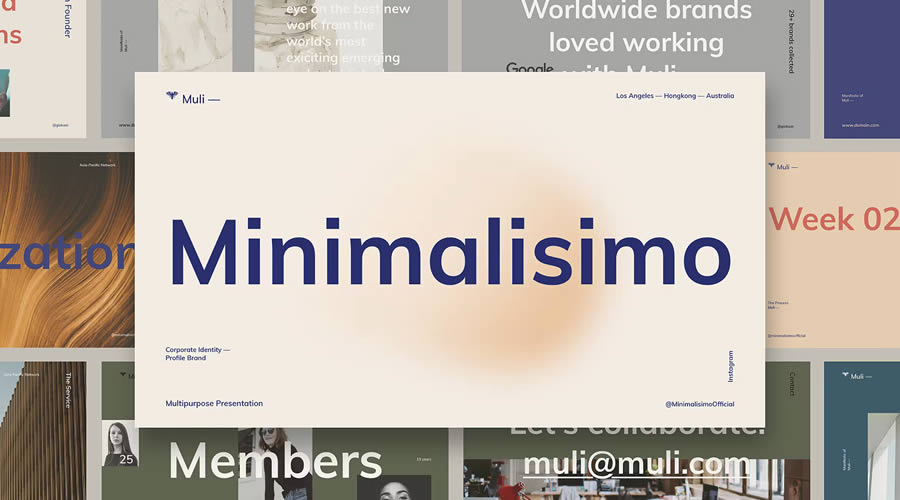
Muli combines minimalist design with creativity to give you a PowerPoint template that’s perfect for multi-purpose presentations. It also features smooth slide transitions and animations.
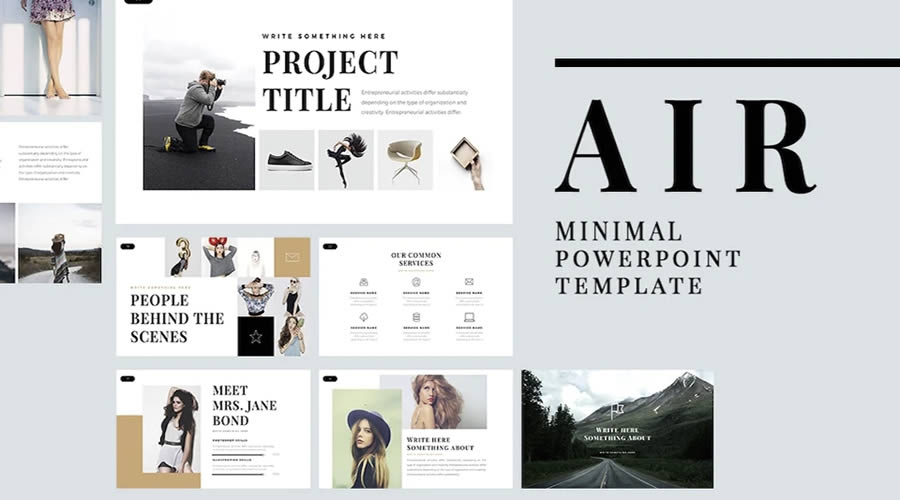
Air is a free PowerPoint template with a clean and minimal design. It has over 60 unique slides and has been designed in 16:9 format. This template is very easy to use and edit with Master Slides.
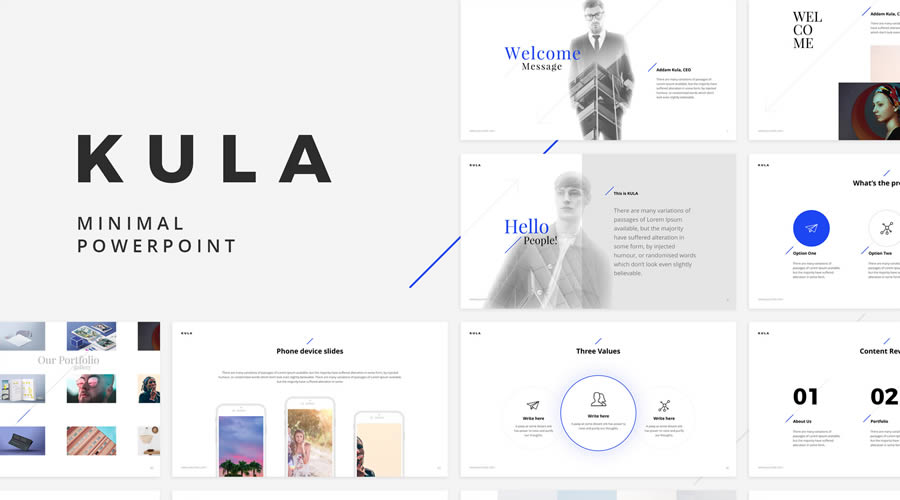
Kula comes with 90 unique slides and over 40 color schemes, which is a great starting point when designing your next presentation. You can also easily customize it to fit your needs.
The BeMind PowerPoint template features a clean, minimal design that is perfect for most business presentations. It includes over 100 slides, vector shapes, and Master Slides for quick customization.
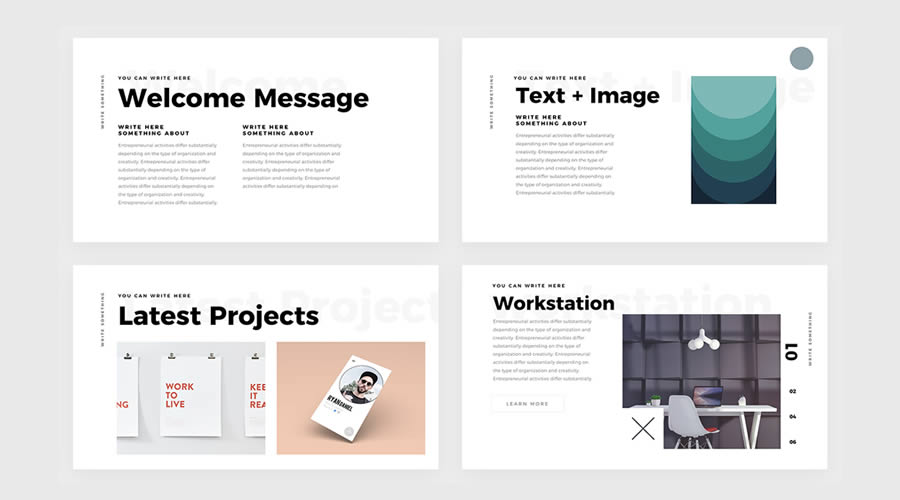
This PowerPoint template features big and bold typography, an ultra-minimal design style, and multiple presentation slides. It is perfect for creatives who need to pitch ideas to clients. This template can be downloaded for free.
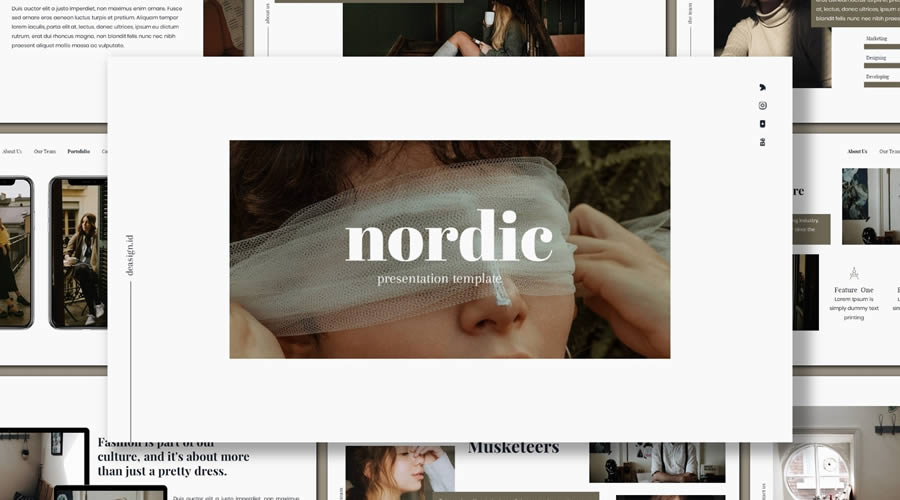
Inspired by Scandinavian design, the Nordic PowerPoint template has a minimalistic design with big and beautiful typography. It can be used for any type of business or creative presentation.
Clean PowerPoint Templates
These PowerPoint templates all look sharp and professional. They use clean layouts and neutral colors to communicate information clearly, making them ideal for business and academic presentations.
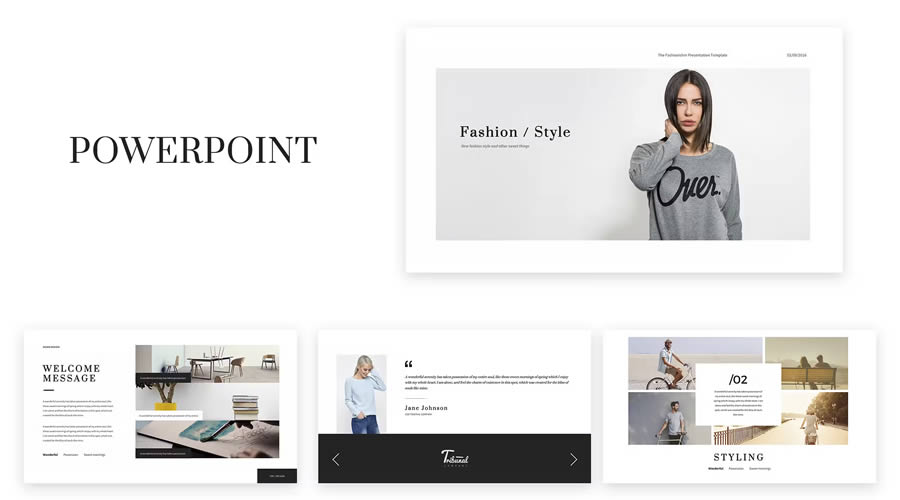
If you need to create a fashion presentation, look no further than this PowerPoint template. It comes with more than 50 stunning slide templates, and both PPT and PPTX files are included.
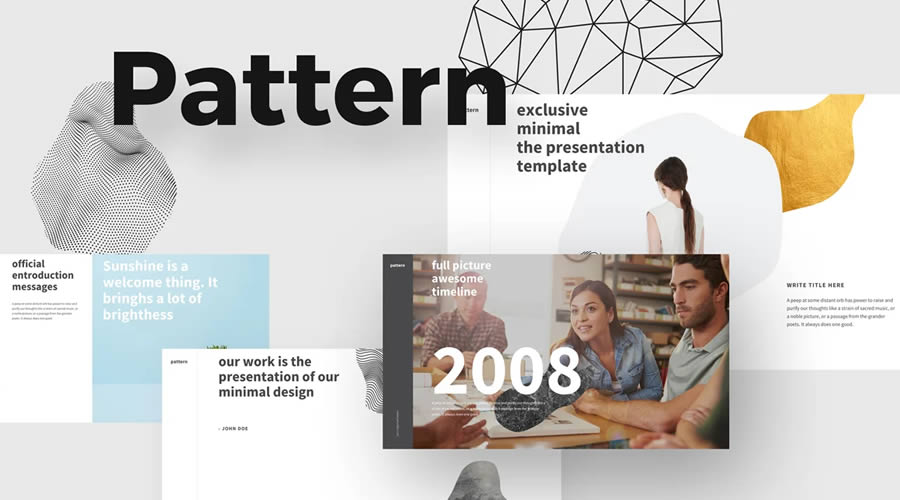
The Pattern PowerPoint template is an excellent choice if you’re looking for a clean and professional way to quickly create a presentation. It includes all the slides and components needed.
Kaspa is a highly creative PowerPoint Templatewith a grid-based layout and elegant typography. It includes over 50 slides, editable charts and graphs, and over 100 icons and glyphs. It is an excellent choice for fashion and beauty presentations.
The Look PowerPoint template is perfect for any fashion and beauty presentations, or anything that simply needs a touch of elegance. The template is in PPTX format and comes with more than 50 slides.
The Glide PowerPoint template includes 80 unique slides and everything you need to create a professional presentation. From cover slides to graphs and charts, this template will allow you to present your ideas beautifully.
Skyfy is a stylish PowerPoint template for any presentation. It has a modern, clean design and 100 unique slides. It is animated with some beautiful and smooth transitions.
Power has a clean and modern design and is an excellent choice if you need to create a presentation to showcase your business to potential investors or partners. This template includes over 120 unique slide designs, mutiple data charts, team member placeholders, vector icons, and much more.
Bold PowerPoint Templates
These templates use dark backgrounds with bold text and accents. They are perfect for creating dramatic statements and highlighting important information, making them ideal for presentations that need to make an impact.
X Note is a powerful PowerPoint template for any business presentation. It comes with over 40 slides and four pre-designed themes that can be quickly customized with Master Slides.
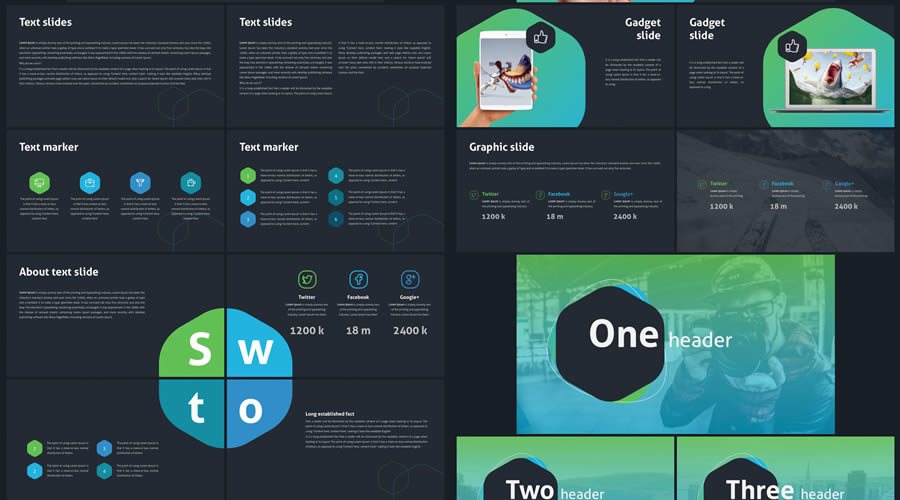
Revolution includes over 100 clean and professional slides. It features a modern green and blue color scheme and includes over 500 resizable icons. You’ll find text slides, image slides, and a combination of the two, as well as a variety of charts, tables, graphs, infographic elements, and more.
Colorful PowerPoint Templates
These creative PowerPoint templates use color and unique graphical elements to make your presentations lively and engaging. They’re ideal for industries that value creativity and innovation.
Ravi is a free PowerPoint presentation template with a clean, highly creative design. It includes a variety of slides for informative and engaging presentations. The Keynote version is also avaiable for free download.
Gravidient is a creative PowerPoint template with a dark, modern design. It includes over 50 slides and multiple components for creating any type of presentation. Everything can be edited using Master Slides.
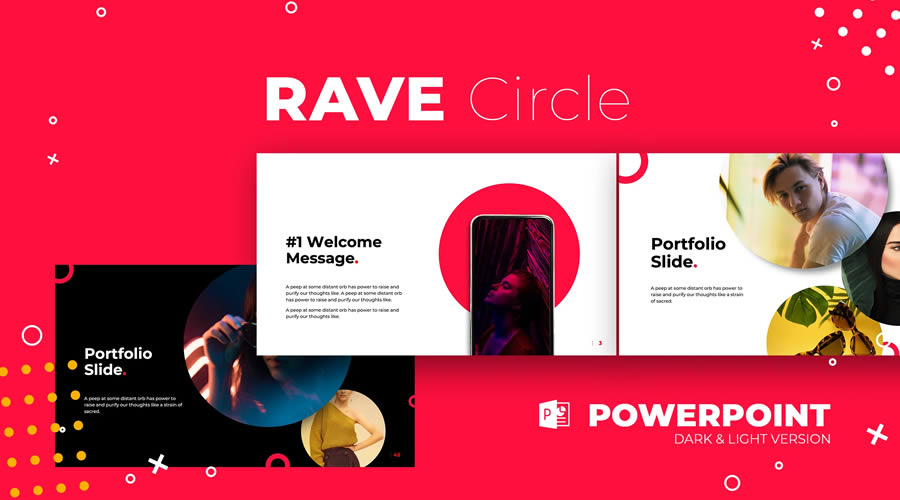
Rave is a PowerPoint template with a stylish and bold design. It comes in both dark and light versions. You can use it for any type of presentation and it is very easy to customize to fit your personal or business branding.
You can make your presentation stand out with this free attention-grabbing PowerPoint template that beautifully makes use of the duotone effect. This template is easy to edit, and you can quickly customize the effects and content to match your brand.
The Warwick PowerPoint template makes excellent use of subtle green and blue tones, making it perfect if you need to relay information about financial or security matters. You’ll find 25 different slides, pre-designed styles for graphs, charts, and tables, as well as a customizable icon family with 80 different icons and a world map.
This free PowerPoint template is perfect for anyone in the food industry. It uses plenty of whitespace paired with a lovely shade of yellow to make your food photos the center of attention. This template comes with 32 slides in 16:9 format and includes 20 stock pictures and two additional color schemes.
Simple PowerPoint Templates
These templates offer basic layouts and simple design features, making them versatile for any presentation where the focus is purely on the content without additional stylistic flair.
The free PowerPoint template has 36 slides, including covers, contents tables, timelines, diagrams, charts, images, maps, and icon sets. It also includes easily editable pre-designed color schemes.
With its stylish and feminine design, the Bronx template will grab the attention of any viewer. This template includes 35 slides designed in 16:9 format and includes many elements such as resizable icons, free fonts, flowcharts, and text and image slides.
The Katharine PowerPoint template is an excellent choice for anyone looking to present their past design projects. With a heavy focus on imagery, it is perfect for designers, illustrators, photographers, and creatives. The template includes 17 different slides, predesigned styles for graphs, charts, and tables, 80 customizable icons, and a world map.
This duotoned template is perfect for modern presentations. Designed with lawyers and attorneys in mind, it can help you make your case. It includes 25 different slides that are easily editable and designed to fit a 16:9 format.
If you’re looking for a simple and minimal template, look no further than iSlide. This template has plenty of whitespace and subtle pops of color that make it easy to focus on the content of your presentation. You’ll find over 20 unique slides, drag-and-drop placeholders, and resizable icons and shapes.
This template features a minimal design with a Material Design color scheme and includes over 50 unique slides. The template fits the 16:9 format and has resizable vector icons, charts, maps, and dark and light versions.
How to Install or Import a PowerPoint Template
To install or import a PowerPoint template, follow these simple steps to ensure it’s ready for use in your presentations:
Download the Template: Start by downloading one of the PowerPoint templates from this collection.
Open PowerPoint: Launch PowerPoint on your computer.
Access the “Personal” Tab: Click on File, then Open, and select This PC. Click Browse and navigate to where you saved the downloaded template file.
Import the Template: Click on the template file to select it, then click Open. This will open the template as a new presentation.
Set as Default Template (Optional): If you want this template to be the default template for new presentations, after opening the template file, click File, then Save As, and choose PowerPoint Template. Save it in the Document Themes folder.
Use the Template: To start a new presentation using the installed template, open PowerPoint, go to the File menu, select New, and then click Custom or Personal depending on your version of PowerPoint. You should see your template listed there. Click on it to start a new presentation based on the template.
Free PowerPoint Template FAQs
How do I choose the best PowerPoint template for my design presentation?
Look for templates that offer flexibility in design elements like fonts and color schemes and include layouts suitable for your content.
Are these free templates good enough for professional creative presentations?
Yes, they are. They can be a solid starting point, especially when customized to fit your project needs.
How can I make a template reflect my personal or brand style?
Customize the template by using your brand’s color scheme, fonts, and adding your logo. Most templates allow easy adjustments to these elements.
What’s the best way to showcase my portfolio in a PowerPoint template?
Choose templates with clean, spacious layouts for your slides, and use high-quality images of your work. Consider templates with built-in portfolio sections.
Can I use animations in my creative presentations?
Yes, animations can add dynamic interest to your presentation. Use them sparingly to highlight key points or to transition smoothly between sections.
How do I ensure my creative work is the focus in the presentation?
Select a template with minimal distractions and ample space for large images or videos. Your creative work should be the star of each slide.
Can PowerPoint templates accommodate videos of my design work?
Yes, many templates are equipped to embed videos directly into the slides, allowing you to showcase motion graphics or video projects.
These free PowerPoint templates will help you maintain a uniform design in your presentations, allowing you to focus solely on the content and delivering your message.
As you can see from the examples above, there are free PowerPoint templates available for any type of presentation. Use this collection as a starting point and download the perfect free PowerPoint template to help you create and deliver a fantastic presentation.
Artificial intelligence (AI) benefits web developers and power users alike. As AI tools evolve, we’re finding more uses for them. The technology is touching design, development, content creation, user experience, and more.
That should excite those of us working with WordPress. AI improves efficiency by simplifying even the most complex tasks. Tools like ChatGPT and Claude generate and audit code, analyze data, and serve as references. And that’s just the beginning — the possibilities seem endless.
With that in mind, let’s examine ways AI can speed up your WordPress workflow. We’ll share prompts to help both casual users and experts.
The goal is to create processes to help you get more done in less time. You can also take the sting out of repetitive tasks and use AI’s knowledge to improve your work. The result is a smoother and more agile WordPress experience.
Let’s start by using the power of AI to work with content. We’ll focus on analyzing and improving existing WordPress content. That helps with SEO and will make quick work of other common tasks.
Create a Blog Post Excerpt
Post excerpts provide a summary of a piece of content. They’re often displayed on blog indexes and archive pages.
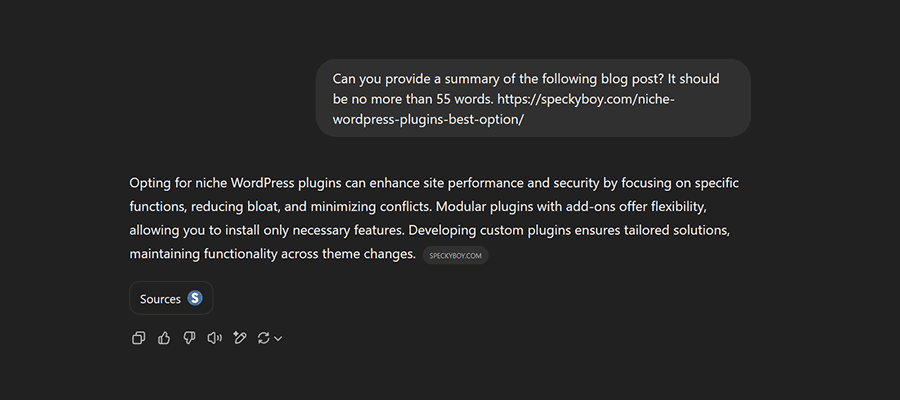
By default, WordPress will create an excerpt using the first 55 words of a post. However, that doesn’t always reflect its subject matter. It also looks sloppy when compared to a custom excerpt.
We can use AI to analyze a post and generate a custom excerpt.
Prompt:
Can you provide a summary of the following blog post? It should be no more than 55 words. [url]
Create an Outline of a Blog Post
You can also use AI to create a more in-depth WordPress post or page outline. It’s useful for email newsletters or summarizing longer articles.
You can control the length of the outline, as well as its formatting. Other options include fetching important links within the content.
Prompt:
Please create an outline of the following article. The outline should include 2-3 paragraphs of text, a list of key points, and a list of URLs linked within the article. [url]
Suggest a More Engaging Title
Determining the best title for your content can be challenging. Perhaps you have a “working” title but want something better. AI can suggest alternatives that better serve your audience and search engines.
Prompt:
Please suggest alternate titles for the following article. [url]
What if your blog post hasn’t been published? You may also copy and paste the text of the article into an AI tool.
Generate a Featured Image for a Blog Post
A stock photo isn’t always the best fit for a blog post’s featured image. Why not give your favorite AI tool a chance? For example, ChatGPT will analyze your content and create a relevant image.
The process isn’t foolproof. Image generation tools often make grammatical mistakes. There may also be limits on image sizing. Thus, you might have to experiment to get things right. The results can be compelling, though (we generated one for this post).
Prompt:
Can you generate a featured image for this article? [url]
Prompts to Help WordPress Developers
Let’s shift to how AI can make life easier for developers. We’ll show you how to start fast on projects, troubleshoot buggy code, and more.
Generate a WordPress Plugin Template
Here’s a way to save time when starting a custom WordPress plugin project. Ask AI to generate a starter template (boilerplate). It provides all the basics and lets you focus on writing code.
Give the AI tool as many details as you like, and it will do the rest. The more specifics you provide, the better the result.
Prompt:
Create a WordPress plugin template. The plugin is called [plugin name]. Include [name] as the author. The author's URL is [url].
Troubleshoot a Buggy Code Snippet
Debugging a code snippet can be maddening. Even the smallest of issues can prevent things from running smoothly. Determining the cause could take hours. Thankfully, AI takes the pain out of the process.
Copy and paste your code snippet into the tool, along with any error messages. You’ll receive a list of possible causes and can generate a revised version of your snippet for testing.
Prompt:
Please inspect the following code snippet. I'm receiving the following error [error message]. [code snippet]
Some bugs are more difficult than others. Thus, fixing your issue may require a few rounds of troubleshooting. Add relevant information about errors and what your code is trying to accomplish.
Improve Your Code’s PHP Compatibility
Major versions of PHP are released regularly. That means your legacy code may not be compatible with the latest version. AI can help by refactoring your code.
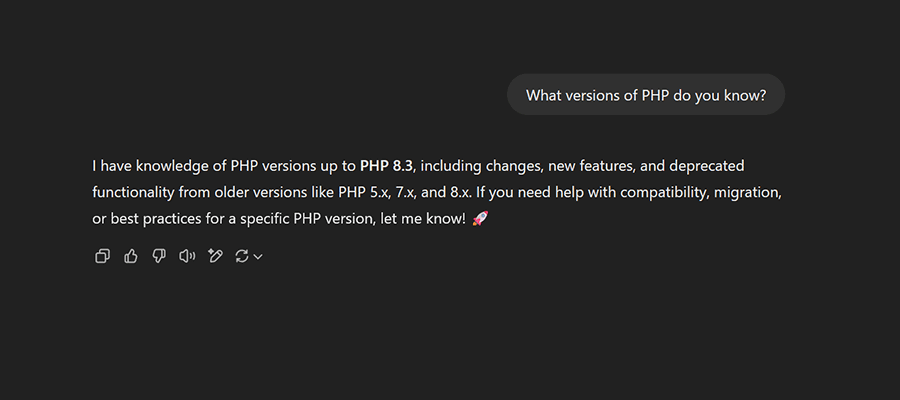
Provide a copy of your code and include the PHP version number you’re checking. Note that some AI models may not have “learned” the latest version of PHP yet. In that case, choose a version it knows (you can even ask for details).
Prompt:
Please inspect the following code for compatibility with PHP [version number]. Point out any potential issues and suggest fixes. [code snippet]
Write a Custom Post Query
The WordPress Block Editor includes a Query Loop block. However, its range is limited. Tasks like fetching multiple post types require a custom query.
Custom queries can be stashed in a classic theme template or a plugin. They offer the ultimate flexibility regarding what data you can fetch and how it’s formatted. It’s also hidden beyond the reach of your clients.
AI makes quick work of writing a custom query. Provide the parameters of your query, paste the generated code, and move on with your day. Simple!
Prompt:
Create a WordPress query with the following parameters:
Included Post Types: [slugs of post types to include]
Number of posts: [number]
Excluded the following categories: [slugs of categories to exclude]
You might also add prompts for custom fields (meta keys), post order, pagination, and more. Displaying custom data in the query results is also possible. View the full list of query parameters in the WordPress documentation for details.
Let AI Give You a Helping Hand
The tasks above have varying degrees of difficulty. But they all take up precious time. The good news is using AI can save you bundles of it.
Even better is we’re only scratching the surface of what’s possible. For example, we’ve also used AI to write a complex database export. We suggest browsing Dave Ryan’s GitHub Gist of AI prompts for WordPress for more possibilities.
There is a lot of room for experimentation. So, think about how you work with WordPress. Are there any tasks that frustrate you? What gets in the way of building the site you want? AI might be the answer.
Competition in the WordPress space is fierce these days. Agencies and freelancers from every corner of the globe are looking for clients, and even those with a profitable niche aren’t immune from a saturated market.
Then there’s the evolving software and ecosystem. Just when you think you have the right workflow, it’s disrupted by AI, a change to Gutenberg, or another newfangled tool. And we can’t forget the responsibilities of managing website security, accessibility, and privacy. The challenges are never-ending.
That’s why long-term success isn’t a given. The things you’re doing today will undoubtedly change tomorrow. Some may disappear.
So, how can you improve your chances of being in business five or ten years from now? What separates the agencies that flame out from the ones that keep growing?
That’s what we’re here to discuss! Let’s look at some tried-and-true methods for thriving in a competitive industry. Each will help you build something that lasts.
Develop Expertise in Your Niche
Modern web development – even within WordPress – is a vast subject. Thus, being a generalist means keeping track of an enormous number of technologies. Who has time to do that and work with clients?
Narrowing your focus to a specific niche is better for your sanity and bottom line. And you don’t have to limit yourself to a single type of client or website. Picking a few related areas – WooCommerce and membership sites, for example – offers plenty of room for growth.
There are often similarities in these niches. Using our example, both WooCommerce and membership sites share things like:
User/customer management;
Payment processing;
Sending customer communication via the website or a third-party service;
Adding custom functionality to meet client needs;
Some solutions can be applied to multiple areas. That means using the same plugins or custom code across your projects. It’s better for efficiency and helps clients achieve their goals.
The other advantage is that you’ll develop a higher level of expertise. You’ll know what clients need and how to solve their pain points. That’s knowledge you can use again and again.
In addition, you’ll have the confidence to communicate what you’ve learned. For example, writing expert blog posts or speaking at events. Sharing your experience and depth of knowledge serves to enhance your reputation. Existing clients will recommend you, and new ones will want to work with you.
Identify the Right Opportunities to Level Up
There’s always something new in the world of WordPress. New features are added to the core app, while the plugin and theme market continue to expand. Plenty of artificial intelligence (AI) integrations are also part of the landscape.
It’s tempting to jump on the next big thing. You might see it as an opportunity to launch your business into the stratosphere. However, it’s important to consider how these tools and services fit into your plan.
Sometimes, going all-in on new technology distracts from your core mission. That results in stagnation for the other parts of your business.
On the other hand, the right opportunity adds to what you do best. Perhaps it’s a service that will benefit you and your clients or a technology that saves you time. These items help you level up rather than send you down a rabbit hole looking for gold.
That doesn’t mean you shouldn’t consider things that pique your interest. But it’s worth looking at how they impact your business – now and in the future. Identify the ones that will take you where you want to go.
Add Sources of Recurring Revenue
New clients are a big part of running a successful agency. They add to your portfolio and your bank account. But they’re also increasingly difficult to get.
The reality is that booking new clients can’t be your only source of income. You need something to keep you afloat during slow periods. For instance, an economic downturn may cause an organization to delay that fancy new project. What will you do then?
You can improve your business’ stability by adding recurring revenue. It’s a way to keep existing clients in the loop and improve your financial picture.
Services like website maintenance (WordPress sites need frequent updating) or search engine optimization (SEO) allow you to charge a monthly or yearly fee. It provides you with a steady income and keeps client websites healthy. It’s a win-win situation.
This arrangement works with clients of every size. You can create tiers of service based on need. So, a client with fewer needs pays a little less. Meanwhile, a larger client pays a higher fee for a more robust service.
The other benefit is it keeps an open line of communication with clients. They’ll stay more focused on their website and be more likely to spend on new features.
Find ways to add recurring revenue to your business. It will keep you busy and financially stable, year after year.
Put Your Clients First
Providing great customer service is a winning strategy in any era. It’s a quality that, when all else fails, separates you from the competition. And it’s not as difficult as you may think.
Customer service is all about honesty, integrity, and sincerity. Treat your clients with respect and common courtesy. Follow through on the promises you make. Go the extra mile to make sure their needs are taken care of. These little things add up to something big.
The relationships you build can be meaningful. Your clients will see you as a partner in their journey. That means they’ll stay with you – even if a competitor offers a lower price.
They’ll ask your advice on improving their website and trust your opinion. It’s an opportunity to help them grow while adding to your workload.
There’s nothing specific to WordPress with this strategy. However, think of it as providing a realistic view of tools and techniques. For example, you might explain the pros and cons of using a plugin or theme or assessing which web host is best for their needs.
Building such relationships takes time. But that’s perfect if you’re interested in long-term success.
A WordPress Agency That’s Built to Last
Whether you’re thinking about starting a WordPress agency or you’ve been around for a while – success is still possible. The keys are finding your place in the market and keeping an open mind. Opportunities to improve are always around the corner in this evolving industry.
Having top-notch design and development skills helps. However, they’re not the only factors. You’ll also need to focus on building great relationships with your clients. That can lead to a steady flow of recurring revenue.
In addition, don’t be afraid to set short and long-term goals. They give you something to work toward as you navigate your business.
Before you know it, years will have passed, and your business will continue to thrive. That’s the peace of mind and security agency owners and freelancers are looking for.
Starting an online magazine is an exciting business venture. By sharing stories on topics that inspire you, you can engage with other like-minded individuals and establish yourself as an authority in your chosen niche. It’s a great way to inspire, educate, and entertain your audience while pursuing your passion.
WordPress is the perfect CMS for launching an online magazine. Their magazine themes have been specifically designed for websites that frequently publish news or editorial content. They typically feature a grid or column-based layout that makes it easy to display multiple posts from various categories at once.
They often come with customizable widgets and modules, allowing you to create a unique and engaging user experience. Other benefits include easy post navigation, social media integration, and the ability to showcase ads or sponsored content.
The free WordPress magazine themes we have for you here are an excellent choice for bloggers, news websites, or anyone that publishes frequent content updates.
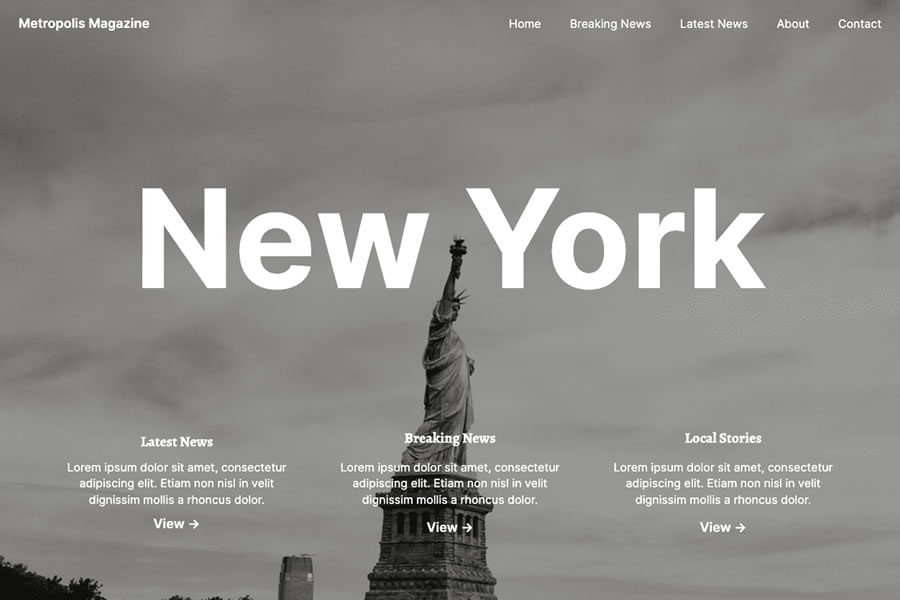
Metropolis is a magazine theme with a clean design and offers a simple yet structured layout suitable for most news, lifestyle, or entertainment content. It includes a customizable large header section, multiple widget areas, and plenty of whitespace that gives your content lots of room to breathe.
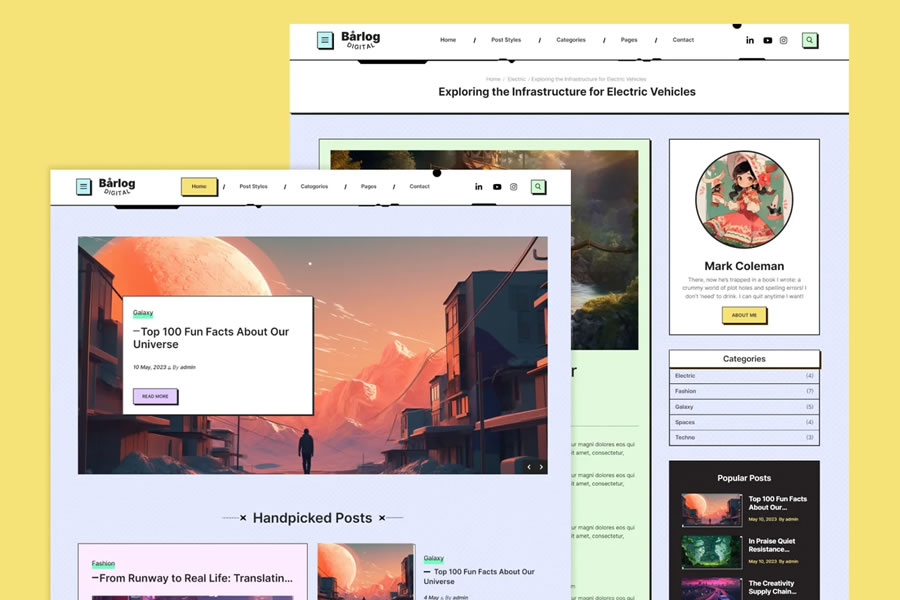
Barlog is a magazine theme with a highly unique design and layout that would be perfect for an online publication that wants to be seen as quirky. It includes three homepage layouts: grid, masonry, and a standard horizontal layout, and you can also add sliders and sidebars to each of those layouts should you want to.
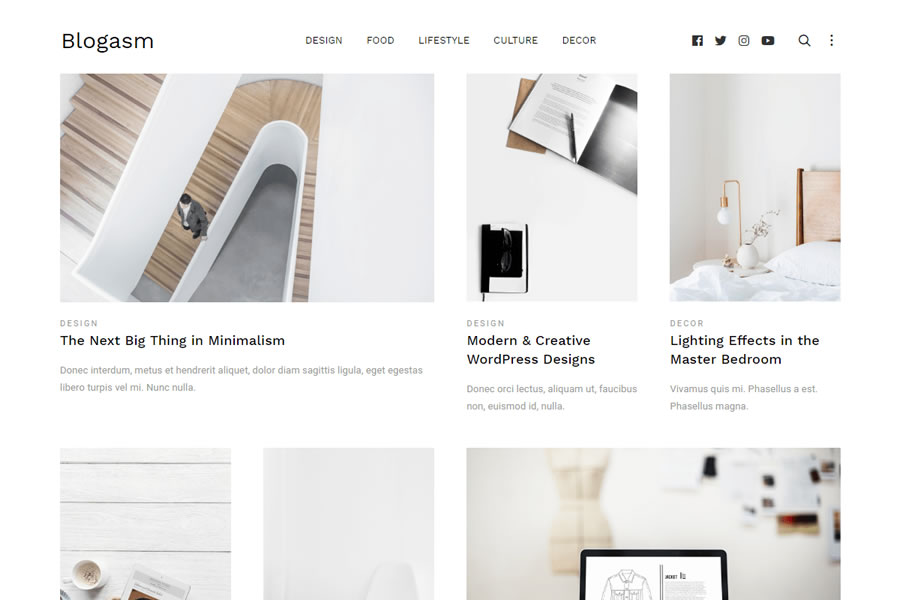
Blogasm, with its multiple-column layouts and minimal design, would work perfectly as a creative magazine or a fashion ezine. It comes with two-, three-, and four-column home and archive page templates and various single post layouts. It also comes with a single-click demo content importer, so you can get up and running quicker.
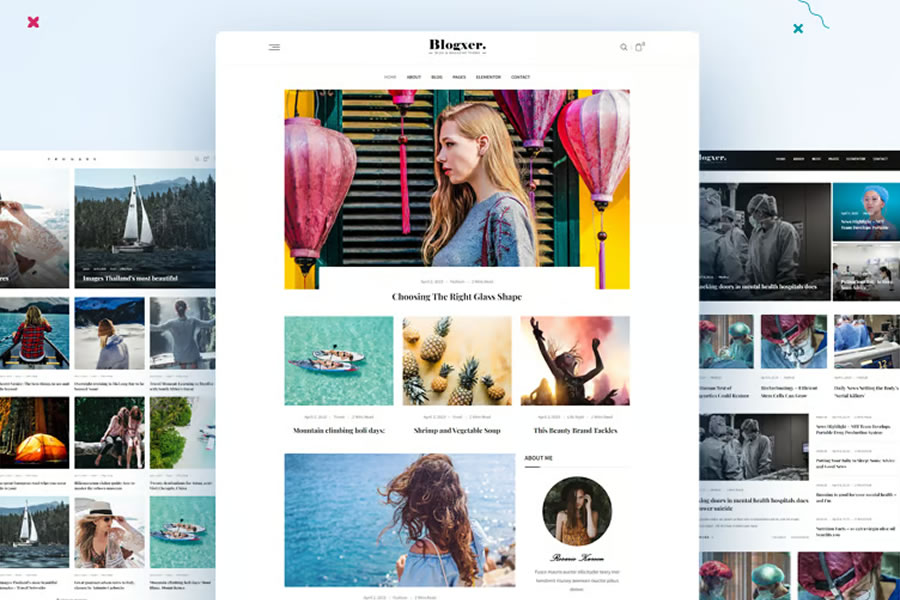
Bloxer is a WordPress magazine theme that comes with an extensive array of options and layouts. It includes twelve home layouts, four archive page layouts, three different article layouts, eight header styles, and so much more. It is versatile enough to be used for any type of content. Designed using Bootstrap, and the layouts can be edited with Elementor.
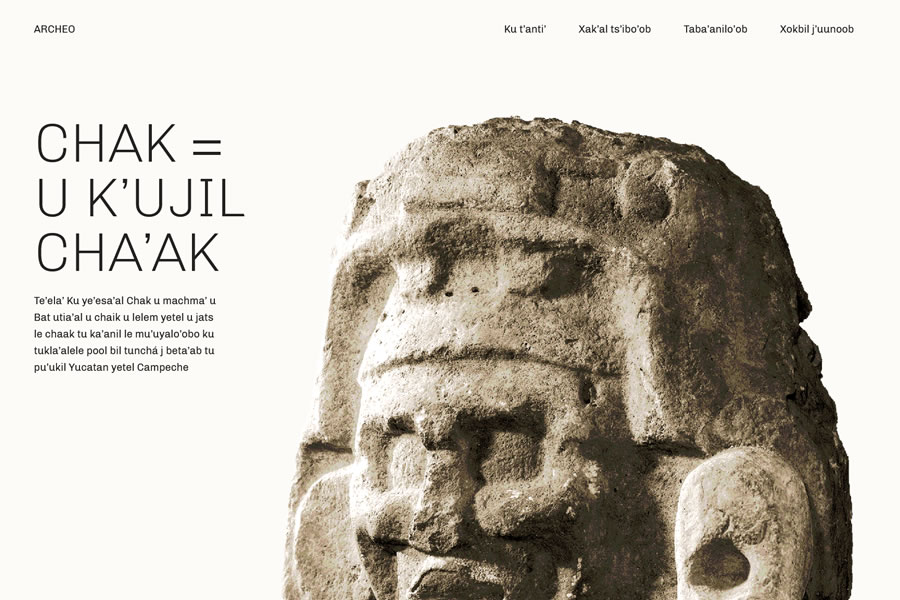
Archeo is a simple magazine theme that has been inspired by ancient Mayan culture with its muted color palette and sans-serif typography. Sticky post support brings key articles to the top, while widget-ready zones allow you to add unique features to your article layouts. This theme lets you create a truly distinctive platform for your content.
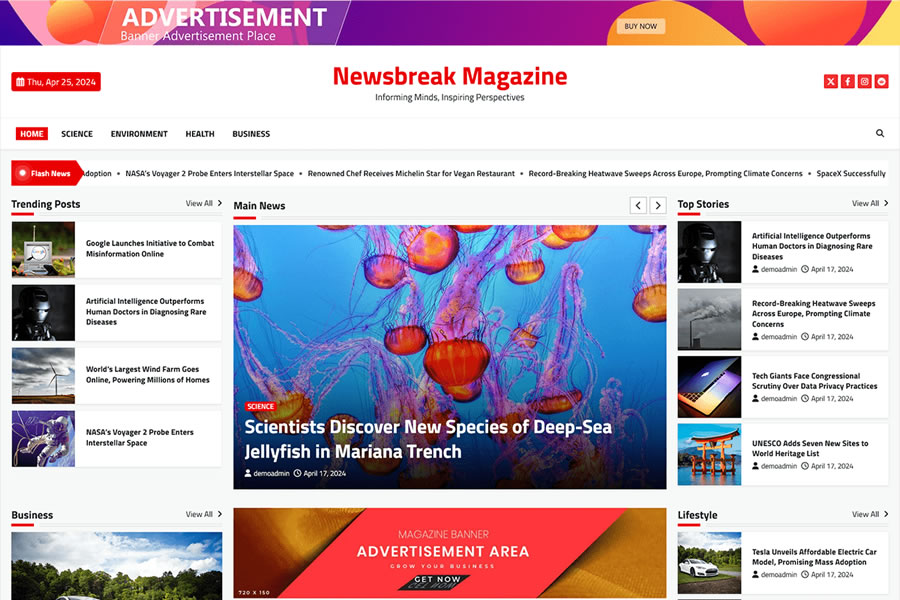
NewsBreak is a theme with a classic online magazine layout that allows you to display a lot of content all in one place. Its clean design and excellent use of space make it a great choice for content-heavy periodicals or breaking news websites.
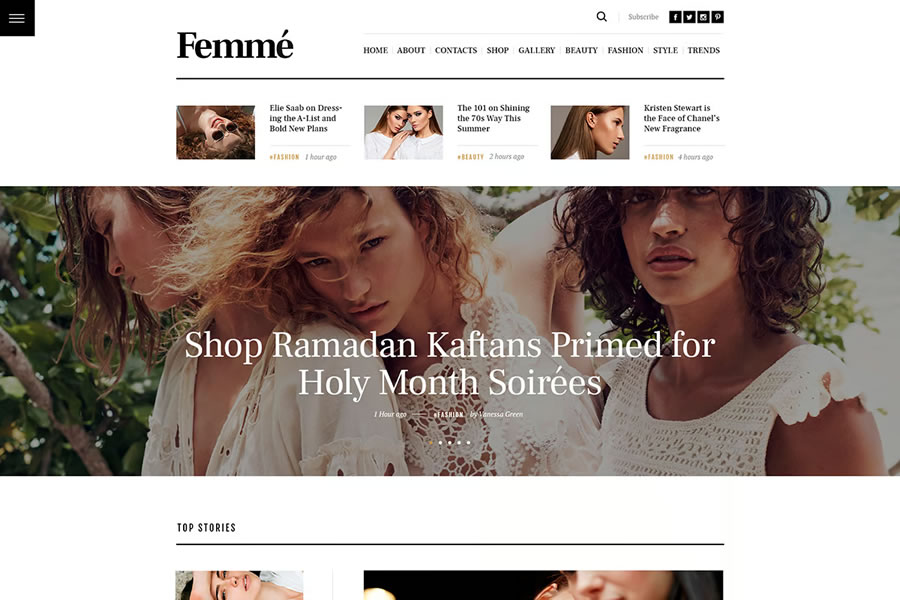
Femme is a stylish WordPress magazine theme for publishing lifestyle and fashion content. It includes WooCommerce support and eCommerce template layouts so you can also sell items or subscriptions on your site. It is an extensive theme that gives you every possible functionality for launching a professional online magazine.
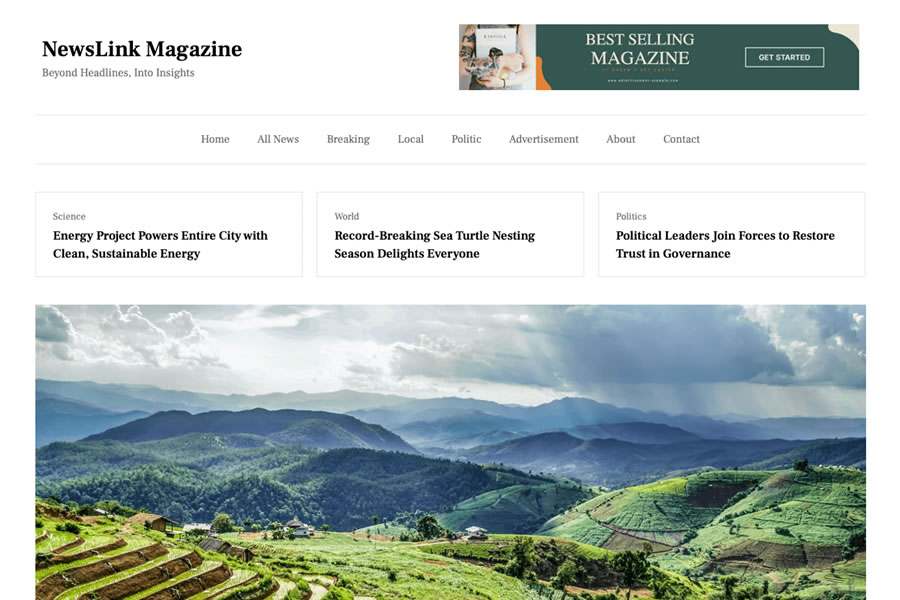
NewsLink Magazine is a WordPress block theme with minimal design and layout options. This free theme is compatible with popular builders like Gutenberg and Elementor, and also supports WooCommerce. This simple theme would be perfect for writers or publishers looking to set up their magazine and to get publishing content quickly.
Oneflow is a lovely contemporary WordPress theme that comes with nine optionable layout styles, with each offering the perfect platform for launching a lifestyle magazine or blog. Optimized for Gutenberg, WooCommerce compatible, and even includes features such as video backgrounds and multiple header styles.
Marpha is a free WordPress theme with a minimal design and beautiful sans-serif typography, making it perfect for both editorial pieces and personal blogs. While not packed with features like the other themes on this page, it does offer just enough to get your magazine online quickly.
Even though Travelbee has been designed for publishing travel-or vacation-related content, it can be customized to be used for any industry or niche. This free magazine-style theme includes ten homepage layouts, nine header styles, and a multitude of customizable widgets.
Glob is a traditional WordPress magazine theme with a clean design and a simple multi-column layout. Customizable layouts and multiple widget areas make this free theme perfect for various publishing needs.
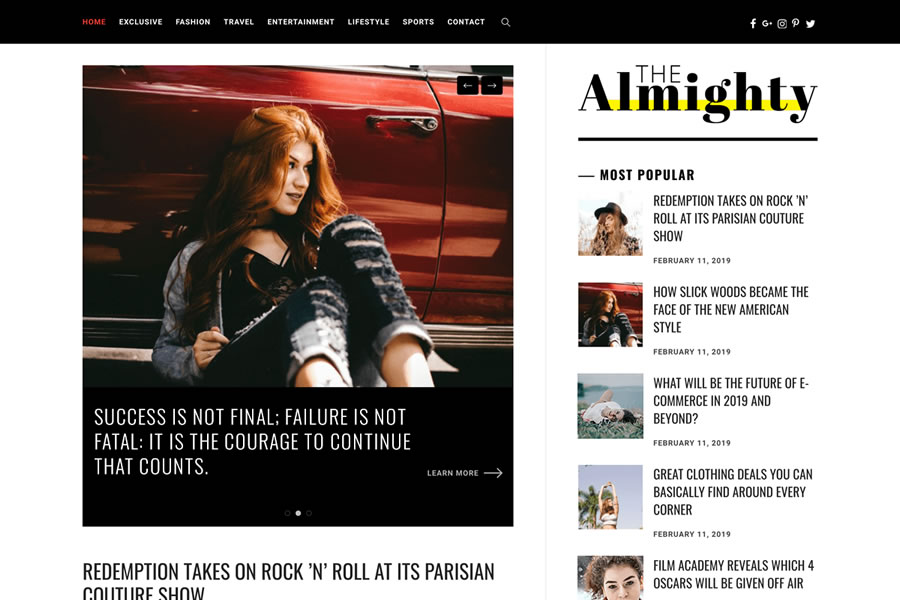
The Almighty theme has a clean and minimal design and offers multiple blog layouts. The theme is fully responsive and comes with tons of options for customizing the theme and making it your own.
Crowley is suitable for any type of online magazine as well as for personal blogs. You can customize every aspect of the theme using the Live Customizer, and you can choose between several column layouts for your archive pages.
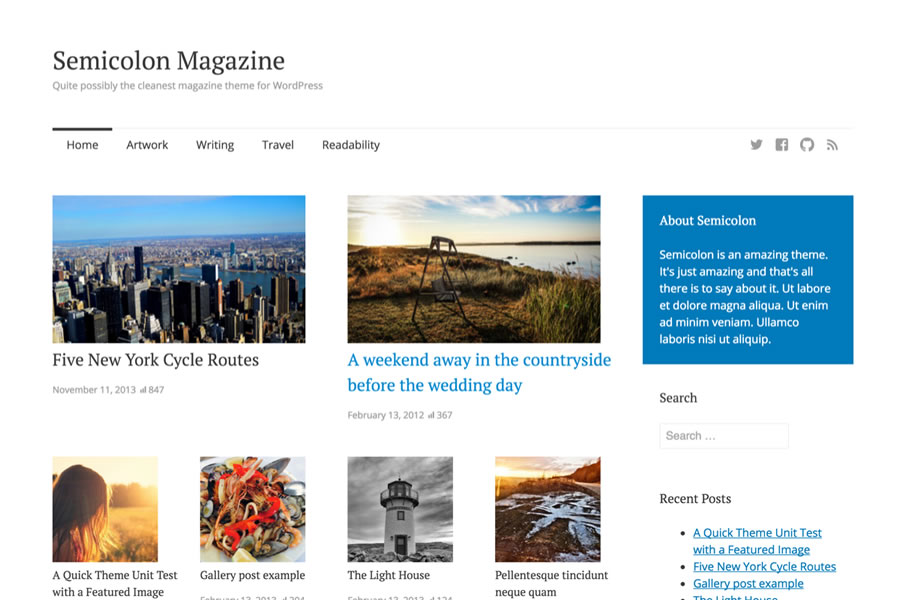
Semicolon is a simple and clean magazine theme for WordPress. It comes with a responsive layout, elegant and easy-to-read typography, and a unique grid layout with featured posts support. You will also find several widget areas, a menu for your social profiles, and more.
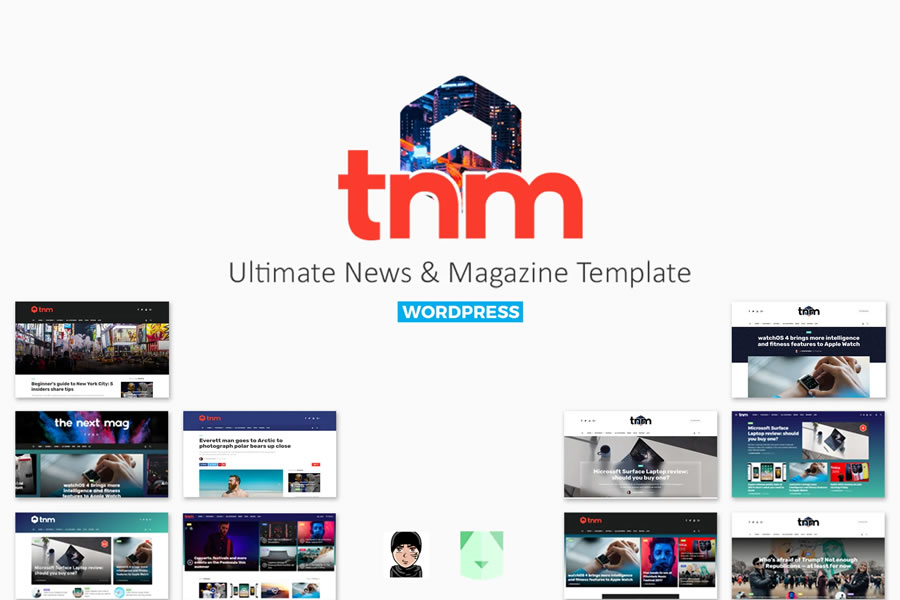
The Next Mag is a feature-rich magazine and news theme for WordPress that offers features such as Ajax post-loading, several demo options, mega menus, and a responsive design.
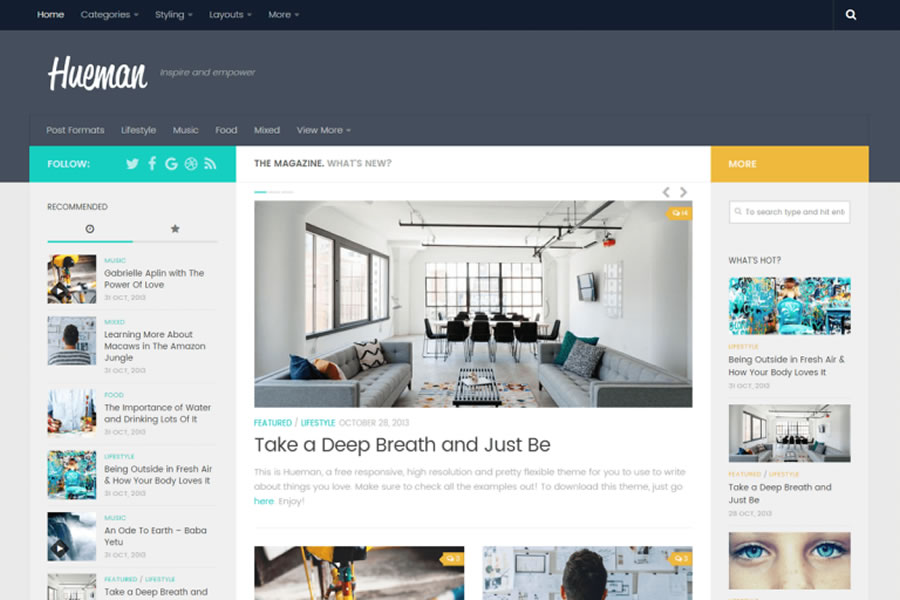
The Hueman theme has a modern design paired with the standard column layout. You can add up to two sidebars and insert widgets such as most popular posts, recent comments, social media icons, and more. It also includes multiple menu locations.
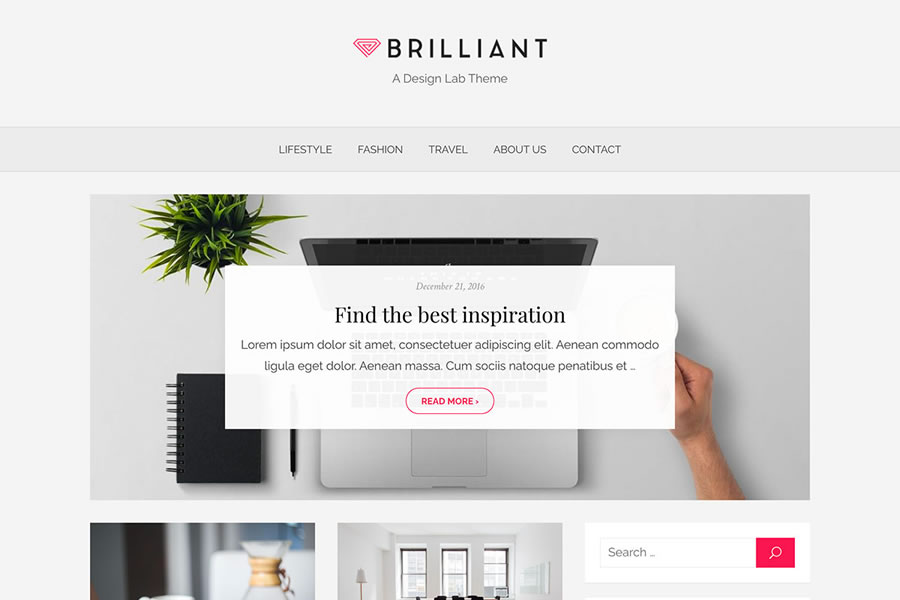
The Brilliant is a stylish WordPress theme that has a stunning slider on the homepage that’s perfect for sharing your latest posts. You will also have the ability to showcase your post categories, and there are several customization options to make this theme your own.
The Madd Magazine offers a traditional online magazine layout with plenty of widgets for popular posts, categories, advertising space, and more. It’s fully responsive and has the ability to use videos in sliders.
The Edge theme is perfect for blogs and magazines. It was designed to load fast and includes SEO optimization features as well as responsive design and multiple layout options.
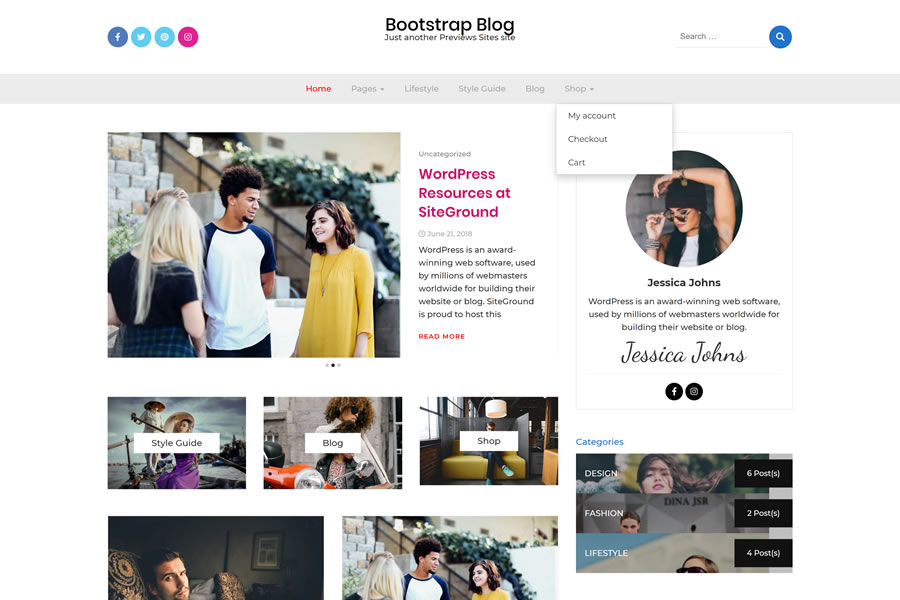
This free theme is based on the popular Bootstrap framework which means it will be responsive out of the box. It also offers features such as an extensive theme options panel, various layout options, and WooCommerce integration.
Conclusion
When it comes to your online magazine, an attractive design that offers a pleasant reading experience is crucial.
Make your magazine the best it can be with one of the themes in this collection that offer beautiful layouts, legible, and elegant typography, and a responsive design that looks great on all devices.
Magazine & News WordPress Theme FAQs
What Are Magazine WordPress Themes?
They are WordPress themes that have been designed specifically for digital magazines, news sites, and content-rich blogs.
Who Should Use Magazine WordPress Themes?
They are ideal for online publishers, news editors, bloggers, or anyone looking to create a website with a magazine-style layout to display articles, news, and multimedia content.
Can These Magazine Themes Be Customized?
Yes, they all come with customizable options, such as color schemes, font choices, and layout configurations, allowing you to tailor the site to your specific needs and brand identity.