Should Freelancers Advertise Their Pricing? — Speckyboy

Freelancers can choose their own business policies. We can determine how we work, when we work, and how much we charge. That last one can be difficult, to say the least.

Pricing has confounded many a small business owner. Choosing what to charge for your service is only one part of the equation, however. You must also decide how to communicate those figures with others.

Here’s a common challenge: Should you have a pricing page on your portfolio website? This information is a staple for many industries. For instance, everyone expects to know the price of a cup of coffee at their neighborhood shop. People looking for a salon will want to see a price list, as will those booking a cleaning service.

But creative fields like web design are different. We don’t traditionally sell one-size-fits-all commodities, although the industry is shifting. Even so, there are endless ways to build a website. Website maintenance pricing can also vary based on multiple factors.

However, that hasn’t stopped some web professionals from advertising their pricing. That alone makes it a topic worth discussing. An ever-changing industry and evolving client expectations also play a role.

With that, here’s a look at the good and bad of upfront pricing.

Pricing Doesn’t Need to Be Exact

Odds are that no two types of web projects will be priced the same. For example, a five-page brochure website costs less than a 100-site WordPress Multisite network. Adjacent services, such as web hosting, also depend on the project’s size and scope.

That’s a challenge for all but the narrowest of niches. As such, it seems nearly impossible to advertise exact pricing. Perhaps that’s not such a big deal.

There’s something to be said for advertising “ballpark” figures, ones that provide a price range. For one, it helps to weed out low-budget clients. Think of all the time you’ll save!

A price range, or even a “starting at” price, sets the right expectations. Potential clients will have a better idea of costs, while you’ll benefit from a buffer to work within. Just be sure to set a starting price that offers a comfortable profit margin.

In all, transparency is a good thing for your business. This is one way to demonstrate your commitment to being open with clients.

Should Freelancers Advertise Their Pricing? — Speckyboy

The Pitfalls of Publishing Your Prices

There are a few notable downsides to publicly sharing your pricing. For one, it’s information that competitors can use to their advantage.

If you’re charging $5,000 for a WooCommerce build, then another agency could undercut your price. Even a small discount could cause a client to go with your rival. From there, it becomes a race to the bottom. You might lower your price until there’s little margin to work with.

Public pricing may also complicate things when working on a project estimate. A client may not understand why their estimate is higher than what you advertised. That requires a delicate conversation about the factors involved.

The alternative is to eat the extra cost and hope that things even out. Some projects may require less work, while others take more resources. That’s a dangerous way to live, as you might be leaving money on the table.

Client perception is also a concern. There’s a risk to being seen as too expensive or too cheap. For instance, lower pricing may make some clients see you as inexperienced or low quality. It’s not fair, but people have been known to make snap judgments.

So, if you’re going to publish your prices, be aware of the potential pitfalls. Perhaps they’re worth it, or not. That’s for you to decide.
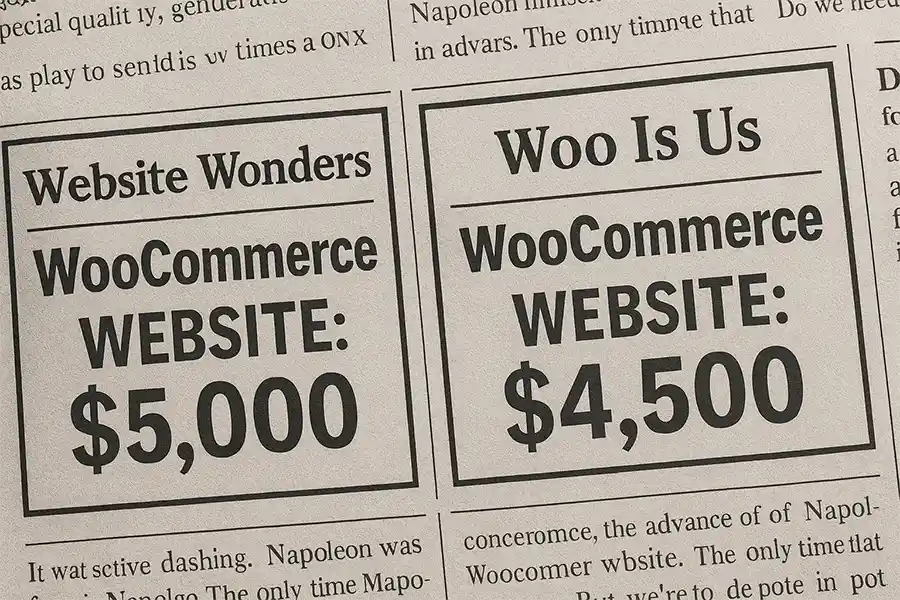
Publishing your prices can give your competitors an advantage

Is It the Right Move for Your Web Design Business?

The decision to publish your pricing comes down to your individual goals. For instance, making them public might be a way to advertise a new service or a flash sale. That won’t apply to every business, however.

Before you hit the “publish” button, ask yourself the following questions:

  • How does pricing fit into my overall marketing strategy?
  • Will it give me an advantage in attracting new clients?
  • What are the potential downsides?

The important thing is to know why you’re publishing your pricing. Doing so should serve a purpose, even if it’s a temporary experiment. You’ll also want to acknowledge the risks involved.

In all, upfront pricing is still a difficult subject for freelancers. There’s no universally right or wrong answer.

Our best advice is to consider your options carefully and go with what makes sense for your business.
Related Topics


Should Your Agency Focus on WooCommerce Projects? — Speckyboy

Choosing a niche is one of the perks of running a WordPress agency. You get to decide what type of projects to work on. You also have an opportunity to adapt as the landscape shifts.

Sometimes, you end up where the opportunities are. For example, WooCommerce is a longtime staple of the WordPress ecosystem. The e-commerce plugin dominates its segment and continues to evolve. Recent developments include better database performance and the first steps toward AI integration.

Those factors make WooCommerce an interesting option for agencies and freelancers. It’s both familiar and future-focused. Plus, Woo’s large subsystem of extensions is still growing.

It all adds up to a niche that’s full of potential, enough to fill your schedule and bank account. That may convince you to jump in with both feet. However, there are also some challenges in running a WooCommerce-focused agency.

The following are considerations when making your decision. We’ll cover the pros and cons, along with a few items that aren’t readily apparent. Is Woo right for you? Keep reading to find out!

WooCommerce Is Powerful and Flexible

WooCommerce mirrors WordPress in terms of flexibility. Just as you can use WordPress to build every type of website, Woo spans the spectrum of e-commerce genres.

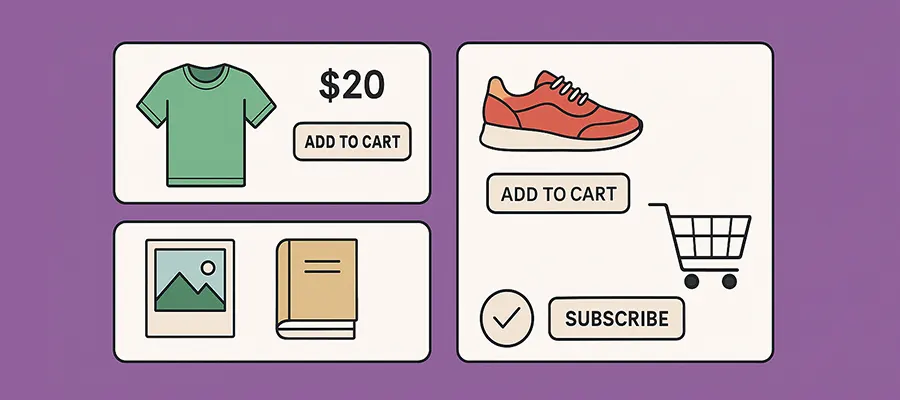
The possibilities go well beyond standard retail sites. You can also focus on membership sites, selling digital goods, subscription content, auctions, and business-to-business (B2B) shops. You can also tie in with various third-party marketplaces. If you can dream it, you can sell it with WooCommerce.

That alone is an advantage over many proprietary platforms. You aren’t limited to a small set of functions. Instead, you have an entire ecosystem of prebuilt extensions to choose from. If something doesn’t exist or doesn’t match your project needs, you can build it yourself.

It’s a good fit if your agency offers custom development services. Woo’s core functionality and extensions can be endlessly tweaked. If you like to tinker and create detail-oriented workflows, you’ll feel right at home.

So, what’s the downside? WooCommerce can be overwhelming for some developers. There is no singular way to do things. Sometimes, there are simply too many ways to accomplish a goal.

A highly customized online store is also difficult to maintain. Refactoring custom code may be necessary as WooCommerce and WordPress evolve.

Should Your Agency Focus on WooCommerce Projects? — Speckyboy

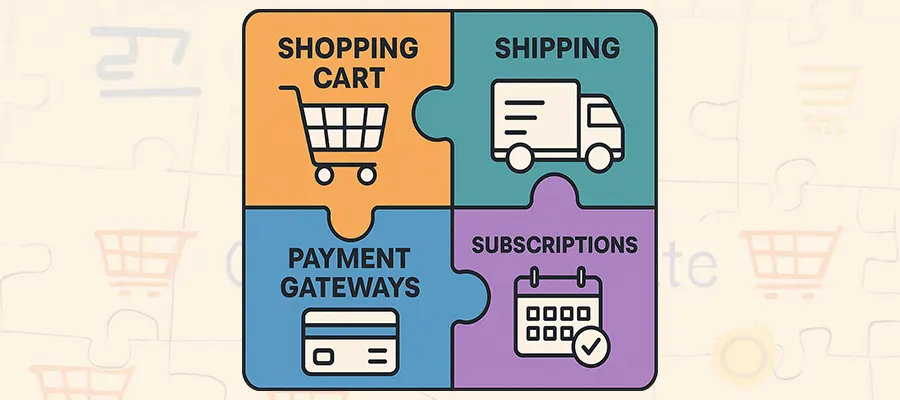
Building a Shop Is Like Putting a Puzzle Together

Like WordPress, a default WooCommerce installation only gets you so far. You’ll get basic shopping cart functions, a handful of product types, and the opportunity to connect to a payment gateway.

Extensions are required for advanced functions such as subscriptions, user-defined pricing, and shipping integrations. Those examples only scratch the surface of what’s possible. It doesn’t make for simplicity. And some of these items are already included in Woo’s proprietary competitor platforms.

Once again, it’s a double-edged sword. On one hand, you can pick and choose the items your clients need. That means you’re not stuck with features you’ll never use.

However, this piecemeal approach makes it harder to provide an accurate project estimate. Clients may be unaware of everything they need from the start. As such, there could be surprise costs in the development phase.

Experience is the only way to get around this issue. The more you work with WooCommerce, the better questions you’ll ask in the discovery phase of your projects. This takes time, though, and there’s still no guarantee you’ll get it right each time.

That level of expertise is valuable to clients. It’s something you can charge extra for. The pain is in getting to that point.

By itself, WooCommerce is not a complete e-commerce solution

Success With WooCommerce Requires Investment

A focus on WooCommerce projects can be worthwhile, but it takes commitment. You’ll need to invest in learning the platform and how to extend it.

The decision may depend on your ability and willingness to do the hard work. If you’re overloaded with projects, shifting gears may not be feasible. The same applies if you’re already focused on another e-commerce solution.

The good news is that you don’t have to go all in right away. You can take time to experiment with WooCommerce on the side (a local WordPress installation is great for this purpose). Starting with a small project or two also makes sense. That will help you gauge your comfort level and provide a taste of the processes involved.

From there, it’s about building a portfolio and increasing your knowledge. You’ll be able to market your services and identify your audience. The opportunities are there if you’re up for a challenge.


Related Topics


Use AI to Enhance – Not Replace – Your WordPress Expertise — Speckyboy

It’s amazing to see how quickly web developers have adopted artificial intelligence (AI) apps. Many have added this technology to their workflow and haven’t looked back.

There are pros and cons to this seismic industry shift. On the bright side, AI speeds up the development process. We don’t have to spend hours poring over WordPress documentation. Instead, we explain our coding needs in plain language. AI helps us build new things from scratch and troubleshoot existing code.
What’s the downside? Well, it’s easy to cede too much power to AI. There’s a danger in becoming too reliant on these tools to do everything for us. That could lead to trusting AI’s “judgment” more than our own.

Forgetting our common sense means solutions that are difficult to maintain and potentially insecure. Nobody wants that. As such, it’s essential to strike a balance between the convenience of AI and our personal experiences. Here are a few thoughts on using AI to enhance, not replace, your WordPress expertise.

A New Way to Fall Into the Same Productivity Trap

Even experienced developers need a helping hand. In the old days (OK, a few years ago), that meant searching sites like Stack Overflow for answers. We could spend hours trying to find a suitable solution.

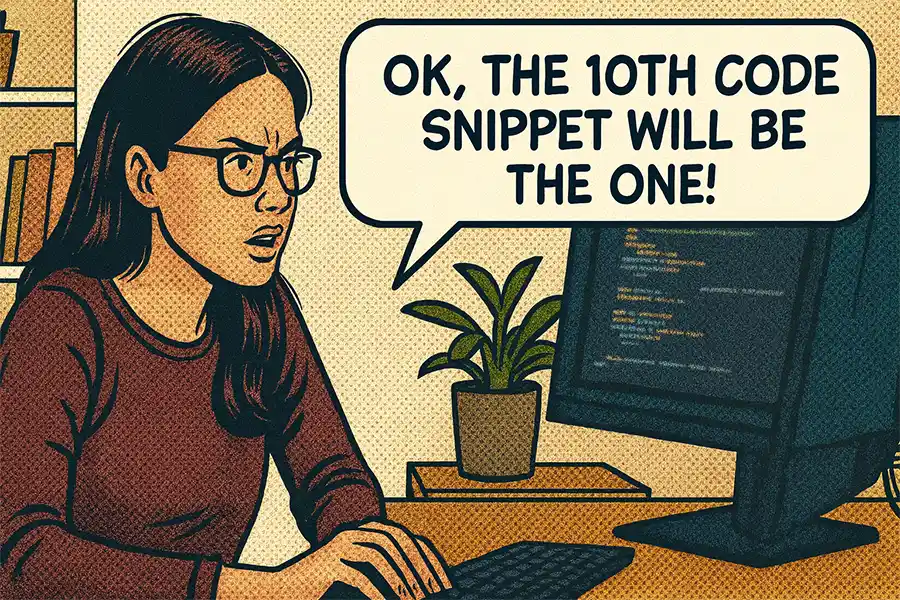
This practice also led to a scattered approach to coding, such as copying and pasting code snippets in hopes that one would work. The quest to find a shortcut ultimately cost us precious time. We chased easy answers instead of using our brains. At least, that’s how this author did things.

AI models certainly make this process faster. They generate code within seconds. However, we can still fall into the same trap of cut, paste, and repeat. The only difference is that we’re locked into a single chat instead of a massive forum.

Much like Stack Overflow, AI’s accuracy can vary. Not every code snippet is functional or appropriate for use on a production website. Even so, it provides the illusion of increased productivity. Faster answers don’t mean much if they’re not the right ones.

For instance, I recently used an AI app to tackle a WordPress plugin project. The app confidently created a file structure, complete with code. The plugin didn’t work, regardless of the issues I reported. After a few hours of frustration, I didn’t feel very accomplished. Taking the project one step at a time would have been more productive.

Use AI to Enhance – Not Replace – Your WordPress Expertise — Speckyboy

Remember Who’s in Charge of Your WordPress Project

We still need to use our critical thinking skills, even when working with AI. The technology works best when it’s our sidekick, not our boss.
The key is to remember your own power. You’re the developer and get to make the final decisions on how things are built. You’re also responsible for the project’s performance and security. It’s not like you can blame AI if something goes wrong. Well, you could go that route. However, it’s unlikely that anyone will consider it an acceptable answer.

With that in mind, the better approach may be to use AI to give us a head start on a project. For example, generating a plugin wireframe instead of everything at once. That allows us to build iteratively and consider each piece more carefully.

Odds are, you’ll get better results than asking AI for a plugin that does x, y, and z right from the start. This way, you can focus on the task at hand and improve efficiency.

The same goes for troubleshooting existing code. Identify a problem and use AI to help you resolve it. Then, move on to the next one.

Remember, these tools need your input to produce the best outcome. They aren’t smart enough to make important decisions for you.

Don't let AI tools make decisions for you

AI Can Help You Do More With WordPress – Within Reason

Perhaps we’ve gone a little too far, too fast, when adding AI to our workflows. Suddenly, we’re assigning important tasks to bots and just going with it. It’s easy to feel like a bystander in our own projects.
It’s the “ah-hah” moment for any of us afraid that AI will replace humans, except that we’re the ones who control the narrative. We can choose how to use AI and the role it plays in our careers.

The first step is to have realistic expectations for what these tools can do. Keep them in mind as you generate code and other project assets. Remind yourself that ChatGPT, et. al., are just tools. It’s not the same as having an experienced developer on your side.

Most of all, trust your judgment. AI provides another way to bring your ideas to life. Use it wisely!


Related Topics


Tips for Building a Performant WordPress Website — Speckyboy

Website performance is critical to your online success. Faster page loads result in better conversion rates, happier users, and peace of mind. Hint: You must achieve the first two to attain that last one.

WordPress is fairly performant out of the box. However, that changes when we add a theme, plugins, content, and media files to the mix. Web hosting is also a factor. Your site can slow down before you know it. Even worse, diagnosing these issues isn’t always easy.

That’s why building your website with performance in mind is the best option. Picking the right tools and techniques brings better results.

With that in mind, let’s review the ingredients of a performant WordPress website. We’ll share some tips for pleasing users and Google’s Core Vitals.

Choose the Right Web Host for Your Project

Great website performance starts with a great web host. After all, no amount of optimization can make up for a slow web server. It will inevitably weigh down your page loads.

Every website has different needs, so we can’t tell you the perfect option. However, there are a few factors to consider, including:

  • Available server resources: Choose a hosting plan that includes enough memory, storage, and CPU cores to run your website efficiently. The more complicated your site is (e-commerce, membership, etc.), the more resources you’ll need.
  • Server-level caching: There are plenty of effective plugins available to cache your website. However, caching works best at the server level. A host that offers page and/or object caching will provide a performance boost.
  • Content Delivery Network (CDN): You can use a CDN to achieve blazing-fast performance for users around the world. It sits between your site’s server and visitors, serving files from various geographic locations. Users are connected to the closest server, reducing latency. Some hosts provide a CDN as a standard or optional feature. Bonus: CDNs also improve your site’s security and can reduce bot traffic.

At a minimum, you’ll want to choose a hosting plan that has more than enough server resources. Features like caching and a CDN are optional, but helpful for powering busy websites.

Tips for Building a Performant WordPress Website — Speckyboy

Take a Minimal Approach to Themes and Plugins

There is no shortage of WordPress themes and plugins on the market. But quality matters, and not every product adheres to best practices. The wrong ones could lead to an instant performance hit.

Despite the myth, the number of plugins you use isn’t always the culprit. You might see better performance by running 20 well-made plugins in place of 10 bloated ones. The key is to install only what you need.

It’s also worth experimenting to see how different plugins impact your site’s performance. You could install a plugin like Query Monitor to see the number of scripts, styles, and API calls a plugin adds. Your web browser’s console is another good option for reviewing what’s happening behind the scenes. Check for errors and network bottlenecks.

Themes can be just as impactful. We recommend choosing a starter theme or framework that lets you start small and add on as needed. Themes that trade old-school JavaScript libraries (like jQuery) for more modern options will also load faster.

Block themes are also worth trying. They rely on core WordPress features, rather than heavy PHP templates.

Not sure about a plugin or theme’s impact on performance? Test them on a staging environment or local WordPress installation.

Limit Calls To Third-Party Scripts and APIs

Connecting WordPress to third-party services adds all sorts of useful features. Common examples include Google Analytics, remotely hosted fonts and scripts, and embedded media. That’s only scratching the surface of what’s possible.

Such convenience comes with a price, however. Each call to a third-party service impacts your website’s performance. The more calls you make, the more potential for bottlenecks.

The volume of calls to outside resources is only one part of the equation. All it takes is a singular issue with a service to delay a page load. It could be a slow analytics server that gets in the way. Even worse, a remote script that fails to load could break your site’s functionality or prevent it from rendering.

Once again, it pays to use only what you need. Features like social media feeds and other outside widgets may do more harm than good. Think about what matters most to your site and act accordingly.

Sometimes, a remotely-hosted resource is a necessity. But there are often alternatives you can host locally. For instance, Google Fonts can be stored on your web server, as can various analytics suites.

There are benefits to using third-party services, but choose wisely.

Use the Latest Image Compression Techniques

Design features such as sliders, photo galleries, and hero areas often include large images sized for HD or even 4K screens. They can easily slow down your site if they’re not efficiently optimized.

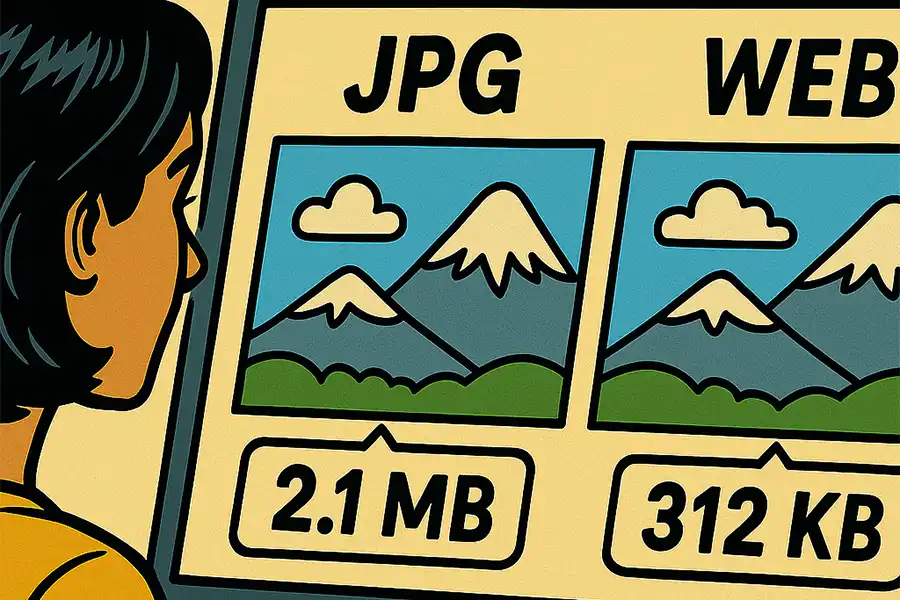
Legacy image formats like JPEG are often to blame. Their compression techniques make it tough to achieve a balance between image quality and file size. They also struggle with complex image compositions.

Thankfully, we don’t have to settle for old-school image formats. Newer formats, such as WebP and AVIF, are widely supported by browsers and offer better compression. They’re also great at maintaining image quality.

Oh, and we can’t forget about SVG. These vector images are often tiny in file size but can be scaled without losing detail. They’re great for use with icons and logos.

How much space can you save? Test your site with Google PageSpeed Insights, and it will provide a savings estimate for detected images. You might be surprised at the difference these modern formats can make.

Modern image formats maintain quality and reduce file size.

Create a WordPress Performance Strategy

Building a performant WordPress website doesn’t happen by sheer luck. It requires a mix of planning and testing.

The planning stage is all about identifying the best tools for the job. It starts with your web host, as a fast server is a must-have. From there, choose a lightweight theme and plugins that avoid bloat.

Testing provides an opportunity to improve on your work. Use your favorite tool to analyze page speed and take note of any suggestions. Make the necessary changes and retest until you’re satisfied with the results.

You’ll also want to make sure your site’s assets load efficiently. Defer items that aren’t needed right away, and preload above-the-fold fonts and scripts.

With a little work, it’s more than possible to achieve top-notch performance with WordPress. We hope the tips above will help you create the perfect strategy!


Related Topics


How to Resolve Pain Points in Your Client’s WordPress Workflow — Speckyboy

Web professionals use WordPress because of its infinite flexibility. We can build virtually any type of website. Everything is possible when it comes to looks and functionality.

That doesn’t mean the content management system (CMS) is easy for our clients, however. All the possibilities of WordPress can make for a disjointed back-end workflow. That makes it difficult to add content, manage orders, and help customers.

It’s one reason why websites become stale. Frustrated clients may cringe at the task ahead of them, so they stop logging in. That comes back to haunt us, as a disengaged client won’t be asking for a redesign or new features.

So, how do we avoid this scenario? It starts by keeping workflow in mind during every step of the design and build processes. Keeping an open line of communication also makes a difference.

Let’s explore some techniques for identifying and resolving your client’s WordPress pain points.

Think About the Impact of Design and Development Choices

We often make decisions based on our experiences. For instance, choosing a plugin or theme because it worked well on a previous project. That makes sense, to a point.

Every decision we make during a website build can impact our client’s workflow. We may not consider this until a client reaches a pain point. Then, we’re left to wonder where things went wrong.

For example, some form plugins store entries in the WordPress database. Others may rely only on email delivery. What happens if a client wants to browse entries and filter them by date? Choosing the latter plugin means an arduous process of searching for and cataloging emails.

The same principle applies to plugin ecosystems. WooCommerce features thousands of extensions that enhance functionality. However, some may provide a more seamless experience in the dashboard. The tighter the integration, the better for you and your client.

On the other hand, a piecemeal approach to features means using plugins from multiple vendors. There’s no guarantee you’ll be able to extract useful data in a unified way. You may have to resort to complex database queries.

The above scenarios are neither good nor bad in a general sense. Much depends on your client’s needs and skill level. Those are important considerations when choosing what to build and how it should work.

How to Resolve Pain Points in Your Client’s WordPress Workflow — Speckyboy

Help Clients Determine Their Needs and Comfort Level

Asking the right questions is the best way to determine a client’s needs. You can build a workflow to fit your client when you understand their expectations.

This is easier said than done, especially in the early stages of a project. Not everyone knows what they want or even how to articulate it. For instance, a client without e-commerce experience may not realize what tasks they’ll need to perform when an order arrives.

That might lead to making decisions without your client’s input. We know what works and what doesn’t, after all…

Not so fast!

This approach can lead to future problems. A client may not be as comfortable with a task as we are. Or perhaps there are too many steps for them to remember. The result is building something your client can’t or doesn’t like to use.

A more effective solution is to encourage clients to think about these tasks before implementation. Share a typical scenario for processing orders or editing content. The sooner they consider the options, the better the outcome.

You may notice that their input shifts as the project moves forward. They might want to refine processes, which could lead to extra work. However, it’s worth doing if it increases their comfort level.

No one wants to rip an existing website apart, after all.

Keep an open line of communication with your clients and build a workflow around their needs.

Dealing With Workflow Issues on Existing Websites

WordPress workflows don’t stay easy and efficient forever. Sometimes, a new feature adds a degree of difficulty to a process. Clients are also apt to change their minds. What to do then?

A conversation with your client will provide a helpful reset. Listen to their pain points and share what (if anything) will need to be changed on their website. This information will help you create a plan to streamline things.

The best-case scenario is finding a plugin that makes life easier for your client. From there, it’s a matter of installing and activating your way to workflow bliss.

The answers aren’t always easy, however. A plugin may not be very flexible or have the options you need. Yet, it may also be a requirement for the website’s functionality. As such, finding a replacement isn’t realistic. That means turning to custom code.

Extending an existing plugin is a possible solution. If the plugin is well documented, you might use AI to generate a helpful code snippet. At the very least, you’ll have a head start on the project.

In more difficult cases, you might build a plugin from scratch. AI is once again your friend in that scenario.

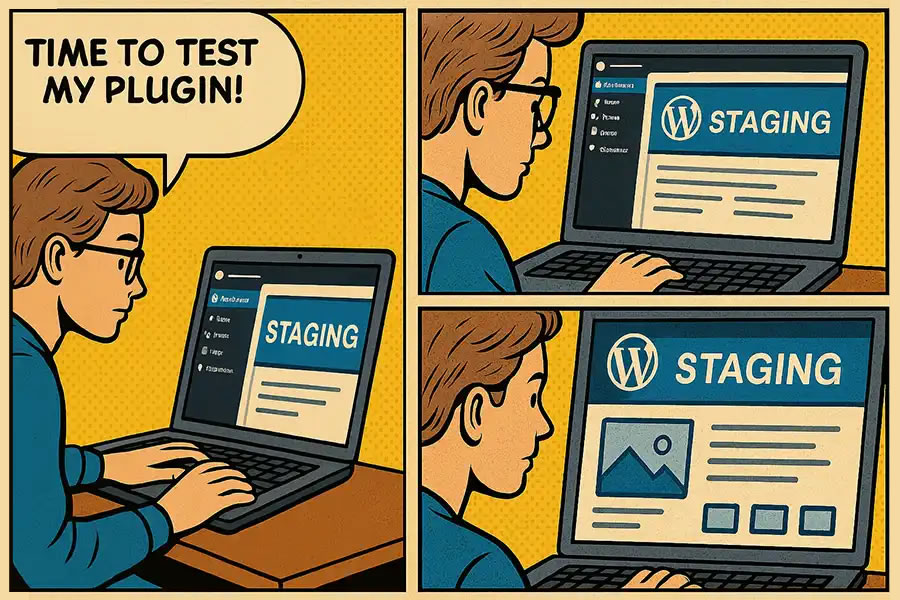
Be sure to use a staging environment to test code, regardless of the path you choose. It could save you from even more trouble.

Resolving a workflow issue may involve writing custom code.

Make WordPress Work for Your Clients

WordPress offers endless possibilities – but not all add up to a great workflow. Creating one takes experience, research, and a willingness to work with your clients.

You’ll also need to adapt to change. What worked for your client a year ago might not fit their current needs. The key is streamlining processes without impact to the website’s mission or data.

The great part is that WordPress gives you the power to build custom solutions. That will come in handy when dealing with complex issues.

So, keep your client’s workflow in mind every step of the way. Your attention to detail will benefit everyone.


Related Topics


Best Practices for Your WordPress Theme’s functions.php File — Speckyboy

WordPress themes can be customized to your heart’s content. Block themes have the native Site Editor for tweaking styles and templates. Classic themes use the legacy Customizer and accept custom PHP in templates. You can select the option that best fits your needs.

Yes, there are different approaches. However, all themes share at least one common file: functions.php

Developers can use functions.php to add custom code snippets. You can enable or disable specific WordPress features, or change how they work. The same goes for plugins like WooCommerce. Some themes include custom functions, which you can also edit via a child theme’s version of the file.

That’s only scratching the surface of what’s possible. A variety of custom functionality can be added here. That’s both a positive and a negative.

It’s great that the functions.php file is so versatile. The downside is that we often use it as the “junk drawer” of WordPress. It’s easy to fill the file with code that would be a better fit as a custom plugin. That could mean trouble as your site evolves.

So, how do you decide what to include and what to leave out of your theme’s functions.php file? Check out our best practices below.

A Repository for All Your Custom Code?

It seems like every WordPress development tutorial recommends placing code snippets in the functions.php file. Why is that? Well, it’s easier to explain than walking someone through building a plugin.

This technique works well enough. Most code snippets will run as expected. Plus, all your custom code resides in a singular file. It sounds like a winning solution.

But what happens if you change themes down the road? Those code snippets won’t migrate automatically. You’ll have to copy them to the new theme’s functions.php file. It’s an easy step to forget when redesigning a website.

Much depends on the specifics of your website, but you might miss some critical functionality. That could result in a myriad of issues. Everything from a buggy feature to a broken website is possible.

Project organization is also a concern. A file containing a random collection of snippets can be confusing. You might find yourself searching for code related to a specific feature or forgetting what’s there. It’s a recipe for future chaos, especially for large sites.

Thus, the negatives often outweigh the positives of using functions.php as a catch-all. It’s something to consider before opening the file and adding code.

<img fetchpriority="high" decoding="async" src="https://speckyboy.com/wp-content/uploads/2025/09/functionsphp-best-practices-01.webp" alt="It's tempting to add all of your custom code into the functions.php file.” width=”900″ height=”600″>

Does Your Code Belong in functions.php?

How do you know if a code snippet belongs in your functions.php file? The WordPress Theme Handbook offers a simple rule of thumb:

“If you are creating features that should be available regardless of the site’s design, it is best practice to put the code in a plugin. The rule of thumb is that themes should only deal with the site’s design.”

That’s much stricter than the typical use case. However, it also makes perfect sense. Custom plugins are a constant and will continue to work, regardless of the active theme. Thus, it’s risky to add anything unrelated to design to functions.php.

What counts as design-related code? Here are a few common examples:

  • Custom CSS and JavaScript files;
  • Custom PHP functions to be used in theme templates;
  • Fonts that will only be used in the active theme;
  • Internationalization features;

Adopting this philosophy will keep your site better organized and reduce the risk of future problems.

Failure to migrate your code snippets to a new theme can lead to website issues.

Keep Your WordPress Theme Light and Focused

Sure, it’s possible to add loads of code to your theme’s functions.php file. Many of us have done so and learned a difficult lesson or two. That’s OK.

To paraphrase the old saying: When you know better, you do better. Those experiences can lead us to better solutions.

The bulk of what developers add to functions.php likely belongs in a custom plugin. It’s a better way to ensure website stability.

The other side effect is a theme with less bloat. It will be better optimized and provide you with greater flexibility. You’ll also have one less thing to worry about when you switch to something new.

Perhaps the idea of building plugins sounds scary. However, tools like artificial intelligence can improve the process. Ask AI to build a plugin using the code snippets you want to migrate. You can be up and running within minutes.

So, the next time you want to add custom code to your WordPress website, ask yourself: Does it belong in functions.php?


Related Topics


How to Test Your AI-Generated WordPress Plugin — Speckyboy

The practice of “vibe” coding has taken the web by storm. Open your favorite artificial intelligence (AI) app, jot down some ideas, and watch it generate code. You can have a functioning result within minutes.

WordPress aficionados have jumped on the bandwagon. We use AI to generate new custom plugins and refactor existing ones. It’s hard to beat the efficiency these tools have added to our workflow.

Once you have a plugin, it’s just a matter of adding this shiny new thing to your website. Activate it and see what happens…

Not so fast!

We don’t want to rain on your AI sparkle parade. However, your vibe plugin shouldn’t be considered a finished product. Rather, it’s a start.

The code may work, but that doesn’t mean it’s ready for a production environment. It’s worth taking the time to audit your plugin to ensure its safety and stability.

With that in mind, here are some tips for testing your AI-generated WordPress plugin.

Use a WordPress Testing Environment

There are always risks associated with installing a new plugin, regardless of how it was built. A buggy piece of code could cause errors or crash your website. Meanwhile, security flaws can be exploited by hackers. And you never know if a plugin will work as expected.

That’s all the more reason to use a testing or staging environment. It’s a separate space where you can test your plugin without fear of breaking anything. Your web host may offer this feature, but you can also build a local WordPress installation.

Either way, the environment should match your production site as closely as possible. For example, it should run the same operating system and PHP version. Any special security settings should also be applied. Finally, enable WordPress debugging to help you find any errors.

This configuration also allows you to troubleshoot issues in a lower stress setting. You won’t have to worry about the impact on visitors, not to mention the site’s data.

How to Test Your AI-Generated WordPress Plugin — Speckyboy

Test All the Things With Plugin Check

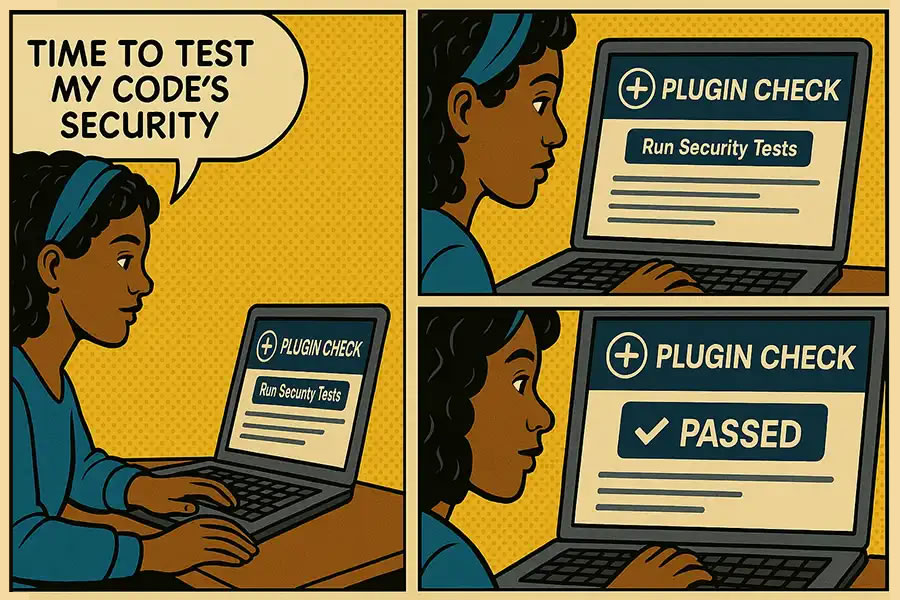
There’s an easy way to test your AI-generated plugin against WordPress best practices. Plugin Check is an official tool that analyzes plugin security, performance, and internationalization.

The WordPress Plugins team uses it to test plugins submitted to the official repository. It will scan your code and provide a laundry list of issues it finds. Each issue’s line and column numbers are displayed, along with a brief description.

Sometimes, the issues are minor technicalities, such as missing a text domain in a PHP function. However, it also identifies potentially serious security flaws. For example, Plugin Check will flag unsanitized code output. That would allow a hacker to input and execute malicious code.

We’ve found that some AI models sporadically escape output in a generated plugin. Their lack of consistency is concerning. Thus, we can’t assume that everything is secure from the get-go.

Install Plugin Check on your testing environment to ensure your plugin meets WordPress guidelines. We have a tutorial to get you started.

Plugin Check will alert you of security issues in your plugin's code.

Try to Break Something

Your plugin may appear to work well enough. However, that doesn’t mean it will hold up against every potential scenario.

A plugin’s behavior can change based on different factors. For instance, it may work as expected when you’re logged in, but not when you’ve logged out. That’s only scraping the surface of what can happen.

A few minutes of testing will help you identify any issues before you install it on a production website. So, put the plugin through a few basic tests, including:

  • Deactivate and reactivate the plugin in the WordPress admin;
  • Change plugin settings (if applicable) and save them;
  • Access your test environment when logged in and logged out;
  • Verify the plugin’s front and back-end functions and output are correct;

Also, be sure to keep your web browser’s console tool open when testing. That will fill you in on any behind-the-scenes errors that are generated.

A few basic tests can help you identify potential problems with your plugin.

Make Your WordPress Plugin the Best It Can Be

AI is a powerful tool for building custom WordPress plugins. It increases our efficiency and capabilities. But AI doesn’t test the plugin’s functionality and security for us. That’s our job.

The good news is that testing is a relatively simple process. The steps above will help you identify issues and make improvements. In other words, treat an AI-generated plugin the same as one a human built.

The result is a better plugin, one that you’ll be confident to use on your website.


Related Topics


15+ Best Free Brush Fonts for Designers in 2025 — Speckyboy

Brush fonts are a type of typeface that replicates the look of calligraphy created with a paintbrush or marker. They are typically characterized by their imperfections, irregular shapes, and varying stroke widths, which give them a more organic appearance than traditional fonts.

Brush fonts are often used in design to express creativity, authenticity, and informality. They are usually aimed at a youth-oriented audience, making them popular in the music, gaming, fashion, and food industries.

From bold and chunky to gentle and graceful, brush fonts come in various styles and weights depending on the actual brush used to create the font. They can add an authentic feel to a design but are generally used to create urban or graffiti-style typography.

To help with your selection, we have curated a collection of our favorite free brush fonts, which you can download and use in your creative projects.


This brush font combines heavy black ink with a well-used artist’s sable brush to create a stunning hand-made and textured typeface. Its distinctive appearance makes it readable in both large and small sizes, making it ideal for many projects.

15+ Best Free Brush Fonts for Designers in 2025 — Speckyboy

Free to Download

Designed by Artimasa Studio, Debby is a free hand-drawn font with a personal and imperfect feel. Use it to add character and uniqueness to your designs.

debby free font brush hand-written hand-painted

Free to Download

Zallord, designed by Alice Whales, is a versatile brush font featuring both uppercase and lowercase characters, numbers, punctuation, and a few extra marks. Its aggressive style is perfect for creating striking displays, labels, clothing designs, posters, movie titles, album covers, logos, and other exciting projects.

Zallord free font brush hand-written hand-painted

Namashte Brush Font is a stunning typeface with a strong paintbrush texture. It is an excellent choice for creating posters, branding materials, and more. With its bold and expressive style, this font will help you make a strong impression.

Namashte free font brush hand-written hand-painted

Free to Download

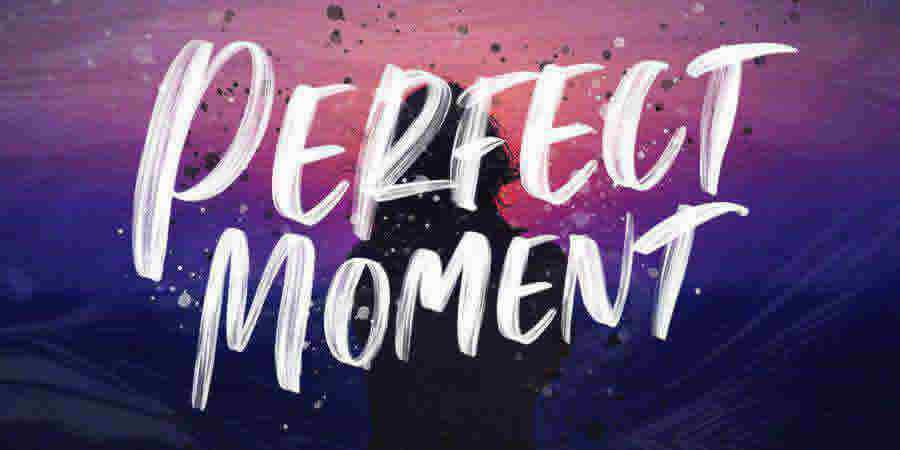
Perfect Moment is a dynamic and adventurous SVG typeface that perfectly captures the energy of hand-written brush strokes. This Open Type font can be used for creating striking headlines and titles,, banners, posters, and more!

Perfect Moment SVG free font brush hand-written hand-painted

Free to Download

This hand-drawn brush font has been created using a thick brush that resembles a traditional besom brush, from which the name is derived. The font only has uppercase letters, giving it a bold and impactful look, perfect for creating distinctive designs.

Besom free font brush hand-written hand-painted

Free to Download

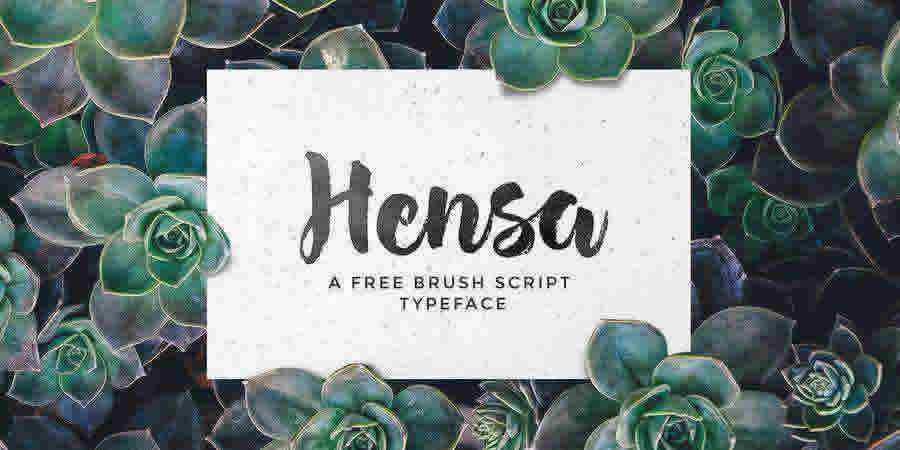
Hensa is a hand-painted brush script font with a stylish design. It includes uppercase and lowercase letters, punctuation, numerals, ligatures, and swashes. Use it for logos, quotes, packaging, and more!

Hensa Hand-Painter Brush Script free font brush hand-written hand-painted

Free to Download

The Hey October free font boasts a playful and whimsical style with irregular letter shapes that give it a fun and quirky feel. It’s the perfect choice for greeting cards, posters, and other design projects where you want to add a touch of whimsy.

Hey October free font brush hand-written hand-painted

Free to Download

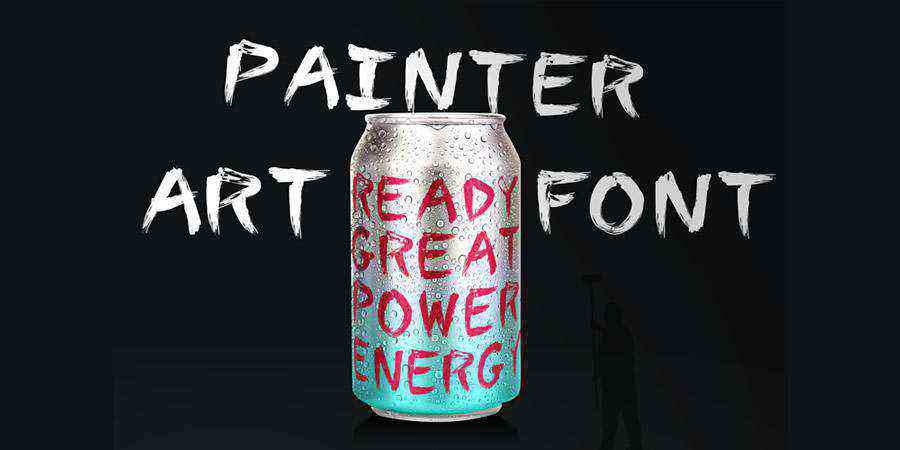
Painter Font is a free typeface with thick brush strokes and a playful, hand-written style. With its unique look, this brush font will add a touch of character to any design.

Painter free font brush hand-written hand-painted

Free to Download

Kūst is a brush typeface with distorted letters. It was created by fashion designer and painter Ieva Mezule using a thick brush and pure black ink on hard paper. Use it to add a bold touch to your design projects.

kust free font brush hand-written hand-painted

Free to Download

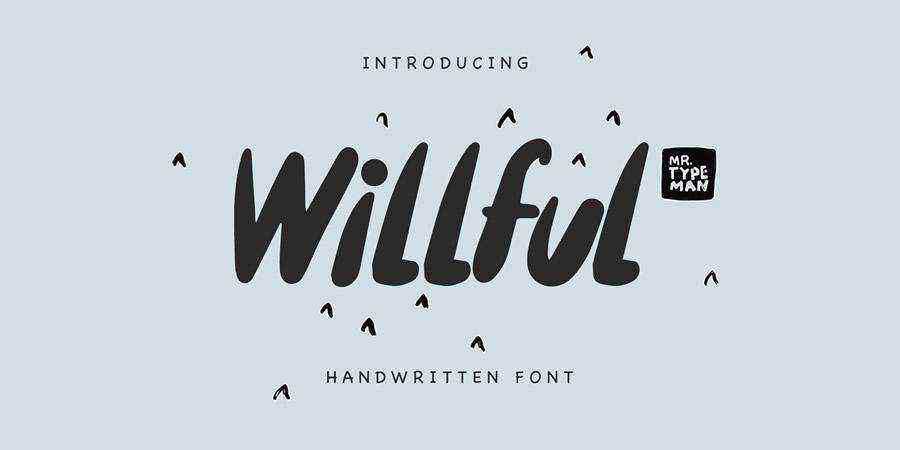
Willful is a playful hand-written brush font perfect for adding character to your designs. Use it by itself or with thin typefaces to create stunning typography.

Willful Sans free font brush hand-written hand-painted

Free to Download

Crocky is a hand-brush typeface with a scratchy brush script style. It’s perfect for branding projects, product packaging, and any project that needs a classy hand-written touch. The font is available for free download and personal use.

Crocky free font brush hand-written hand-painted

Free to Download

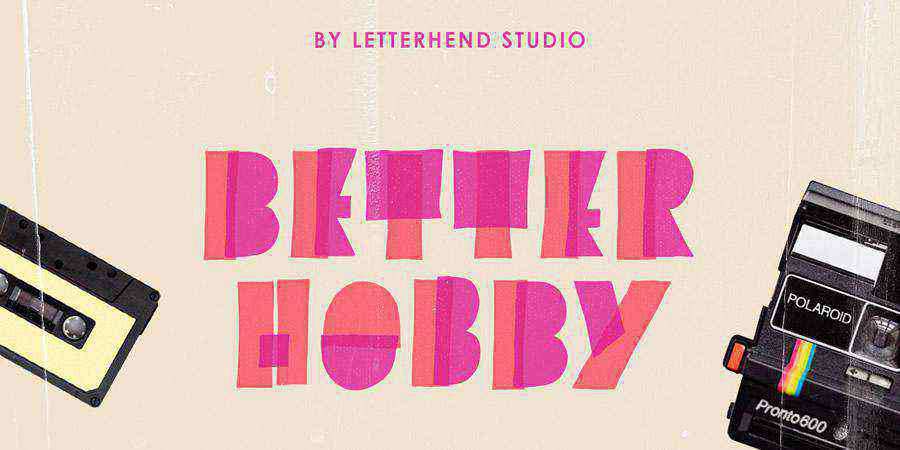
Better Hobby is a free display font with a playful design that is perfect for projects that need a touch of fun. With its colorful highlighter markers and overlaying strokes, this font will bring a lively touch to any design.

Better Hobby Highlighter free font brush hand-written hand-painted

Free to Download

True South free font brush hand-written hand-painted

Free to Download

Mazak is a hand-drawn brush font that’s available for download in both Illustrator AI and TTF formats. With its distinctive uppercase design, this free font will add a unique touch to any design project.

Mazak free font brush hand-written hand-painted

Free to Download

Lemon Tuesday free font brush hand-written hand-painted

Free to Download

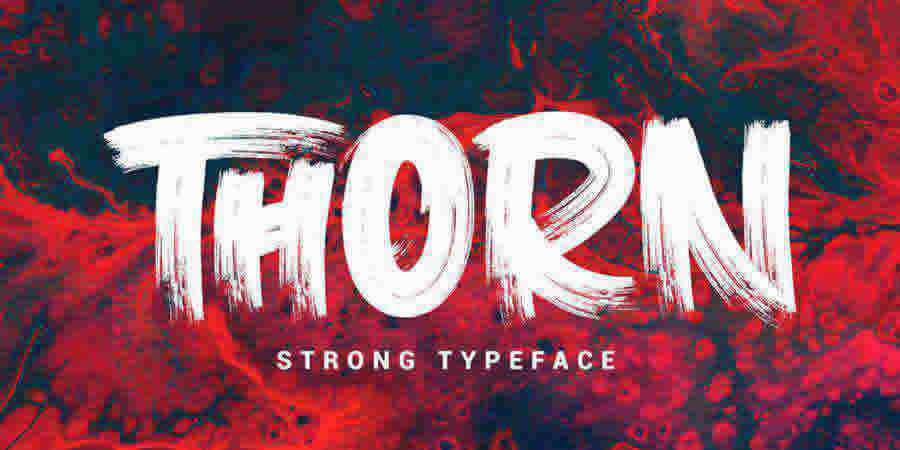
thorn free font brush hand-written hand-painted

Free to Download

Chocoleta free font brush hand-written hand-painted

Free Brush Font FAQs

  • What are Brush Fonts?
    They are a category of typefaces that replicate the look of hand-written text created with a brush or marker.
  • Why Use Free Brush Fonts?
    They’re great for adding a creative touch to your work. Perfect for artistic projects, logo design, or promotional materials, they can give your design a personal and crafted feel.
  • Can I Use Brush Fonts for Business Branding?
    Yes, brush fonts can be used in business branding, especially for brands looking for a casual, approachable, or artistic image. They work well in logos, taglines, and marketing materials.
  • Are Brush Fonts Easy to Read?
    Some brush fonts might be harder to read, especially at smaller sizes. They’re best used for larger headings or focal points where readability is less important.
  • Can I Use Brush Fonts in Print Materials?
    Brush fonts are great for print materials like posters, business cards, and brochures, especially when you want to add a personal or artistic touch.
  • Do Brush Fonts Have Different Styles?
    Yes, they come in various styles, from rough and rugged to smooth and elegant. Each style can bring a different character to your design.
  • Are Brush Fonts Good for Logo Design?
    Brush fonts can be great for logo design, offering a unique and custom-made feel. They are well-suited for brands in creative industries.

Brush Fonts in Your Design projects

Brush fonts are a beautiful representation of imperfect handwriting. Each character is unique and carefully crafted by hand, resulting in a distorted and irregular appearance that can add character and personality to any design.

They bring an authentic and artistic element to design projects. Their textured strokes, expressiveness, and versatility make them popular for designers looking for a touch of handmade charm in their work.


Related Topics


20+ Best Project Proposal Templates for InDesign in 2025 — Speckyboy

Bringing a new business idea to life requires a great deal of planning and preparation. One of the first and most crucial steps is to create a persuasive business or project proposal. However, creating a proposal from scratch can be time-consuming, especially for those new to entrepreneurship. That’s where proposal templates come in.

These business proposal templates for InDesign (both free and premium) have been designed to simplify the proposal creation process. With a wide range of options, you will find the perfect template to suit your specific needs. Whether starting a new venture, looking for investors, or pitching a project to potential clients, these templates offer a professional foundation for your proposal.

With their user-friendly layouts and customizable designs, these INDD templates offer the perfect balance of structure and flexibility. Using a template can save you significant time and energy, allowing you to focus on refining and perfecting your proposal’s content.

Don’t let the prospect of proposal creation hold you back – use these InDesign templates to bring your business idea to life.


If you’re new to the application, you might like to take a look at our collections of InDesign tutorials.


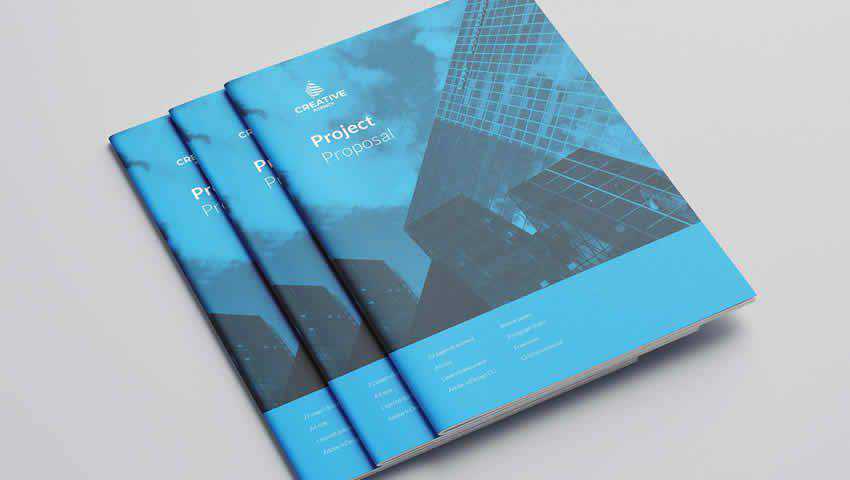
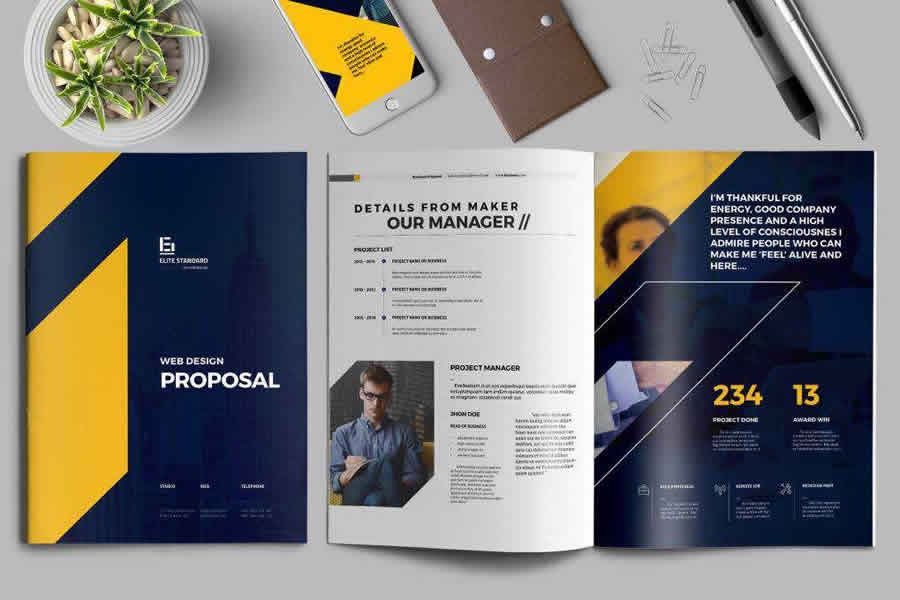
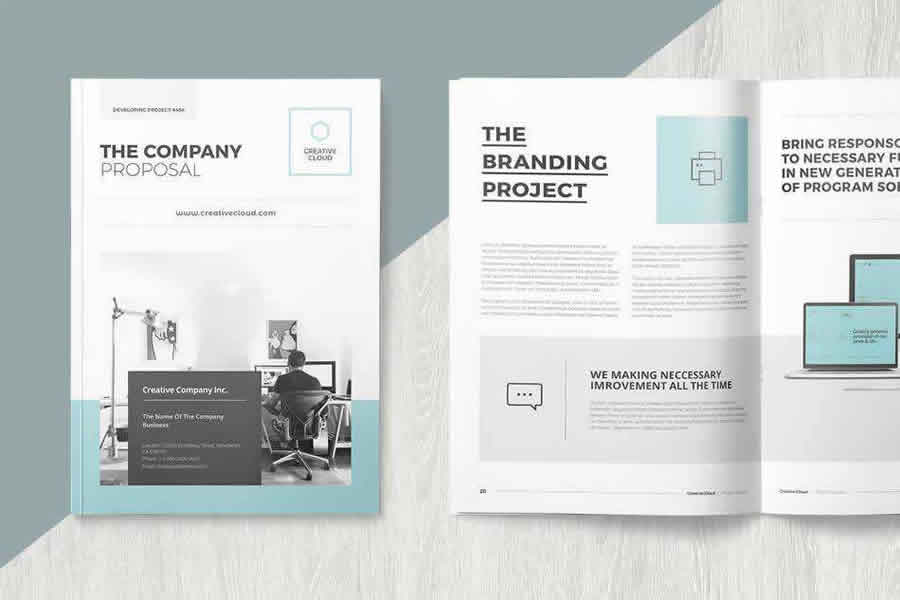
The first proposal template in this collection features a modern and fresh design. The template includes 14 Indesign templates, including a cover letter and resume, proposals, estimates, and invoice templates.

20+ Best Project Proposal Templates for InDesign in 2025 — Speckyboy

Free to Download

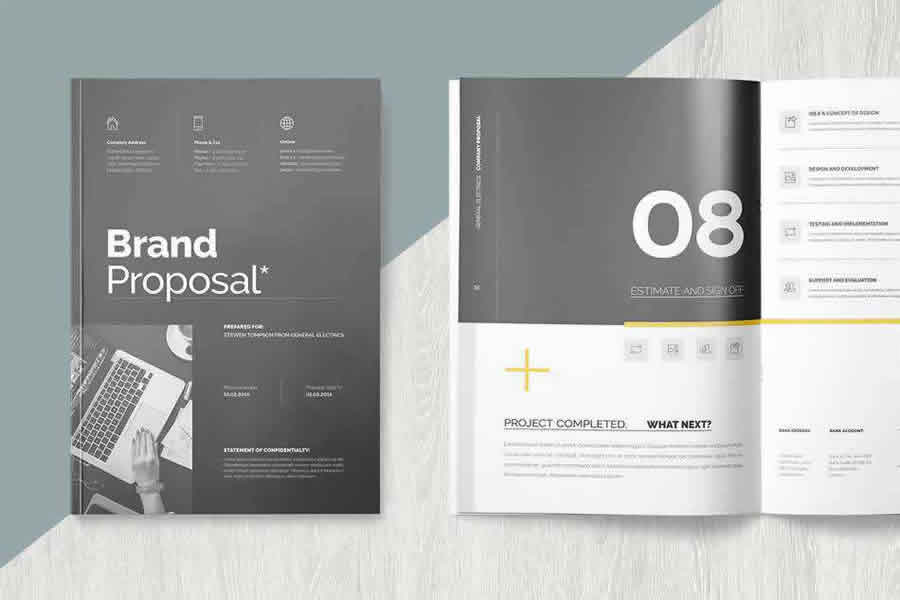
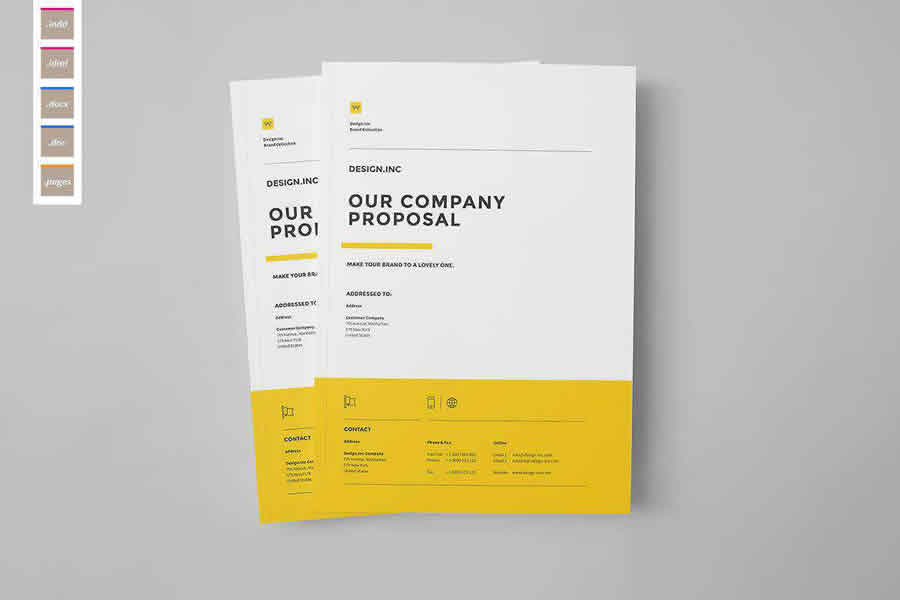
This business proposal template is fairly simple, but don’t let that put you off. Its simplicity is its strength. This 20 page template makes it easy to present your proposal logically without too much clutter and overwhelming the reader.

Business Proposal InDesign Template

This proposal template features a minimalist design and includes 20 different layout files. The files have been designed in A4 and US letter sizes, and they are easy to tweak and customize to reflect your brand.

 proposal print business template format

Free to Download

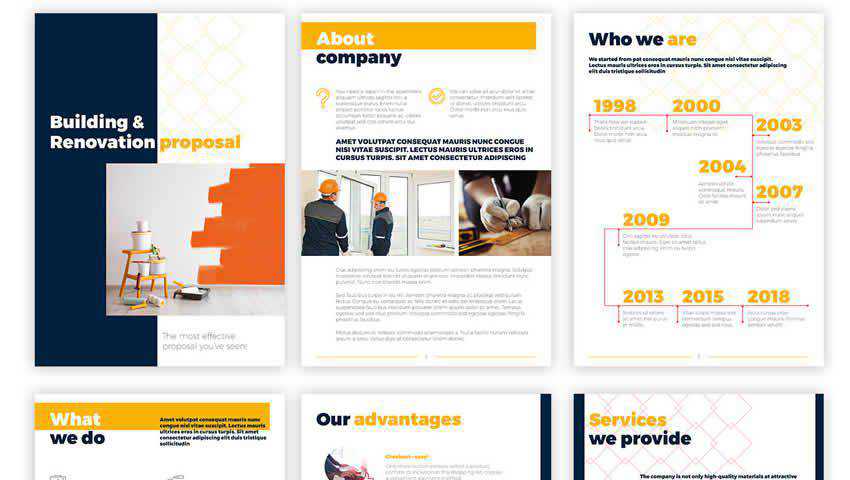
This free business presentation template is ideal for construction and renovation businesses. It has a 20-page layout that offers ample space for detailing your business plan. It includes free fonts and is print-ready in U.S. Letter and A4 sizes.

Business Proposal Presentation Template

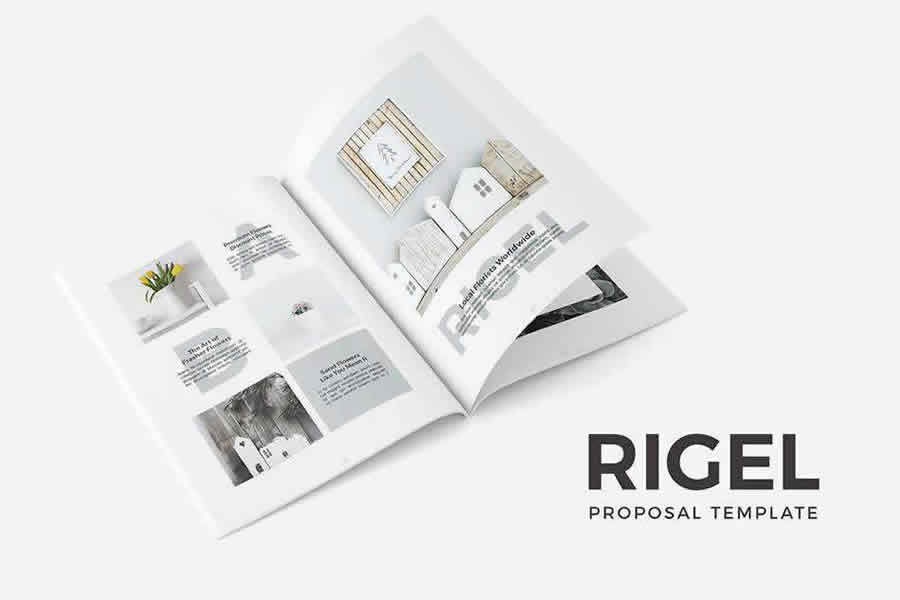
This minimal proposal template includes over 40 layered pages, perfect for designing any type of proposal. The template comes with defined character and paragraph styles, and you can easily change the colors and other styles by editing master files.

 proposal print business template format

Free to Download

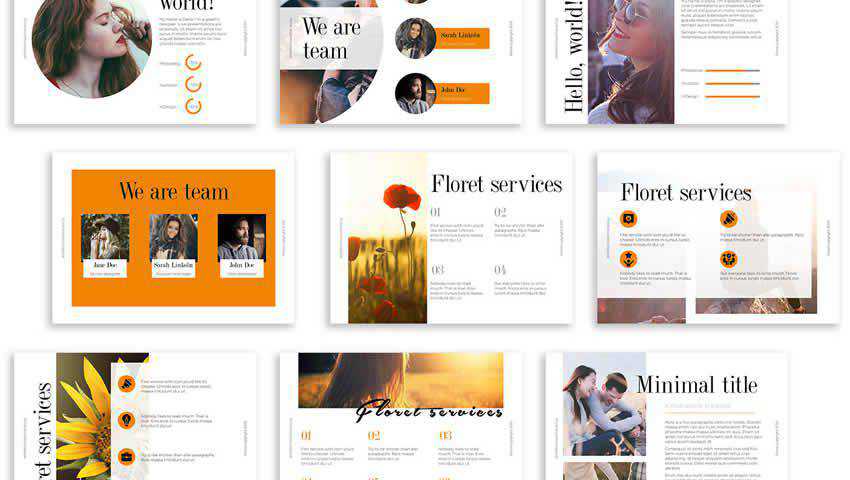
This template lives up to its name. ‘Floret’ features beautiful floral elements and offers a robust 44-page layout worthy of the most complex company proposals.

Floret Business Proposal Template

This colorful proposal template has everything you need to design a beautiful proposal for your next project. The template includes 28 pages, as well as unique character and paragraph styles.

 proposal print business template format

Free to Download

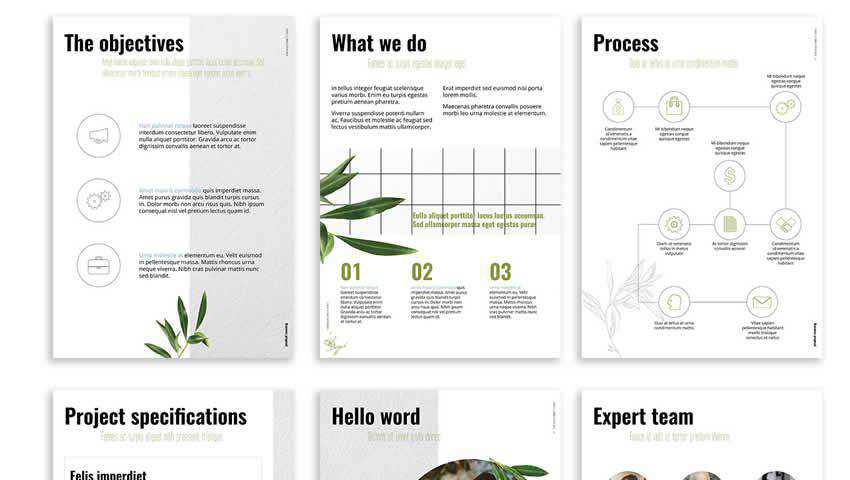
What a breath of fresh air this template is! ‘Olive offers a stunning layout with plenty of whitespace to ensure your proposal content stands out. Thanks to well-organized layers, this InDesign template is super easy to customize.

Olive Free Presentation IndDesign Template

Free to Download

Sometimes, all you need is something super simple to get the point across. The Quote and Presentation Template is perfect for giving an estimate on a project or presenting a new business idea in a streamlined, no-fuss way.

Quote Presentation Templates for InDesign

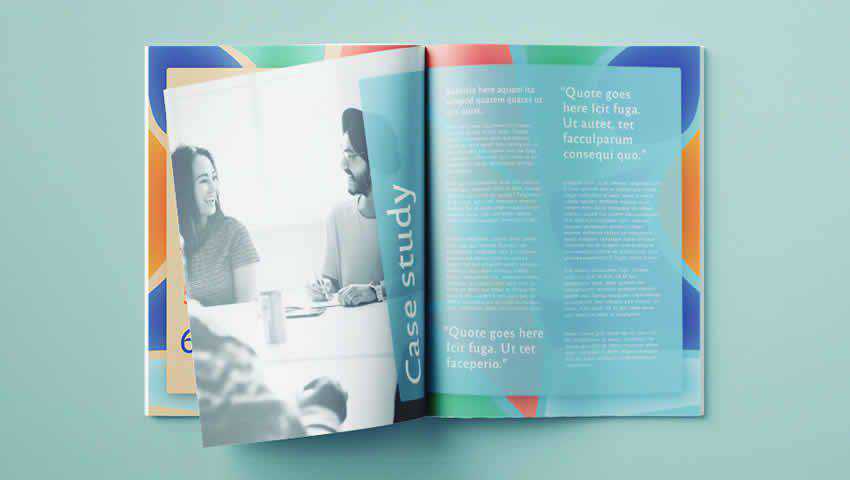
Consider this project proposal if you need a template that you can reuse for multiple projects. With a multipurpose design and style, this template is a perfect choice. It also includes various infographics, editable shapes, two project timeline options, and is compatible with MS Word.

 proposal print business template format

Free to Download

This proposal template is super clean and stylish, reminiscent of numerous minimal designs while still maintaining a sense of originality. This template comes with a 24-page print-ready layout in both A4 and U.S. Letter sizes.

Professional InDesign Proposal Template

Try this clean web proposal project template if you’re looking for one to help you create a professional proposal for a web design project. This templating features a minimal style and comes with 28 pre-designed pages that include everything from proposals to estimates and invoicing.

 proposal print business template format

Free to Download

This stylish business proposal template has been designed with creatives in mind. It offers a bold geometric design, large color blocks, and bold typography. Due to its modern design aesthetic, this template is perfect for use by colleges and universities.

Stylish Business Proposal InDesign Template

This stylish InDesign proposal template includes 34 pages and comes in A4 and us letter sizes, and you can easily customize the colors and the fonts to match your brand.

 proposal print business template format

Free to Download

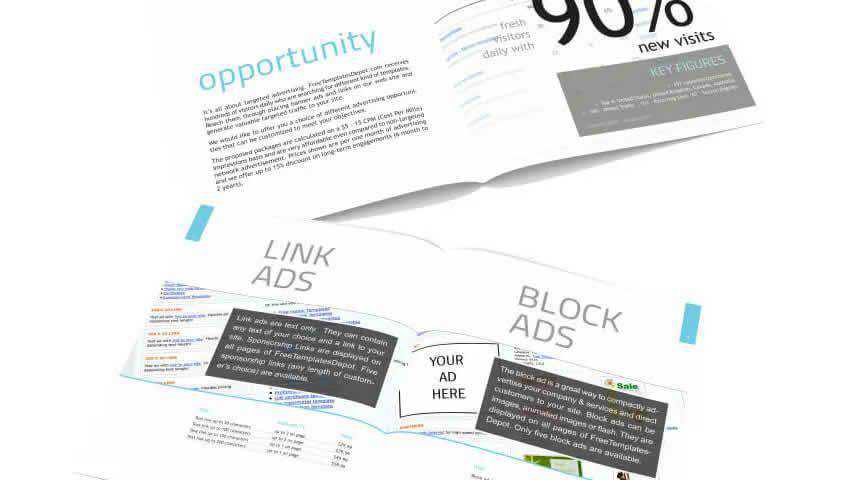
Use it for a business proposal or as a website media kit. Either way, the InDesign Proposal Template includes eight eye-catching layouts, perfect for filling in with company info, custom graphics, graphics, statistics, and more.

Advertising Proposal InDesign Template

The proposal template has a fresh and modern design with 24 pages. The template was designed in A4 and US letter sizes. It features a grid-based layout to help you align your elements and create a stunning proposal.

 proposal print business template format

This colorful and modern web design proposal template is perfect for any web design project. The template comes with 28 easy-to-edit pages and master pages.

 proposal print business template format

Try this one if you need an InDesign proposal and portfolio template to present your project. This template’s standout feature is that it also comes in Photoshop, Illustrator, and Word formats, so you can easily edit it in whatever program you’re most comfortable with.

 proposal print business template format

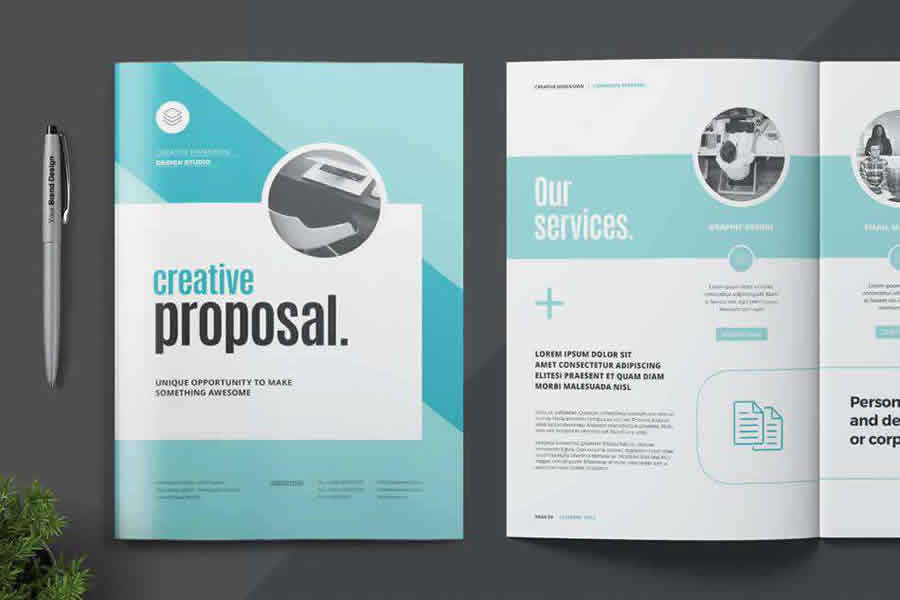
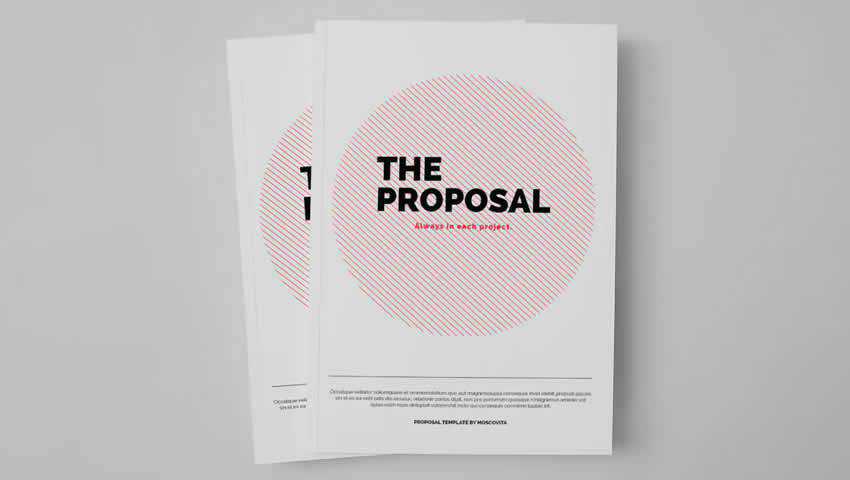
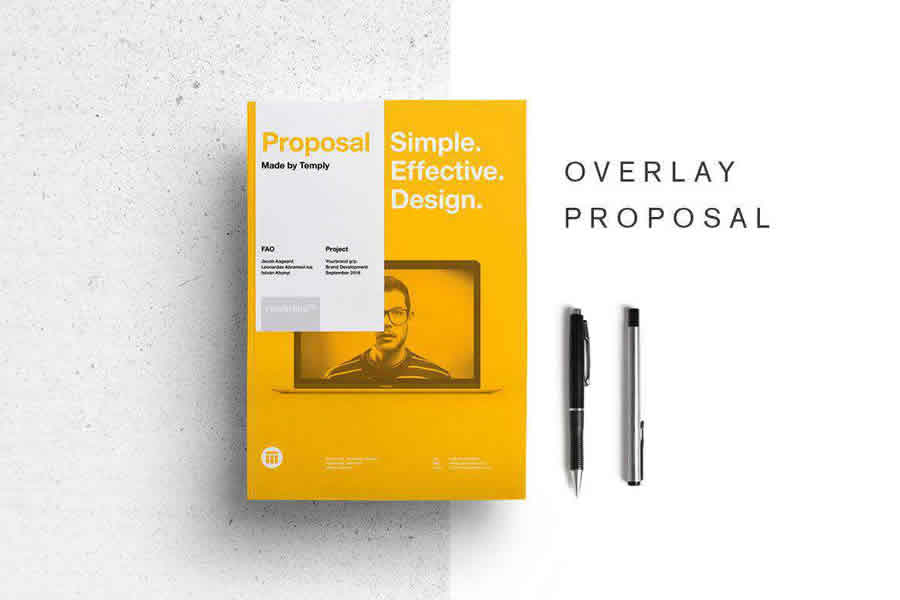
The Proposal Template lives up to its name – it’s the only template you’d ever need, thanks to its understated design and compelling, full-page layout. Customize the color scheme, add personalized text and images, and change character styles, all within 28 pages of full-color, print-ready convenience.

The Proposal Template

InDesign Proposal Template FAQs

  • Are These Templates Customizable to Fit My Business’s Brand?
    You can customize colors, fonts, and layouts to align with your business’s branding and the specific needs of your proposal.
  • Do I Need a Special Version of InDesign to Use These Proposal Templates?
    Generally, the latest versions of Adobe InDesign should be compatible with these templates, but always check the template’s requirements.
  • What Elements Should a Good Business Proposal Include?
    A comprehensive business proposal should include an executive summary, problem statement, solution, budget, timeline, and company overview.
  • Can I Export These Proposals for Digital or Print Use?
    InDesign allows you to export your finished proposal in various formats suitable for both digital sharing and high-quality printing.
  • How Can Using a Template Benefit My Business Proposal?
    A template ensures a polished and cohesive design, allowing you to focus more on the content and less on layout concerns, adding to the professionalism of your proposal.
  • Are InDesign Templates for Business Proposals Suitable for All Industries?
    These versatile templates can be adapted for various industries by customizing the content and design elements.
  • How Do I Choose the Right Template for My Proposal?
    Select a template that meets the tone and complexity of your proposal, considering factors like industry, audience, and the type of information you need to convey.

Proposals That Stand Out

Hopefully, this collection of InDesign business proposal templates will make it easier for you to push forward a new business idea and present all the information you need to captivate your target demographic.

These templates are easy to customize and designed to help your proposals stand out. With various styles to choose from, you will find the perfect template for your business needs.


Related Topics


15+ Best Free Personal Portfolio WordPress Themes in 2025 — Speckyboy

As a designer, illustrator, or other creative professionals, a portfolio website is an essential tool to showcase your skills and attract new clients or job opportunities. With WordPress, it’s never been easier to create a stunning portfolio site, even if you have no coding knowledge. However, choosing the right portfolio theme can make all the difference.

Fortunately, there are many free portfolio WordPress themes available that offer customizable templates, elegant typography, and beautiful galleries, all designed to showcase your work in the best possible light. These themes also offer features like mobile responsiveness and search engine optimization, ensuring your website looks great and is easy to find on any device.

In this roundup, we’ve compiled the best free portfolio WordPress themes for creatives. Whether you’re looking for a minimalistic design or a bold and colorful aesthetic, there’s a theme out there that can suit your needs. These themes are perfect for showcasing your unique style and vision. Check out our selection and start building your professional portfolio website today!

You might also like our collections of personal portfolio PSD templates, or these personal portfolio HTML templates.

Free to Download | Demo | WordPress Hosting

The Hitchcock theme has a unique design with a full-screen featured image. The theme is fully responsive and retina-ready and includes infinite scroll as well as support for the new post editor, Gutenberg.

15+ Best Free Personal Portfolio WordPress Themes in 2025 — Speckyboy

Free to Download | Demo | WordPress Hosting

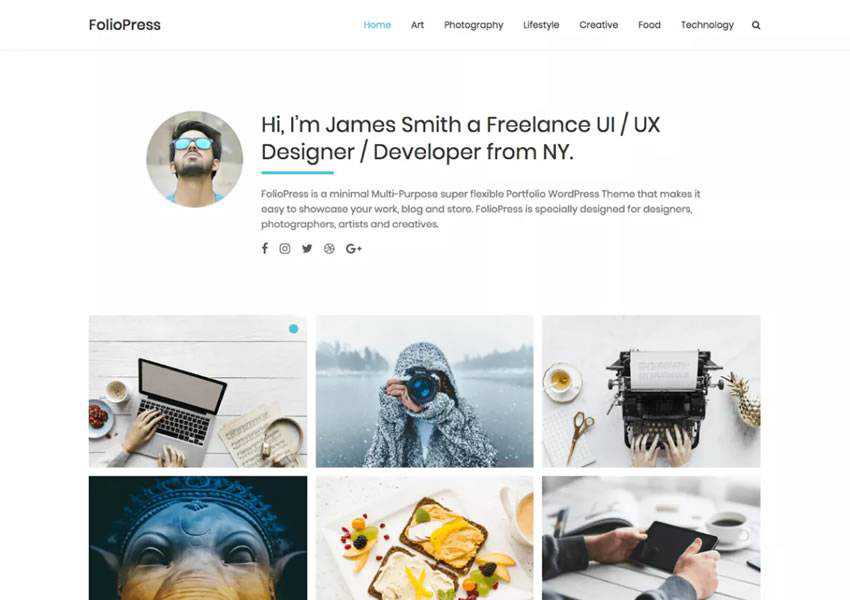
FolioPress is a minimal and flexible portfolio theme that displays your creative work in a grid layout on the homepage. You will also find plenty of customization options, custom social profiles, and it is fully responsive.

FolioPress free wordpress theme wp responsive creative designer agency portfolio camera

Free to Download | Demo | WordPress Hosting

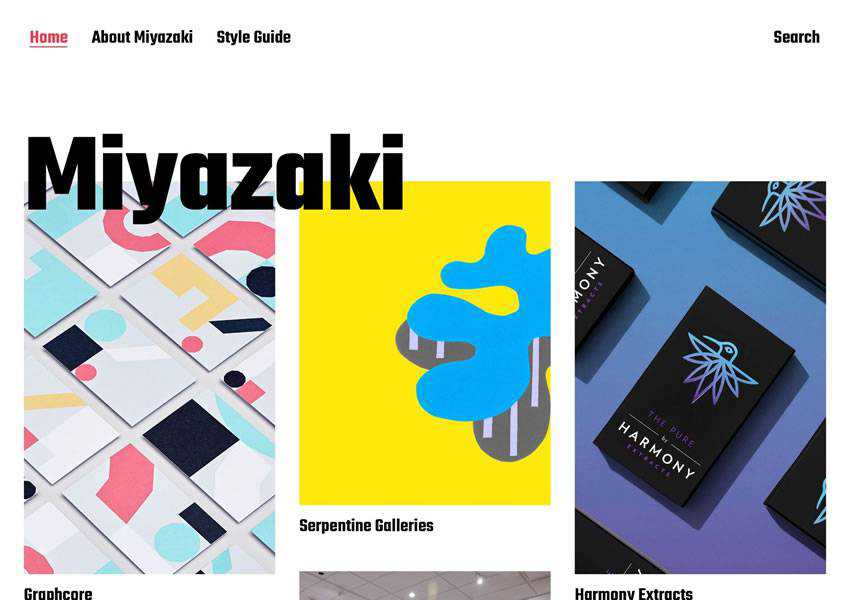
Consider the Miyazaki theme if you’re looking for an elegant and stylish portfolio theme. It uses contrast-heavy design, bold typography, and masonry layout to ensure your creative works draws the attention they deserve.

Miyazaki Stylish free wordpress theme wp responsive creative designer agency portfolio camera

Free to Download | WordPress Hosting

The Optics is a clean theme suitable for anyone looking for a minimal portfolio. The theme is easy to customize and is also translation and accessibility-ready. A standout feature is the integration with WooCommerce, so you can quickly sell your work.

Optics Clean free wordpress theme wp responsive creative designer agency portfolio camera

Free to Download | Demo | WordPress Hosting

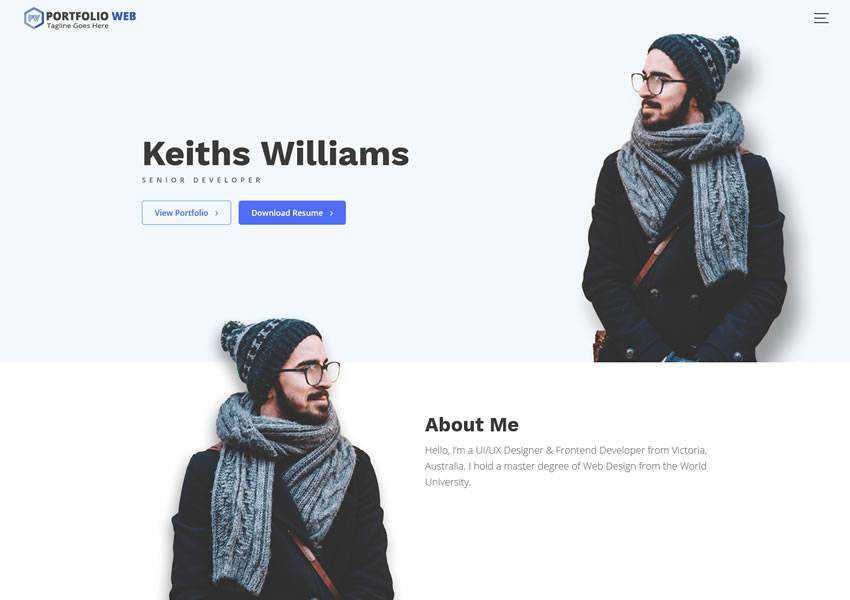
The Portfolio Web is a simple, modern, and responsive WordPress theme built with designers and creatives in mind. It comes with a built-in Live customizer and a huge range of widgets that make this theme easy to use.

Portfolio Web Multipurpose Biography free wordpress theme wp responsive creative designer agency portfolio camera

Free to Download | Demo | WordPress Hosting

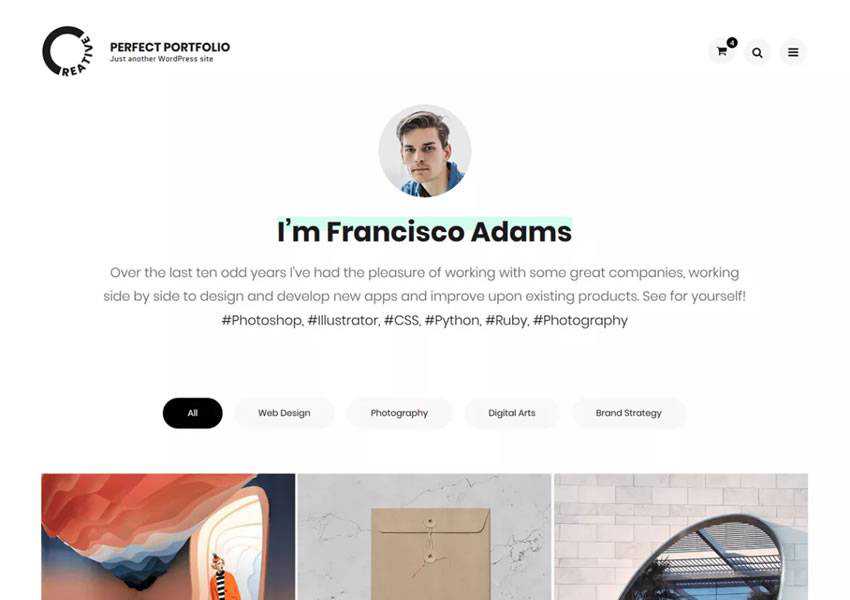
The Perfect Portfolio theme focuses on typography paired with stunning featured images. The theme has a wide range of customizable features, including sections on the front page, cross-browser compatibility, mobile-friendly design, and responsive features.

Perfect Clean Elegant free wordpress theme wp responsive creative designer agency portfolio camera

Free to Download | Demo | WordPress Hosting

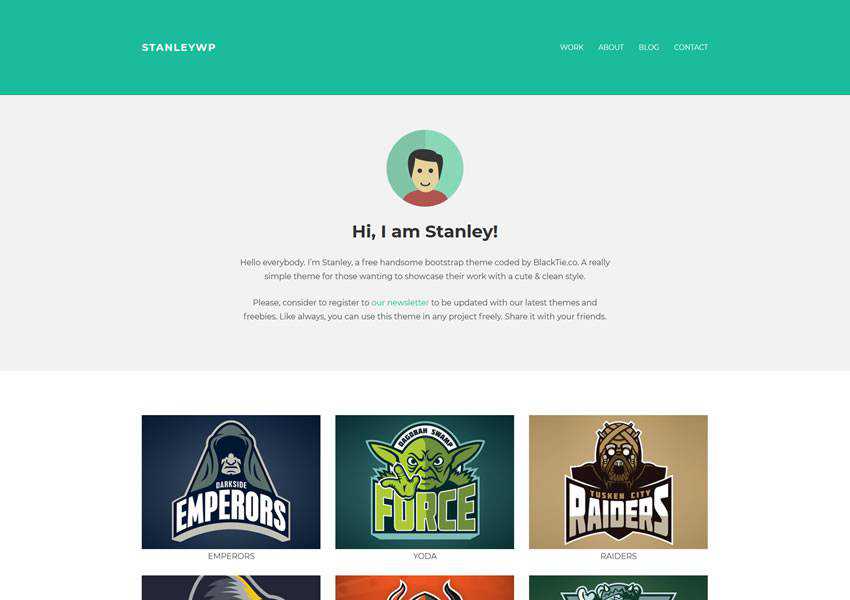
StanleyWP is based on the Bootstrap framework, which means it’s responsive out of the box. It’s also minimal and easy to customize and features several different page templates that will make it easy to get your site up and running as fast as possible.

StanleyWP Bootstrap free wordpress theme wp responsive creative designer agency portfolio camera

Free to Download | Demo | WordPress Hosting

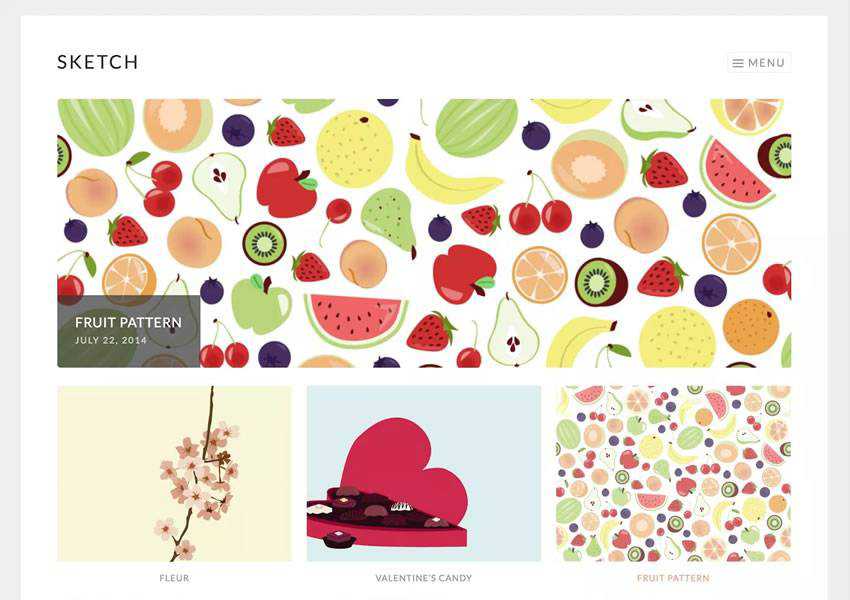
Sketch is a responsive portfolio theme, perfect for showcasing your creative talent. The theme features a clean, lightweight design that puts focus on your projects. It’s also easy to customize and supports a custom social links menu.

Sketch free wordpress theme wp responsive creative designer agency portfolio camera

Free to Download | Demo | WordPress Hosting

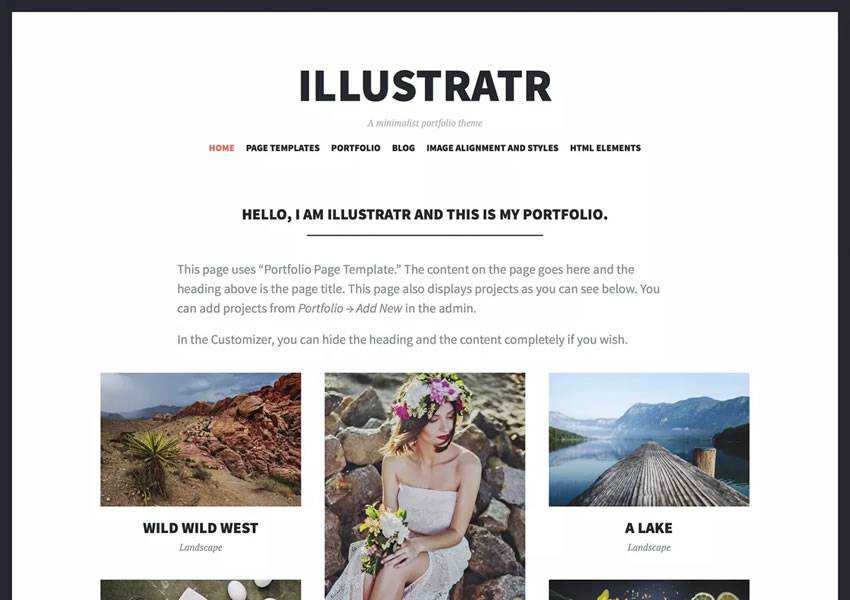
The Illustratr theme features elegant typography and displays your creative works in an elegant grid fashion. It makes use of the WordPress portfolio feature, and it also includes support for a custom social links menu.

Illustratr free wordpress theme wp responsive creative designer agency portfolio camera

Free to Download | Demo | WordPress Hosting

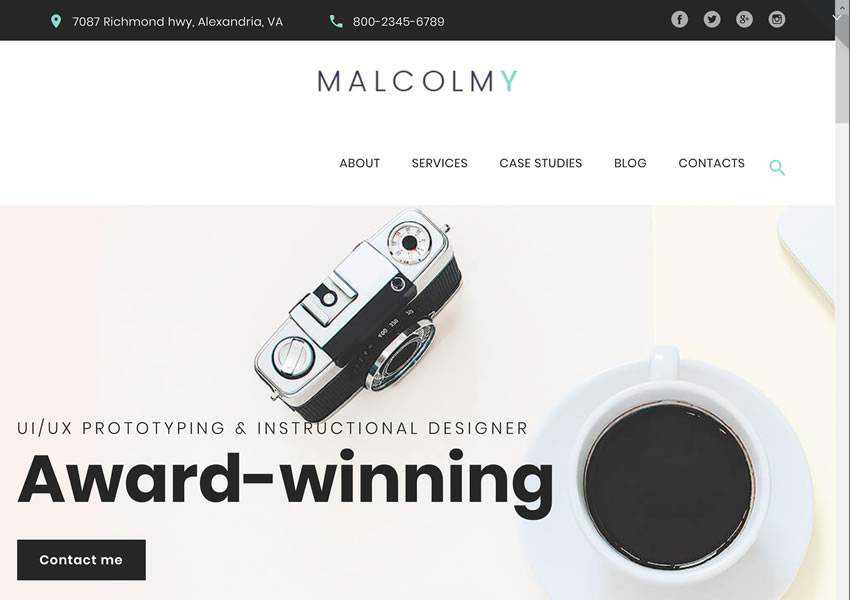
The MalcolmY theme is easy to customize because it uses a drag-and-drop page builder and has an extensive theme options panel, so you can make this theme your own without any coding knowledge. The theme has multiple portfolio layout possibilities and is fully responsive.

MalcomY Freelance Designer free wordpress theme wp responsive creative designer agency portfolio camera

Free to Download | Demo | WordPress Hosting

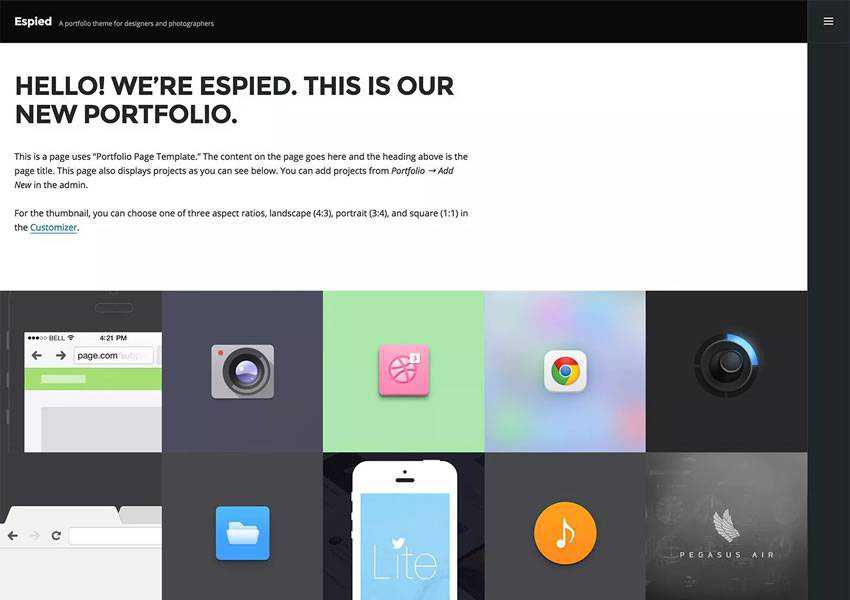
The Espied theme has a minimal design which puts your creative projects in the spotlight. With support for Gutenberg and classic layout, custom social links menu, and a responsive design, this theme is easy to use and makes it easy to share your creativity with the world.

Espied free wordpress theme wp responsive creative designer agency portfolio camera

Free to Download | Demo | WordPress Hosting

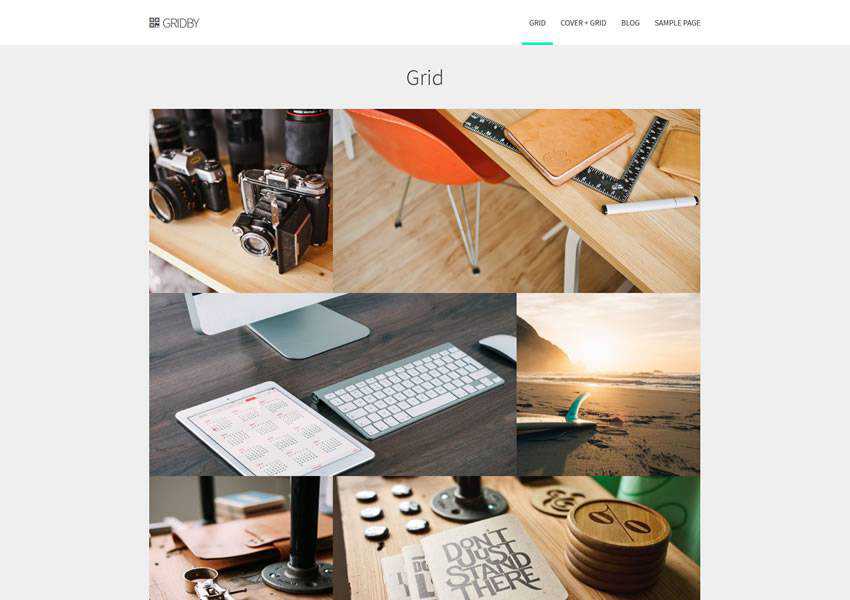
Try the Gridby theme if you love parallax design. In addition to beautiful parallax animation, this theme uses a grid layout and is easy to customize thanks to the extensive theme options panel.

Gridby Parallax Grid free wordpress theme wp responsive creative designer agency portfolio camera

Free to Download | Demo | WordPress Hosting

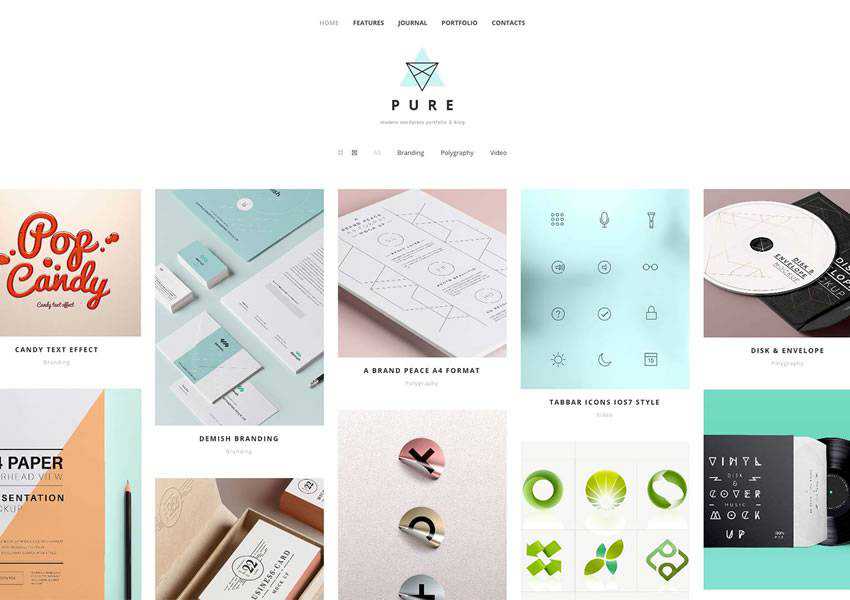
The Pure theme has a dedicated portfolio option and a well-designed blog section so you can easily share plenty of details about your creative process. The theme is easy to customize with a drag-and-drop page builder.

Pure free wordpress theme wp responsive creative designer agency portfolio camera

Free to Download | Demo | WordPress Hosting

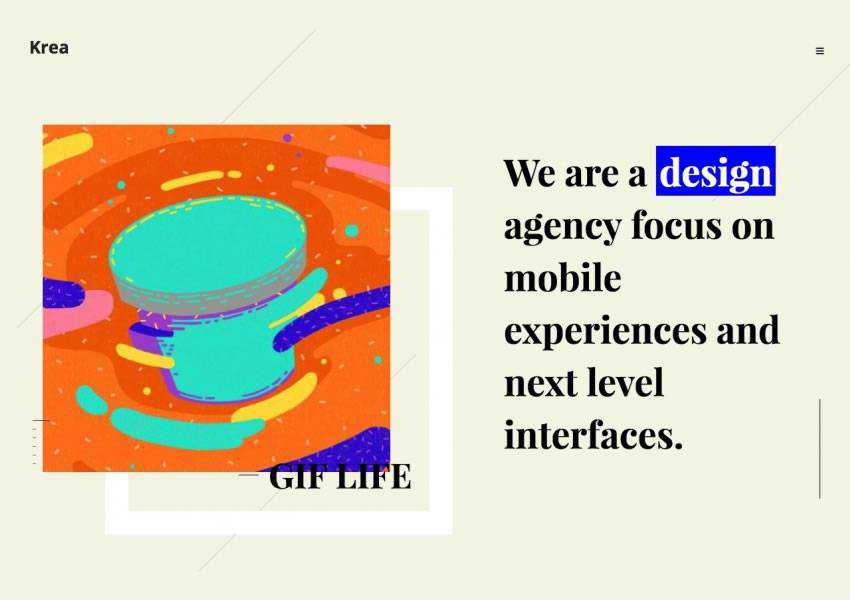
The Krea theme uses bold typography paired with a well-organized grid layout to make your creative works stand out. It comes with detailed documentation and is translation-ready.

Krea free wordpress theme wp responsive creative designer agency portfolio camera

Free to Download | WordPress Hosting

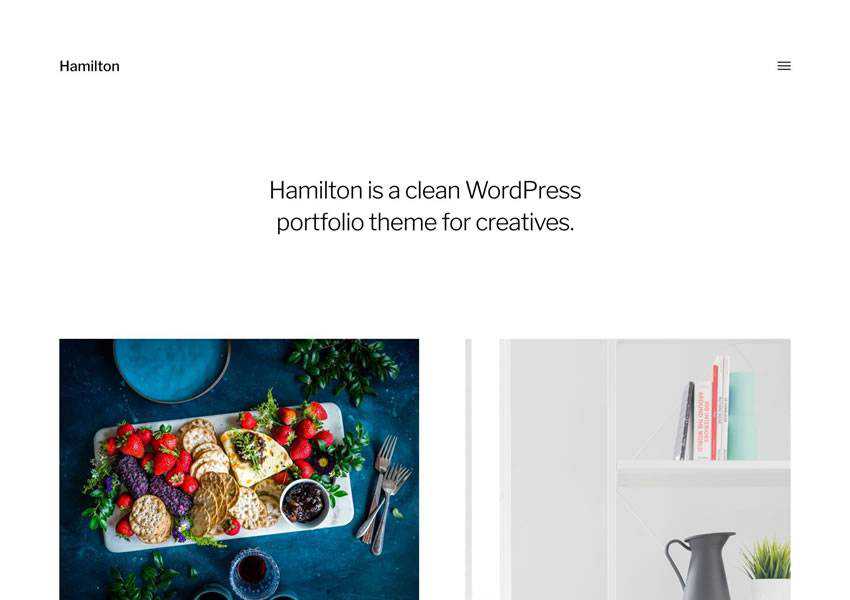
The Hamilton theme is an excellent choice if you’re looking for a simple and clean theme. It has a built-in dark and light mode, infinite scroll, and Gutenberg and classic editor support.

Hamilton free wordpress theme wp responsive creative designer agency portfolio camera

WordPress Portfolio Theme Comparison Table

Theme Best For Features Responsive SEO Friendly
Hitchcock Photographers & Designers Fullscreen image grid, social icons, retina-ready
FolioPress Creative Agencies Homepage slider, portfolio showcase, customizable layout
Miyazaki Writers & Visual Creatives Bold typography, masonry grid, infinite scroll
Optics Photography Portfolios Clean galleries, bold image display, Gutenberg support
Portfolio Web Personal Portfolios One-page design, easy customization, smooth scrolling
Perfect Portfolio Freelancers Multiple homepage layouts, SEO optimized, fast loading
StanleyWP Designers & Developers Bootstrap framework, portfolio showcase, minimal style
Sketch Illustrators & Artists Minimal design, project-focused layout, easy setup
Illustratr Graphic Designers Simple grid layout, portfolio projects, lightweight design
MalcolmY Creative Portfolios Grid-based layout, bold typography, lightweight code
Espied Photography Portfolios Clean image grid, portfolio template, modern layout
Gridby Visual Artists Grid-first design, easy portfolio management, responsive
Pure Minimalist Minimal Portfolios Simple layout, clean typography, distraction-free design
Krea Agencies & Studios Creative layouts, bold design, portfolio showcase
Hamilton Modern Minimal Portfolios Grid design, dark/light mode, Jetpack infinite scroll

Frequently Asked Questions

  • What is the best free WordPress portfolio theme in this collection?
    Hamilton is a favorite for its clean grid design, while Miyazaki and Hitchcock stand out for their bold layouts and strong typography.
  • Which themes work best for photographers?
    Optics, Espied, and Illustratr are built with image-heavy portfolios in mind, making them strong choices for showcasing photography.
  • Are these free portfolio themes responsive?
    Yes. Themes like Perfect Portfolio, Portfolio Web, and Gridby are fully responsive, so your work looks sharp on any screen size.
  • Which themes are best suited for minimal portfolios?
    Sketch, Pure, and Hamilton offer simple layouts with a focus on your work, making them ideal for minimal-style portfolios.
  • Can these free themes be easily customized?
    Many of them, such as FolioPress, StanleyWP, and Krea, offer flexible options through the WordPress Customizer for colors, layouts, and typography.

Getting your portfolio site up and running is not difficult when you have tools like WordPress at your disposal. However, you will still need a portfolio theme, so use our roundup as a starting point to find the best WordPress theme for your site.


More Free WordPress Themes

<!–


–>

Related Topics