Compyl Raises $12M Series A to Redefine AI-Guided GRC and Risk Management

Compyl, a rapidly growing provider of unified Governance, Risk, and Compliance (GRC) solutions, has successfully closed a $12 million Series A funding round. The investment was led by Venture Guides, with participation from existing investors including Contour Venture Partners, Armory Square Ventures, nvp capital, Alpine Meridian…

Maximize Your Live Productions This Summer with Exclusive Bundles from Videoguys

Take your live productions to the next level with powerful new bundles from Videoguys.com! Whether you’re a streamer, content creator, or video pro, our summer deals put cutting-edge tools right into your hands. Don’t miss how to upgrade your gear and workflow today!

Watch the full webinar below:

[embedded content]


Atomos Free SSD with Purchase Promo

Buy a Ninja or Ninja Ultra and receieve a FREE qualified 240GB SSS from Atomos with rebate directly from Atomos – valid through 6/30/25

Buy a Shogun Classic, Shogun Ultra, or SUMO 19SE  and receive a FREE qualified 480GB SSD from Atomos with rebate directly from Atomos – valid through 6/30/25


PTZOptics Producer Bundles

  • 3 cameras + Controller
  • Perfect for every production
  • Easy to set-up and use – Just connect with HDMI, SDI, USB, NDI, or IP
  • Cameras are color matched and control is native!!!

PTZOptics Producer Move SE PTZ Camera Bundle

  • 3x Move SE 20x PTZ Cameras

  • 1x PT-JOY-G4 Joystick Controller

  • 1080p Clarity

  • Output options including SDI, HDMI, USB, NDI|HX2, and IP

  • Auto-Tracking in PTZ Cameras

PTZOptics Producer Move 4K PTZ Camera Bundle

  • 3x Move 4K 20x PTZ Cameras

  • 1x SuperJoy Joystick Controller

  • 4K Crystal Clear Video

  • Output options including SDI, HDMI, USB, NDI|HX2, and IP

  • Auto-Tracking in PTZ Cameras


PTZOptics, YoloLiv, NETGEAR Sports Production Bundle

PTZOptics, YoloBox Ultra, NETGEAR Sports Production Bundle

  • 1 x PTZOptics Move 4K 12x
  • 2 x PTZOptics Studio 4K 12x
  • 1 x PTZOptics SuperJoy
  • 1 x YoloLiv YoloBox Ultra
    ($99 NDI License Available directly from YoloLiv)
  • 1 x NETGEAR 10PT M4250-8G2XF-POE+ Managed Switch

YoloLiv YoloBox Ultra

  • 4K Streaming, ISO Recording
  • 4 x HDMI & 2 x USB Inputs + HDMI Out 
  • Lin In & Mic In + Audio Out
  • NDI + SRT Input & Output
  • USB Webcam Out + External Hard Drive
  • Stream via Ethernet, Wi-Fi, 4G LTE, USB Dongle
  • Built-In Battery with up to 75.48Wh(Up to 6 hours)
  • Network Bonding(3 Sims + Wifi + Ethernet)
  • Supports H.264 & H.265
  • Multistream to Facebook, YouTube, RTMP(up to 3 platforms)
  • Multistream to TikTok, Instagram(2 vertical platforms)
  • Encoder, Monitor, Switcher, Recorder all in one
  • Live Switch from up to 10 Sources
  • 1 x SD Card for Recording & Media Assets
  • 650 cd/m² Brightness
  • 8″ Touchscreen Control LCD Display

YoloBox Ultra with YoloDeck Bundle

  • Move through workflows with lightning speed and fine-tune adjustments at the touch of a button
  • All Controls you need for YoloBox Ultra are right at your fingertips
  • YoloBox Ultra gives you 4 HDMI inputs for all-in-one production
  • YoloDeck makes it easy to navigate it all with 15 programmable keys

Vizrt TriCaster Family to Help Tell Your Story

  • Powerful and Affordable
  • Entire Suite for Media Production at your Fingertips
  • Amazing quality with consistency and efficiency

TriCaster Mini X with Control Surface Bundle

Bundle provides studio-style control and a small footprint to deliver professional results

  • 8 x IP video inputs via NDI®
  • 4 x HDMI video connections
  • Support for up to 8 simultaneous PTZs
  • 4 x independent video mix outputs
  • 1 x UHD video mix output

TriCaster Vizion Tower 16 SDI I/O and Viz Connect Audio Bundle Launch Promo

Ultimate live production solution for professional broadcasters managing complex, high-demand productions

  • Up to 16 configurable SDI I/O
  • Advanced video mixing
  • AI gaze correction and keying
  • Integration with Viz Flowics graphics
  • Includes NEW Viz Connect Audio

Elevate your workflow and meet the demands of today’s broadcast industry.

Maximize Your Live Productions This Summer with Exclusive Bundles from Videoguys

Vizrt TriCaster Vizion Loyalty Trade-In for T2E Program Available!


BirdDog PTZ Cameras and KBD Controller Bundles


Liberty X Live Production Workstation

  • Enterprise class workstation purpose-built for live production
  • AMD Ryzen 9-7900
  • NVIDIA Quadro A1000 GPU
  • 32GB RAM
  • 1TB M.2 NVMe SSD
  • 500W Flex PSU
  • Workstation-Grade Motherboard -w/(2) 10GBe NICs
  • Windows 11 Pro
  • Vizrt Certified for TriCaster Mini S
  • Telestream Certified for Wirecast Pro

How to Address the Network Security Challenges Related to Agentic AI

Agentic artificial intelligence (AI) represents the next frontier of AI, promising to go beyond even the capabilities of generative AI (GenAI). Unlike most GenAI systems, which rely on human prompts or oversight, agentic AI is proactive because it doesn’t require user input to solve complex, multi-step…

Yomi Tejumola, Founder and CEO of Algomarketing – Interview Series

Yomi Tejumola is the Founder and CEO of Algomarketing, a company focused on helping enterprise teams integrate AI-proficient talent to drive transformation and unlock growth. With a background as a data scientist and marketing technologist, Tejumola spent over a decade working with leading global enterprises to…

How to Onboard Your Clients With WordPress — Speckyboy

WordPress powers websites of all sizes and across industries. As such, the content management system (CMS) has a diverse user base. People from all walks of life use it to publish, sell, and share their ideas.

That poses a challenge for freelancers and agencies. Educating clients on the finer points of WordPress is a personal affair. We must tailor our message to match our audience.

New users are of particular importance. WordPress, like all software, has a learning curve that can be overwhelming to some. There are obstacles for those wanting to manage their website.

So, how do we effectively onboard clients? Here are some tips to help you help them.

Streamline the Site Management Experience

One key to successful training is building a website that’s easy to manage. The good news is that WordPress is flexible. You can create a site management experience geared for your clients.

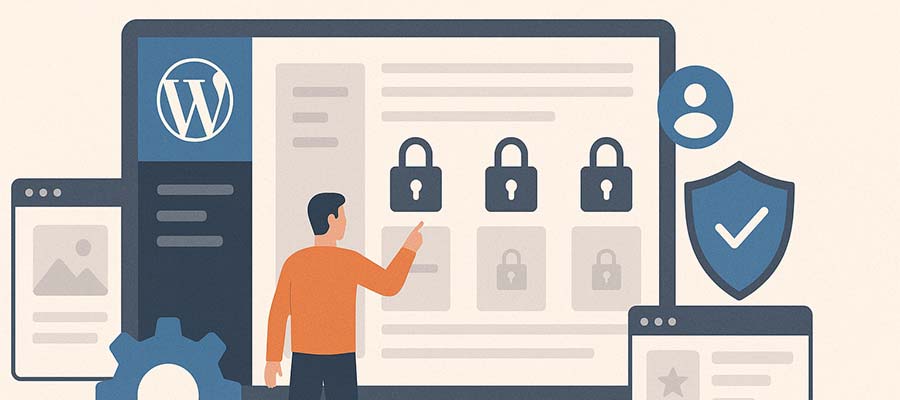
The first step is to build features that don’t require expertise to manage. For example, create page layouts that are resilient and not easily broken. Use the WordPress locking feature to prevent blocks from accidentally being deleted or moved.

The rule of thumb is: If it’s a pain for you to update, it’s too hard for your client. Remember that in all you do.

Then there’s the WordPress admin area. It’s easy to get lost in the many navigation items and dashboard widgets. We can reduce this by assigning a less privileged user role. For example, an Editor account will see fewer menu items and have limited access to site-breaking settings. Some available plugins make the dashboard a friendlier place for clients as well.

Taking these steps greatly reduces the learning curve. And you can do it before your client logs in for the first time.

How to Onboard Your Clients With WordPress — Speckyboy

Get to Know Your Client’s Comfort Level

Take time to get to know your client. You’ll learn a lot about them during the project’s strategy, design, and build phases.

For instance, try to gauge their comfort level with technology. Are they good with gadgets? Does their job require the use of online tools? Do you notice them struggling with technical tasks?

This information will help you design a training process that meets their needs. You can determine potential roadblocks and how to avoid them.

Clients who are inexperienced with technology generally need a bit more hand-holding. That means focusing on the basics, like logging in and navigating within WordPress. Then it’s time to tackle the likes of the Block Editor.

Meanwhile, you can gloss over the basics when training someone with WordPress experience. A short overview won’t hurt, but you can spend more time on other areas.

Educating clients isn’t a one-size-fits-all proposition. Personalize the experience as much as possible.

Personalize your training session to meet your client's comfort level.

Focus On What Clients Need to Know

WordPress is a vast subject, and your knowledge may run deep. That doesn’t mean your clients have to know it all. It’s probably better that they don’t.

Why? Managing their website is yet another thing on a client’s to-do list. They don’t have the mental bandwidth to learn the history of WordPress or how everything works.

Thus, your training should focus on what they need to know. Think about the tasks they’ll perform and the areas of WordPress they’ll use most. This is the best way to spend the bulk of your training session.

For example, a client who publishes press releases will need to understand WordPress posts and taxonomies. Details such as uploading featured images and choosing post categories are important.

Meanwhile, a client who wants to create photo galleries will need to understand the workflow. Focus on the gallery plugin you’re using or building native galleries in the Block Editor. Other aspects of the task, like image optimization, are also worth discussing.

The idea is to provide relevant information while avoiding topics that will overwhelm your clients. You only have so much time for training, so make every second count.

Focus your training on the tasks your clients will perform.

Provide Reference Materials for After Training

Training clients means filling their heads with instructions. There’s only so much knowledge that can be absorbed in an hour. Inevitably, some things will be forgotten when they try to do it themselves. Infrequent tasks can also lead to missing the finer details the next time they log in.

Reference materials help clients to refresh their knowledge. It’s something they can look to when they have a question. It may even save you from a panicked email or two. That alone makes it worth your efforts.

The most obvious item is a recording of your training session. If you use an app like Zoom, record the meeting and post it online (get your client’s permission first). You can also use an AI notetaking app to email a summary of the meeting. It’s a nice touch and will come in handy.

Screencasts are also a helpful resource. Record yourself performing relevant tasks and put them on a private page. Your clients can see exactly how things are done. You can even reuse them for different clients if the subject is broad enough.

There’s also plenty of WordPress tutorials available. Sites like the official Learn WordPress courses offer videos for users of all experience levels. And YouTube is full of videos highlighting various tools and techniques.

Reference materials are helpful and a way to increase revenue. Add the cost of creating tutorials to your site-building packages. It’s an extra service that benefits everyone.

Reference materials like video guides come in handy for clients.

Be a Friendly, Open Guide

The final ingredient to onboarding clients has little to do with technology. It’s more about being a patient and kind teacher. That, as much as anything, will help your client learn more effectively.

There are a few simple rules:

  • Explain concepts and instructions in plain language.
  • Go slowly and avoid unnecessary steps.
  • Ask your client if they have questions and leave room for them to ask.
  • Show empathy and put yourself in their shoes.
  • Provide positive feedback.

We get it, you’re busy. Client training is one of many tasks you need to finish. Regardless, don’t forget the human touch when teaching.

Remember, a positive training experience also strengthens your relationships. Clients won’t hesitate to recommend you to others and will stay with you for years to come.

Patience and empathy help ensure successful client training.

Use Your Expertise to Empower Clients

Content management systems such as WordPress allow clients to manage some or all aspects of their website. It’s a powerful tool for connecting them to the world.

Many will need a helping hand along the way; that’s where we come in. Web professionals act as guides to the software’s functionality. We show clients the whys and hows so they can accomplish their goals.

Teaching clients is rewarding but challenging. Every person has a different learning style and experience level. Not everyone “gets it” right away.

However, a little preparation can create positive results. Take time to understand your client’s comfort level with technology. Determine what they need to know about WordPress. Provide resources they can reference later. Most of all, exercise patience when teaching.

Together, you’ll help them gain the skills they need to flourish. They’ll feel empowered, and you’ll have that warm, fuzzy feeling inside!

Related Topics


Can AI Site Builders Make WordPress Easier? — Speckyboy

Getting started with WordPress is challenging. You install the app, log in, and… then what? Many first-time users face this conundrum – the next steps aren’t obvious.

The content management system (CMS) becomes easier as you navigate its learning curve. But it’s worth wondering how many people give up before they reach that point.

Technology may have a solution. AI-powered site builders are starting to infiltrate the market. They aim to make it easier for non-developers to build a website by answering a few questions.

Perhaps they sound like yet another attempt at a DIY tool, something else to replace web designers. This makes sense on the surface. However, AI has the potential to break down some longstanding barriers to using WordPress. If so, they could be useful to professionals and novices alike.

With that in mind, let’s explore the potential of combining AI with WordPress. We’ll look into the future and make a few guesses as to what’s to come.

WordPress Lacks a Great Onboarding Experience

Before we dig into AI’s potential to help WordPress users, we should define the problem that needs to be solved. Logging into WordPress for the first time is like being dropped into the wilderness.

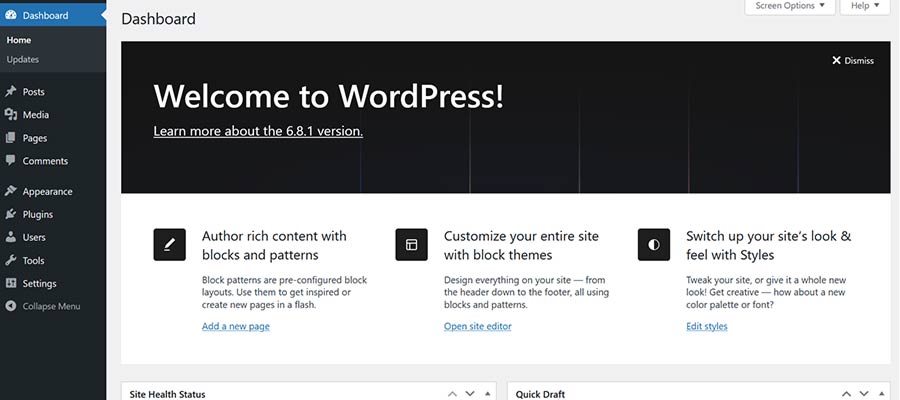
There’s a welcome message at the top of the dashboard and a hefty menu on the sidebar. Both will lead a curious user to explore. However, some may be overwhelmed by the number of options.

Plus, they’ll need to know at least something about these aspects of WordPress:

  • Where to find and install themes and plugins.
  • How to edit their theme via the Site Editor (block themes) or Customizer (classic themes).
  • How to use the Block Editor to create pages and posts.
  • Any site settings they need to change.
  • Best practices for security and performance.

Learning WordPress requires commitment. The default onboarding doesn’t put people on that path.

It’s also a burden on web professionals. Setting up a new site means a lot of repetitive tasks, and we’re also responsible for training clients to use the software. All told, we spend significant time doing things other than site building.

Better onboarding could make all the difference.

Can AI Site Builders Make WordPress Easier? — Speckyboy

How AI Could Improve the User Experience

In broad terms, an AI site builder is an onboarding tool. Its mission is to learn about your website needs and produce something relevant. So far, the results of these tools have been mixed.

Good or bad, the result isn’t a finished product. It’s a foundation to build upon. We can take what’s there and go further, whether via “chatting” with a bot or doing it ourselves. But the story doesn’t have to end there.

The potential lies in catering to various niches. The current generation of builders tends to focus on non-developers, people who want to build a quick and cheap website. They’re a one-size-fits-all proposition.

However, there’s room to make these tools more specialized. For instance, a site builder aimed at professionals may focus on things developers want. That could include pre-configured website blueprints that install a theme, plugins, and other custom tweaks.

Consider the time we spend getting ready to build a website. The right tool could do these tasks for us, saving time and money. A simple text prompt could check several steps off our to-do list.

AI is already splitting into several subgenres. We have models trained for coding, education, and business. Adding tools for freelancers and agencies follows this trend.

Meanwhile, tools for non-developers also have greater potential. They may recommend plugins (or categories of them) based on industry or other user input. Perhaps uploading a logo helps AI create color and typography schemes.

In addition, these tools can go beyond the initial site build. AI might also help users learn to create and manage content. A tool could provide tips and relevant content from the Learn WordPress archives. They could perform routine checks to keep WordPress as secure as possible.

AI site builders aren’t necessarily doing these things today. However, service providers will recognize the opportunity to do more. A little imagination will go a long way.

An AI site builder could benefit WordPress novices and professionals.

An Opportunity to Improve WordPress for All

The term “site builder” may make you cringe. We won’t blame you – these tools have a checkered history of spotty quality and dubious value. Besides, web professionals aren’t their target market.

That could change as more AI-powered products come online. For example, WordPress.com recently released a tool that will reportedly become part of the self-hosted (WordPress.org) version. Such an open-source app could be tailored to all sorts of interesting uses.

The idea of a site-building tool could be turned on its head soon. If done right, it could solve one of the most frustrating aspects of learning WordPress, not to mention a productivity boost for web developers.

Let’s hope AI helps us take the next step toward making WordPress easier for everyone.

Related Topics