
Master the Basics: The Secret to Becoming a Better Video Editor Generally speaking Daniel Batal is one of my “go to” guys for video editing in DaVinci Resolve. However this week he put out something a little different and very much well worth taking the time…
Scoreboards, Instant Replays, and More with YoloBox Extreme

What sets the YoloBox Extreme apart for sports streaming is its built-in scoreboard overlays, customizable team logos, countdown timers, and instant replay features that rival professional broadcasts. From picture-in-picture commentary to smooth scene switching and replay playback, everything is managed through its intuitive touchscreen or optional YoloDeck controller. Whether you’re streaming youth games, high school competitions, or community sports, the YoloBox Extreme gives your productions the same polish and excitement as major league broadcasts.
[embedded content]
Learn more about YoloLiv below:
Read the full transcript:
So, if you’re a local sports fan and you want to like live stream the games, YOLO Live has created one of the best and most simplest solutions to do that and actually look really professional. You have scoreboards, you have instant replays, you have all kinds of scenes that you could do and I’ll explain a little bit how that works. But, get ready for your mind to be blown because it is really cool. Mr. Black. And by the way, if you like gadgets and gear, make sure you hit that subscribe button. Don’t be a stranger to the channel. Also, if you like this kind of content, make sure you also hit that thumbs up button. YouTube will give you more of it and I’ll put links to everything that we’re talking about down in the description. Now, I’ve made a few videos highlighting this magnificent device and I’ll link to those videos covering all the specs and features at the end of this video. But for this one, I wanted to focus more on the live stream sport aspect, especially because I get a lot of people asking me, you know, what’s some good devices they could use to broadcast their local sports team or their kids teams or something like that. This is a lot of fun and it’s insanely professional. And some might say that this would be overkill for your kids games, but maybe you’re looking for something to do. You’re looking for a new hobby and you would fall in love with something like this. So, this is the Yolo Box Extreme, the all-in-one 4K live streaming powerhouse that puts professional quality production right at your fingertips. Whether you’re covering that nailbiting soccer match or a fast-paced basketball game at your local court, this device has got you covered. So, let’s break down what makes this exceptional, especially for live streaming sports. So, you can connect multiple cameras to this thing. DSLR, mirrorless cameras, action cameras, also USB webcams, and I’m actually using the new YOLO Cam right now to film this part right here, and I’ll be making a video about that next, so stay tuned for that. But imagine capturing all the different angles from different cameras and broadcast those games in crystal clear 4K quality. So all the action, every triumphant moment, big or small, will look incredibly sharp and vibrant. And besides live streams, you can also record it directly to this as well. And you can even be recording multiple cameras at the same time. But for streaming purposes, it’s got built-in Wi-Fi, it’s got Ethernet, and even option for 4G LTE connectivity with a SIM card. So you can just pop that SIM card right in there and just stream through that. And you can stream to all of your favorite platforms like YouTube, Facebook Live, Twitch, and much more. And that’s like directly from the field. Like no other encoders needed. You could just stream direct from this box right here. You can add in your scoreboard. You can customize it. Put the names, put what game type it is. You can have a timer on there so people can see how much time is left. You can even add your own custom logos for the teams in colors. You can really go through that and set it up nice and easily. Now, you might be thinking, it’s going to be tough to have to go in and change the score every time. Well, you can actually use the YOLO deck and you can set that thing up and you can even add just plus one buttons to the home team or the OA team and just add those scores in when they do score. You can set it up as plus one, maybe plus two or plus three. Uh that way if it’s a basketball game or something, you can do it that way or just just one and just hit it a bunch of times. If it’s like the pregame or the intermission, you can have countdowns for it. It’s really easy to set up here in different scenes. You can have your picture and pictures. So, if you’re hosting it, you can uh pull up that picture and picture have me in one spot like, “All right, this is what’s happening now. They’re going for it. Yep. Okay, they’re going to kick the ball on the go.” I don’t know how you announce things, but you don’t necessarily need another monitor because you can monitor it all right here with this touchcreen display, which is really easy to see. It’s battery powered. It lasts a very long time. And yeah, you have the yellow deck over here if you want some quick access to some, you know, buttons if you’re just switching the the different sources right there or, you know, starting replays. And that’s right, you can add instant replays. So, you can set that all up in the replay button here. You can add how long you want the video duration, also the replay speed, if you want it to go faster or slower. You can put the audio on there if you want to capture the audio. You can mute any other audio during replay, or you can have that off in case you’re commentating on it. And uh you can also have the replay logo. You can even put in like custom like graphics for going into that replay or out of that replay, you know, just kind of like what you’d see like in professional sports games. But it works. So I have it set up on the YOLO deck. So I can just go start replay. And there you go. You got the replay right there. That’s what we just uh we wanted to see replayed. And then it goes back to the real-time shot, the shot that we had before. You can also set that replay to come back later so you don’t have to do it just like right then and there. So if there was something that happened you wanted to capture, you can save that and then play that back later on. And setting up sources, picture and picture, any graphics, it’s all easily done right through this YOLO box. It’s like got its own operating system and you can go through and again it might seem like overkill, but I think that if you’re using it for even like your bigger football games, the high school, the Yolo Box Extreme isn’t just for the big leagues. It’s perfect tool for any local sports organizations or a passionate individual who wants to share their excitement with that club uh with everyone online, maybe even for people back home that can’t come to the game. This is a lot of fun to learn and to show off those streaming skills. People will be very impressed. And if you are considering this, do check out the link in the description so you can see the most current and up-to-date price. And also check out some of the other Yolo Box videos that I’ve done. Yeah, they will explain a lot more. There’s a lot a lot that you can do with this thing. So do check that out. And thanks so much for watching and I’ll see you next time.
YoloBox Extreme: The Ultimate NDI Streaming Solution for Live Streaming
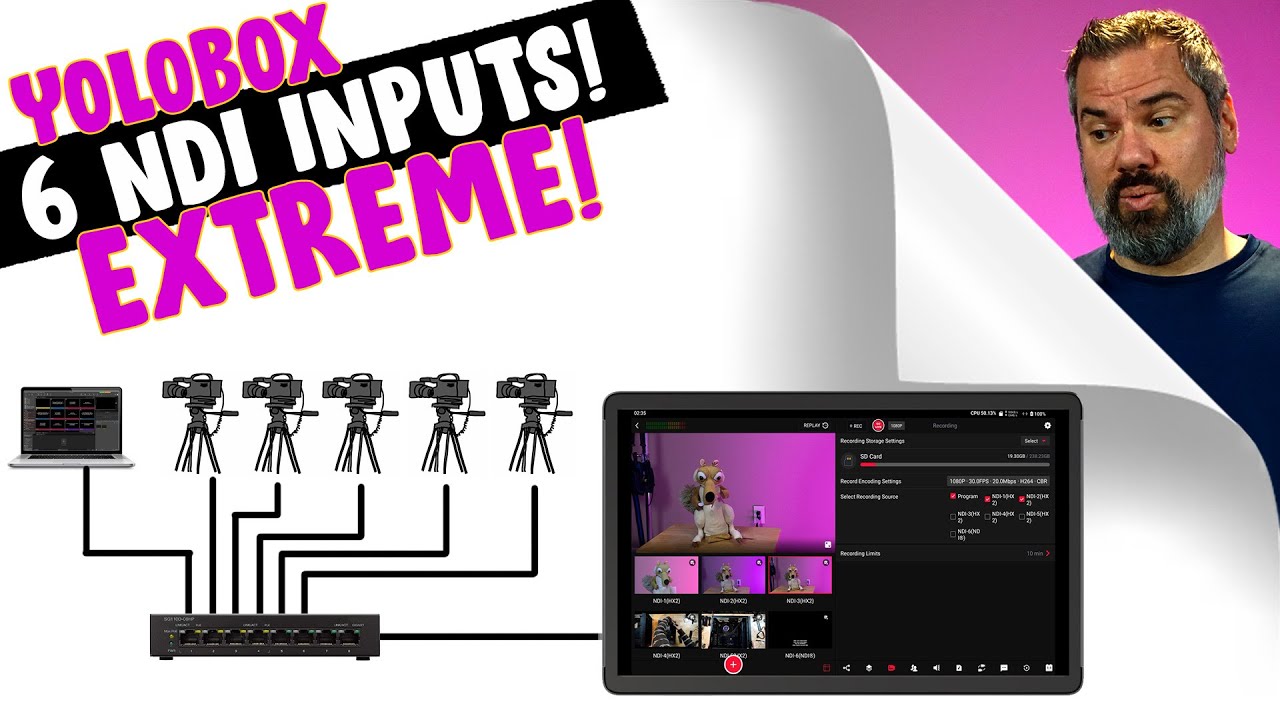
The YoloBox Extreme is a powerful all-in-one live streaming solution that makes fully NDI-based productions practical for churches, creators, and live event producers. Steven Ballast highlights how his team uses the YoloBox Extreme to stream an ASL service with five NDI cameras and a full-bandwidth NDI ProPresenter feed for lyric overlays—delivering reliability on par with top-tier streaming platforms. With advanced features like up to six NDI inputs, ISO recording, HDMI in/out, PTZ camera control, and alpha channel support for transparent overlays, this portable device simplifies complex workflows while maintaining broadcast-quality results. Designed for flexibility, the YoloBox Extreme gives ministries and content creators the tools to expand their productions without the need for extra computers or complicated setups.
Watch the full video from Ballast Media below:
[embedded content]
Learn more about YoloLiv below:
Read the full video transcript below:
So, now I’ve got five NDI cameras coming in and one full bandwidth NDI from Proresenter. Hello, I’m Steven Ballast. I’ve been a longtime fan of the Yolo Box line. I started out showing you on this channel the original Yolo Box and we’ve looked at the Pro and the Ultra, and today we’re looking at the Extreme. Now, we use a Yolo Box every week here at our church to live stream. It’s actually a secondary stream for us. We use it for an ASL or sign language alternate stream of our worship service. To do that, we take the video out from our video switcher and run it into the Yolo Box and overlay a camera of our ASL interpreter and we live stream that direct from the YOLO box to an RTMP destination streaming service. And I have to say, for our primary live stream, we use what many would say is the premier top tier live streaming service for churches. I’m sure you’ve probably heard of them. And for the two or more years that we’ve been streaming with the Yolo Box in parallel, the success or failure rate between these two methods of streaming has been the same. I’ll just leave that there. All that to say, I’ve been really happy with the Yolo Box as a live streaming solution. Each new Yolo Box model from Yolo Live, from the original to the Pro, Ultra, and now the Extreme, has incrementally given us more processing power, more inputs, and more features. One of the things to understand about the Yolo Box as a standalone live streaming tool is that they can do a wide variety of things from different overlays, bringing in different sources, 4K recording, ISO recording, sending out the stream to multiple destinations, just a whole list of things that these boxes can do. But what you need to understand to be successful with the YOLO box is that it’s also limited by the processing power of the box. What that means is yes, you can do all of these things, but it doesn’t always necessarily mean you can do all of them at the same time. Sometimes it’s taken people a little bit of experimentation to figure out if the combinations of features you need to use will all work together at the same time. And that’s where the extreme, as the next increment in the Yolo box line, brings us the most processing power we’ve seen in one of these boxes yet. And that enables more inputs. The Extreme has eight HDMI inputs, four of which can be used with 4K sources that can be ISO recorded while you are streaming. It has two HDMI outputs, which is a first in the Yolo Box line. You could use one to send your program out and the second as a multiv- view, or you could select a few different things that can be routed to that output. For instance, you could just send one of your inputs and pass it through to that output, kind of like an ox out on a regular video switcher. The Ethernet port for your internet connection. The Extreme can also connect through Wi-Fi and it comes with external antennas you can use to boost that signal. There are two USBA ports and a USB C port. This last USBC is for charging and an 8 inch mic input. On the bottom, it has a headphone output for monitoring your audio, an SD card slot, your SIM card slot for connecting through a cell tower and using cellular data for your live stream, a/420 mount, and finally the power button. Another feature of the Extreme that I think a lot of people have kind of missed the implications of, and that is the ability to bring in six NDI input sources. So far, most standalone switchers that I’ve seen might have the ability to bring in one NDI input, and it’s kind of added on as an afterthought to the switcher. So, to really switch a fully NDI based video system, you’d have to use a computer, maybe with OBS or V-Mix. And that’s what I want to focus on in this video. I want to look at using this extreme, this standalone portable device to set up an all NDI based video system. One of the things that makes an all-in-one streaming, recording, video switcher device like this appealing is its portability and simplicity. And how quick and easy of a setup would it be to just have to run one Ethernet cable to each of your cameras using a PoE switch? Beyond that, Yolo Live has also added a new NDI capability to the extreme that previous models haven’t had that make this work even better for churches that want to overlay lyrics. So, I’m excited to show you that in a minute. Let’s take a look at setting this up. I’ve gathered every NDI capable camera I could find. I’ve got the Honey Optics PTZ camera, an Obsot Tail 2, and just to throw another camera in the mix, I’m also using the Tail Air that has NDI out over Wi-Fi. These two cameras are connected to a PoE switch through their Ethernet cable. That’s what I’d recommend doing for reliability and latency instead of using the Wi-Fi. That Ethernet cable provides power to the camera as well as sends out the NDI video signal and it’s also going to let us control the camera. And yes, we can do that right from the extreme as well. I’ve already set up these cameras on the network and to output NDI. That process will be unique to the configuration settings of whatever camera you end up using. I’ve also set up the extreme on my wired Ethernet network as well in its configuration. So let’s first create an event and go into that event. And now to add these cameras to the extreme, tap the add video source button here and select NDI. And it will find the NDI cameras on your network. Select one and tap done. And that’s now coming into the stream as one of our inputs that we can select to go live in our video. I’ll just repeat that for my other cameras. But I want to max this out. I want to have five NDI HX camera sources and then our full bandwidth lyrics overlay NDI source to make six NDI sources coming into the extreme. I’ve set up computers here on my network using NDI tools to output their display over NDIHX as well. So those cameras are going to be my last two camera sources. So let me add those. Now I have five NDI HX camera sources coming into the extreme and I can select which one I want live on my video by tapping them. Now, to set up PTZ control for our cameras, tap the little gear icon in the top right corner of your input and select PTZ control. Now, here you’ll need to know the IP addresses of your camera on your network. You should know that already from when you set up your cameras on your network. And now I can control my camera right here on the Xreme. Before we add in our lower thirds from Proresenter, and that’s one of my favorite new features of the extreme, is that it can now use the alpha channel of an NDI feed. But before we get to that, let me say a couple things about bandwidth and data rates and all of that. NDI video is running over your network, so it has to follow the rules of the road for networking. What I mean by that is the NDI feeds coming into the extreme for my setup that’s using this wired Ethernet connection. All of that data has to fit through that one pipe. Now the extreme supports up to six NDI HX feeds and up to two full bandwidth NDI connections. And this limitation somewhat is probably related to the network bandwidth, but it’s also probably a limitation of the CPU of the extreme as well. Each of those NDI sources has to be decoded by the CPU. I found this setup to be most stable and to get the least amount of latency on my camera feeds when I set each camera to the lowest bandwidth setting that I could tolerate for quality. For my tail two, six megabits per second for the 1080p 30 video was buttery smooth and had decently low latency. Over a network, you’re always going to have some amount of latency to deal with. You know, this is never a setup you’d want to use for iMac. But by keeping the bit rates lower, we can reduce the processing time for both the camera and the extreme and keep the latency as low as possible. When I turned the bit rate up to 8 megabits per second, I started to notice some stuttering or drop frames, but I’m actually pretty sure it was on the tail 2 side because I’m able to get the Honey Optics camera up to 12 megabits per second and it’s still really smooth. All of this to say, depending on what cameras you have, you’ll probably have to do some experimenting with what bit rates get the best results. You’ll probably not be able to just turn it on and have everything work well. Okay, now let’s finally bring in our lyrics from Proresenter to be overlaid over our video. In Proresenter, go to screens, configure screens, and now we are going to add a new audience screen. Select new NDI. I’ll select 1080p 30. And let’s rename this to something more informative. I’ll call it video overlay. And down here in the NDI settings, let’s name this Prop P NDI. Now, here’s the important part. On the alpha key tab, we’re going to select premultiplied. Then under screens, edit looks, we’re going to choose a theme for our video overlay output that has our lyrics formatted to be at the bottom. And the theme doesn’t have any background, so it’s transparent. This is the really cool part. Because the extreme now recognizes the alpha channel that’s embedded in the NDI video, we won’t have to use a chroma or green screen key anymore. The transparency from Proresenter will be used in the extreme. So, back on the extreme, add a new video source and select NDI. And we should find our proresenter source. And now we have our lyrics coming in as a full screen input. If we tap that, it could be used just like any other input. But now let’s go to the overlay settings page and tap add overlay. And then on the video source tab, select our prop input. Scale it all the way up and tap done. Now we can turn this overlay on by selecting it in the overlays page and it gets overlaid over our video. And as we change cameras, it stays overlaid and it’s going to be updating as our lyrics operator advances our lyrics. So now I’ve got five NDI cameras coming in and one full bandwidth NDI from Proresenter. I just find this setup really cool because I don’t know of any other standalone portable device that can switch that many NDI sources, which really makes a fully NDI video production practical. Next, if you’re new to the Yolo Box and haven’t seen any of the previous models, let me give you a quick overview of how the Yolo box works and also a couple specific workflow things that I would do if I were setting this up for a live production. The way the Yolo Box interface is laid out, obviously this large display here is what’s live on your video with your camera input thumbnails below that. And tapping on these takes them live in your video. You can change the size of the thumbnails by tapping this little icon here. The right side of the screen are all your settings and where you operate some additional features. You select which menu you are in with these icons at the bottom. And you can change the order of these tabs by scrolling to the end here and tapping these three dots. Now you can just drag these to rearrange them. So if your icons are in a different order than mine, that’s why. This first menu is our destinations for live streaming. Just tap to add a destination and select where you want to go. And you’ll be asked to log in to your account. It also shows your encoder settings here at the top. You can tap it to modify it, but realize when you do that, you’re actually just being taken to a different tab on the bottom here. So, you could access it that way as well. Here you can set the encoder setting for your live stream, which also will be used for an NDI output or SRT output if you have that turned on. And this second set of encoder settings are for your recording. I love that we can record a different bit rate than what we are streaming because we’re always going to want a higher quality recording for later editing compared to what we send out for our stream. Then we have the overlays tab. We’ve already seen the video overlay that we added from Proresenter, but you can also add lower thirds with names or different titles, timers. The YoloCast overlays is a free online tool that you can use from Yolo Live where if you set up a free a Yolo Live account, you can make overlays in their browserbased tool and add them to your video here. Next is the recording tab. Here you can select where you want to record to. There is internal storage on the Xreme itself. You can insert an SD card for recording and you can also connect an external USB hard drive and record to that. Again, it shows you the recording encoder settings that came from the other page. And here we can select what to record. Obviously, the program output is the default, but you can also record an ISO recording of each of your inputs and then record limits. This will chunk your recordings into multiple files. So, in this case, every 10 minutes, the recording will start a new file. This is just a safety mechanism. So, if for some reason something happens and the current recording has a problem, you won’t lose hours worth of recording. You can bring in guests if you’re doing a podcast, maybe. I’ll be honest, I’ve never had a need to use this feature. The audio mixer. This lets us turn on and off audio from our input sources. You can select if the sourc’s audio is just always on or uses AFV or audio follows video. That means that the audio from a camera will switch on when that camera is live but then turns off when you go to a different camera. And finally, there’s a headphone and master volume slider for your program. And if you connect an external USB audio device, which is what I would recommend as the best way to get audio in from, say, an audio mixer, that will show up here in the audio page as well. The music tab, a new feature here on the Extreme is you can load in audio files from the SD card or a USB device that can be played from this interface. This is great for pre-show music. Auto switching. This lets you automatically switch between your inputs at a determined interval. Comments lets you see any comments that are coming in on your live stream from your social accounts. Then instant replay and the scoreboard. These are obviously useful if you are live streaming sports. Network bonding is a paid feature from Yolo Live that lets you use the shared bandwidth from multiple network connections. So, your Ethernet, your Wi-Fi, you could connect a USB dongle access point or the internal SIM card through a cell tower. And this will give you more reliable bandwidth for your stream. Especially if you’re streaming out somewhere where you don’t have one solid connection, you can divide your bandwidth up amongst multiple connections. And then transitions. The default is to cut between your inputs, but you could also set that to something else and then it will use a different transition when you switch. In the settings, this gear icon in the top right, there are a lot of different things that we can configure. This is where you would change your HDMI output settings. So, if you want HDMI 1 to be something different than program, and in this case, I have HDMI 2 set to be this entire interface that you’re seeing. Another nice new feature of the Extreme. This is a simple thing, but I really appreciate it. If you swipe down from the top, it gives you a little readout of some useful information. How much CPU you’re using, battery life remaining. You can control your headphone output volume, adjust the screen brightness, and then also down here you can see some information about your stream when you’re streaming. This is really useful because one of my I’ll say hesitations about using standalone encoders for live streaming versus a computer is that when you have an issue with your live stream, and I’ve been streaming long enough to know that it’s not if you have a problem with your live stream, but when you have a problem with your live stream, usually it’s a lot harder to troubleshoot what’s going on with a standalone encoder. So, having this information can quickly tell us the health of our stream. Once I have things set up and recording and streaming, I kind of prefer to operate the actual show in this view here where my inputs are on the side and I get a bigger view of what camera is live. It kind of depends on how many camera inputs you have, I guess, but you can still access the menus in a pop out from the side when you tap on them. You can also just tap and drag an input to change where it’s located. And if you tap the little settings icon in the top right, you can also rename your camera. I’ve been really impressed with all that’s packed into the Xreme. It’s also got a big screen that’s nice and bright and easy to see all your cameras on. Yet, this thing is still very portable. It could easily fit in, say, the pocket of a laptop bag. I’ve really enjoyed checking out The Extreme and I think you will too. Until next time. Bye.
Unlocking the Power of 4K with YoloBox Extreme

In the world of video production, achieving high-quality visuals is paramount, and the YoloBox Extreme has revolutionized my 4K multicam recording workflow. This all-in-one live streaming device not only simplifies the setup but also ensures real 4K output, making it ideal for explainer videos, reviews, and tutorials. With its user-friendly interface, I can seamlessly switch between multiple cameras while maintaining top-notch recording quality. If you’re looking to elevate your video production game, the YoloBox Extreme is a must-have tool. Check it out here:
[embedded content]
Learn more about YoloLiv below:
Read the full transcript below:
If you’ve spent time in the world of multi-input video switchers, you might know that there is a feature that is by far the most requested feature across all of these, and that is for them to be 4K capable. 4K capable. Now, I’ve said in other videos that if I had the option for a 4K switcher, I would definitely take that option, but there are just technical and practical limitations as to why it’s not super common, at least yet. 4K video is not just a little bit more complex than 1080. It’s like exponentially more complex when it comes to the amount of data being transferred, bandwidth, processing capabilities, graphics capabilities. It basically means that these things have to have a lot more power inside of them, have to be a lot more reliable so they don’t overheat and and crazy stuff doesn’t happen, and also then still relatively affordable. And so if you look at the world of switchers and you try to find 4K switchers, what you see a lot of right now are companies that make switchers that take 4K inputs, but then it still downscales it to a 1080 workflow. But sometimes they’ll call those a 4K switcher even though you’re not actually getting a 4K signal from it. So that’s that’s kind of a whole thing. If you find actual 4K switchers, you find that they’re usually pretty expensive. I have found about $5,000 to be the point where you’re getting an actual reliable multi-input 4K switcher. But the thing with those is that they tend to just be switchers. Maybe some picturein picture, maybe some basic like keying or something like that. The key to this workflow though is the Yolo Box Extreme because it makes it extremely easy to mix multiple 4K inputs. So everything you’re seeing not only in this video but in a lot of my recent videos has been recorded directly into the Yolo Box Extreme from my camera’s 4K signal into here being recorded in 4K and then edited and stuff. So I kind of want to cover that workflow. I don’t want to go through every feature of the Yolbox Extreme because uh there are a lot of them. So, I do have a separate review on the Yolo Box Ultra, which is a 4input 1080 switcher, but the the graphics capabilities, you know, the overlays, the auto switching, all the kind of cool stuff that these can do, which are very, very powerful. They’re not just switchers. They full-on production suites. Everything this can do, the Yolo Box Extreme can also do and more. So, I’ll kind of point you to this review if you want to know more about what a Yolo box can do. For now, I want to focus on the 4K workflow. The Yolbox Extreme, I guess I should have probably explained this earlier, is an eight input switcher. So, instead of four, you have eight inputs and five of those are 4K capable. And the price of this, the MSRP, is $2,000. So, it is significantly more expensive than like a $300 ATM mini Mini. But the ATM Extreme, which has eight inputs, is like 1,200 bucks, maybe even a little more than that, around that. So, for $800 more, you’re getting not only the 4K capabilities, five 4K input capabilities, but also then the built-in display and the graphics and everything else the Yolo Box can do, which is pretty intense. You don’t need a computer or anything else. If you don’t want to use one, you can just stream and record everything directly here. And when I am recording, I do a few different options. I’m recording to an external SSD right now just because that’s kind of the easiest way for me to just unplug that and then plug it in my computer and edit. So, that’s the fastest workflow. can also record to an internal SD card. I I just don’t have an extra high-speed card, so I’m not doing that. Or you can record internally to the 200 GB of built-in internal storage. And before going too much further into this, I do want to let you know that Yolo Box did send this with no obligation. They actually sent it to my wife Heather and for her to check out, but she has worked to kind of lock her setup in and she doesn’t do a ton of multicam stuff. So that was about five or six months ago. And then I kind of commandeered orandered the extreme because it fit in extremely well to my workflow. But neither of us are under any obligation to say anything, make a video, do anything. They basically just sent it for feedback and uh then it found a place in my workflow, which I am really excited about. And so for me, the reason that this is kind of a game changer is that about half the videos I make are like this. They’re like explainer style videos where I’m sitting here and I’m explaining something or showing something and I kind of usually have one or two cameras to talk into and then another one or two cameras to sort of show the, you know, the thing. And typically what I’ll end up doing for those videos is then recording internally on all my cameras, then take that footage, put it into Final Cut Pro, sync it all up and edit from there. That takes a lot of time. And my raw footage for videos, a typical video is usually something like I would say 40 to 60 plus minutes. And so that means each camera is outputting, you know, 40ish gigabytes at least of footage. And it’s just working with all it’s just kind of a hassle, especially for what ends up being a relatively simple video cuz it’s it’s just an explainer video. do other videos where it makes more sense to, you know, move the cameras, record internally, do different frame rates like 4K120, get all kinds of B-roll shots, and, you know, those those are a lot more production intensive. And it still to me makes sense to record internally for those cuz it’s actually kind of easier that way. But for a lot of the stuff I do, being able to just have all of my cameras go into a switcher like this, and then when I’m done, I just have one one file that has everything in it, and I can just chop it up and edit it. it. I cannot tell you like how much time it saves in this workflow. And so my main camera, like always, is the Sony FX3. That’s this camera here with a 24mm f1.4 lens. All the cameras are set to 4K 24. I like 24 frames per second. I’ve been playing around at 30 a little bit lately, which is fun. And then the Yolo box lets you choose different 30, 50, 60. You can do all kinds of different stuff. The second camera I’m using is my Sony A7S3. You can see kind of right here past the FX3. And that’s this camera with a 50mm lens. And this is also the camera that’s running my audio. So, the Yolo Box does let you connect 3.5 mm audio or USB audio. So, I could even connect like a full-on Roadcaster into this, but I can also bring in audio from any of my HDMI sources. I have the DJI Mic Mini right here. And then I have the Sony Hot Shoe on the camera. I guess you can’t see it on there, but on top of the camera is the Sony Hot Shoe. So, that way I can run this mic without needing any cables and it adjusts the gain levels automatically. And then I can bring in the HDMI audio source into the YOLO box. And the reason I’m doing that instead of my normal boom mic, which is the Sennheiser MKH50, is because I do have different cameras. So I’m going to be turning offaxis from the mic. And that sounds a little strange sometimes with the boom mic. Whereas when the mic’s connected to me, then it sounds the same no matter what direction I’m facing. And I did want to actually mix and match different cameras just to kind of show the different 4K capabilities. So, the next camera I’m using is the Yolo Cam S7, which is basically a micro four thirds webcam. So, it can output USB or HDMI. There are no physical controls on this camera, so everything has to be adjusted either with the Yolo box or with a desktop application to adjust things like color and all that, but this is this is a pretty sweet camera. It kind of deserves its own separate video. And I have a 25mm lens on there. So, this is a legit mirrorless webcam, interchangeable lens webcam, which is pretty cool. And then I do have an overhead camera, which is my Sony ZV1F. That’s just a really nice compact, lightweight camera that just works great for overhead stuff. And that’s to get this shot here, which is the top down shot of the Yolo Box Extreme. So you can see all of my inputs. These are my five 4K inputs. And then I have one other thing happening here, which is actually the Yolo Box’s HDMI output going in to one of the 1080 inputs. And that’s so I can actually show you what I’m seeing on the Yolo Box. So, when we go into the recording options, I can kind of show you exactly what I’m doing here. Like I mentioned, you can do USB, internal memory, or SD. And then you can also adjust your frame rate. So, I have 4K 24 set. And then you can also choose your sources. Right now, I’m just doing program because that’s the simplest workflow for me. But if you wanted to do isolated recording, I could record all the different inputs as well. I like the program because I’m just kind of relying on it right now. I’m not even recording internally on my cameras or anything as a backup. So, I’m putting a lot of faith into the YOLO box right now. But the reason I like this is because then it just gives me that one file and that’s what I chop up and edit. So, for the kind of workflow I’m doing right now, that’s what helps it be really, really fast. But if you do need to record isolated tracks or you want backups or whatever, you can do that as well. And you can also set a recording limit. So, right now I have it set to 30 minutes. That’s not how long it will record, but it’s how long it will break the files into. So for 30 minutes, that means it’s going to every 30 minutes create a new file. And that’s just kind of a way to protect yourself in case something goes wrong. If you have it set to never do that or to do it, you know, in a long period of time and then something goes wrong at the very end and the file becomes corrupted, you kind of lose everything. Versus if you’re breaking it down into smaller chunks, then you can just sort of put those chunks there. And so I have 30 minutes, which works pretty well. You can set it continuously if this is not something you want to deal with. I have noticed when I put those clips in the timeline, there is like one or two frames of black at the start of each clip. So, I just have to kind of trim out those one or two frames and then everything flows smoothly and the audio stays in sync and everything looks great. And then again, for my audio, you can kind of see here every source has audio options, but I only have HDMI 5 on, which is my A7S3. You can even see HDMI 4, that’s the FX3, has a decent signal as well because that’s a Sennheiser mic, but I’m not using that. So, I only have the audio turned on on the input that I want. And then when you start recording, there’s a little record thing up here kind of above the program option. Trying to point to it. It’s right here. You can sort of see there. And that is what I press to start recording and stop recording. I’m being very careful not to touch it. You can also see if you look over here with all of these inputs and all this audio, I’m using 49% of the CPU’s power. So, now down to 45%. So, I’m only using about half of the CPU’s power here. And that goes into the next part of the workflow, which is something it’s kind of the one bit of friction that I still have, and that is matching color. So, on my FX3 and on my A7S3, these match very well. They’re the exact same image sensor, different camera bodies, but it’s super easy to match these cameras. I forgot to mention, the other camera I was using is the Obsessbot Tail 2, and that’s how I was like doing the PTZ controls to show all the other cameras. I’m using the remote here, but you can control the OBSOT directly with the Yolo Box as well. I have a separate video on exactly how to do that. It is really cool. Sort of talked about the Tail 2. I really like this camera a lot, but the colors are a little tough to match with my Sony currently because the Obsot software doesn’t give me a tint option. This looks a little more magenta to me than this does. So, if I could take this and nudge it over to the green, I think it would then match a lot better. And then the Yolo Cam S7 I also think is a little more magenta. If I could push that to green, it would match the Sony’s a little bit more. I think I’m not sure what kind of sensor this has inside, but I don’t believe it’s a I think it might be even a Lumix or Panasonic sensor. It’s not a Sony sensor. The overhead camera, since this is a Sony sensor, it does match. If you kind of look at the skin tone, it matches a little bit better. But this is a different camera and a different sensor. So, the thing that I cannot do is go in here and adjust colors independently on the inputs. And honestly, like that’s just not a thing most video widgeters can do. But with all of the power, with all the capabilities in the Yolo Box Extreme, that would be something awesome if it’s something that could be added in a future update. At least the ability to adjust tint and sort of like some basic brightness and, you know, saturation controls because if I can make all of these match, you know, near perfectly, then that would just streamline the editing process. I would still want to put on a preset to just, you know, bump up the colors and the saturation like stylistically for what I like, but in terms of like correctness, that would make things that would make things pretty easy. Right now, that’s not something that’s possible, but I can do some like different things here. So, for example, on the overhead camera, I can bring up a menu to crop and rotate it. So, by default, this is actually a very wide shot and it’s flipped the other direction. So, I was able to crop in and then rotate it. So that way the overhead shot kind of looks like a nice typical overhead shot. And when it comes to that color issue, fortunately the type of stuff that I do with this workflow and the type of videos I make here, total perfect color matching accuracy is really not that important. It’s more important to be able to see the stuff and to show it than to have it be exactly right. Although it is really nice when it’s exactly right. So sometimes I just kind of leave it and they just don’t match. Other times what I will do is when I put the clip into Final Cut, I will go through and then do a rough cut and I will then kind of have my different shots. So, for example, when I’m using the tail 2 and I know that this doesn’t match perfectly as is, I can then add a preset to it that I made and then it will match a little bit better. And then so anytime that I see the tail 2 pop up in the timeline, I just drag that preset to it and then it it works. So that’s kind of my workaround. It’s not ideal, but it is still way, way faster than recording internally on all these different cameras and having to process all that footage and deal with, you know, project files that become 8 or 900 gigabytes by the time they’re done. It’s It’s still a lot easier, but being able to adjust color for each individual input on here is something that would be incredibly helpful if that’s possible. Not sure if it is, but I’m just sort of putting my request out there if it is. And as I’m recording here, I’m not trying to be perfect and do this all in one take, even though I am recording to the YOLO box. What I’m trying to do is sort of keep the edit in mind, but if I like, you know, flub up my line, I can just restart knowing that I cut that out. The thing that I really like doing with multiple cameras, especially for explainer videos, is avoiding jump cuts as much as possible. It’s just a personal preference. So that means I might deliver a line here and explain something on this camera, and then when it’s time to talk about the next thing, I can switch over to this camera. Or if I make a mistake, I’m talking on this camera and then I and stumble over my words halfway through instead of restarting here where it could potentially result in a jump cut. I can switch over to this camera and finish the line here. Now, sometimes I do still crop in during editing still to emphasize a point or if I kind of made a mistake and there would be a jump cut. Cropping in lets me avoid the jump cut. But having different cameras helps me avoid the jump cut. And even when I’m just sitting here talking, it lets things be more dynamic and more interesting because there’s different camera angles, different shots that I can incorporate without having to do full-on, you know, day or two of B-roll production and stuff like that. And so my workflow when I’m finished recording is to basically just import the footage into Final Cut. I usually then do detach the audio and adjust that if I want to, you know, process it or sweeten it up a little bit. And then I go through and I just kind of rough cut the clip together. And then I polish it up and fine-tune it. And if I need to add B-roll, then I’ll do that as well. But that’s usually not something that I try to do much of with this workflow because the whole point of this workflow is speed and efficient efficiency and very little friction. So like right now I added in the clips of me editing in Final Cut Pro. That was like B-roll that I wanted to add in. But in other videos I will, you know, I will spend a whole day filming product B-roll and getting all these different shots and all this really detailed stuff. This workflow is when I’m making videos that don’t require that and I just want things to be smooth and streamlined as possible to keep me as sane as possible. And overall, I’ve been really happy with the recording quality of the Yolo Box. And I’ve been using it on quite a few videos and nobody has said anything. So, that tells me that it’s obviously looking pretty much the same as my regular cameras. I do think Let’s go over here to the FX3. This is the Yolo Box recording. That’s everything you’ve seen so far in this video. And now this is the FX3’s internal recording. I did start recording on the camera so we could do a comparison here. So this is the FX3’s internal recording and this is the YOLO boxes recording. So the difference maybe I could even do like maybe I could get fancy and do a side by side where one half of the screen is internal recording and the other half of the screen is the yellow boxes recording. I do think that if you want to get into pixel peeping and you’re somebody who wants the absolute maximum image quality possible, no matter how incremental those improvements are, the internal recording on the cameras is still better than the Yolo Box. And that kind of makes sense. Like they are cameras. They should record internally really well. But the Yoo Box’s internal recording, which is what we switched back to over here, is pretty darn hard, if not impossible to tell the difference, unless you are that, you know, magnifying glass pixel peeper person. I don’t know, it’s like 98% there. And again, for me, the benefit of the way improved workflow outweighs, you know, incremental improvements in image quality I might get by return recording internally. And even that, I’m not 100% sure like what the difference is. The Yolo Box’s internal recording is really, really good and impressive. And you can also then output 4K as well if you wanted to use USB to run this into a computer for a live stream or to even then record into a computer for whatever reason as a backup or something. So again, there’s so much more that the Yolo Box Extreme can do and the Yolo Box Ultra as well. If you just need the four input 1080 workflow, these are full-on production suites. They’re very, very impressive. But for now, I wanted to focus specifically on the 4K workflow because that has been the most requested feature of switchers for several years now. It is something that has been incredibly helpful for me. And the Yolbox Extreme, even with its higher price than most switchers at $2,000, is still the most practical and in a lot of ways really the only option if you want multi-input 4K and you get five inputs, which is pretty sweet. If you do want to know more about what the Yolo Box can do, check out my Yolo Box Ultra review, which is ultra cool. It’s extremely ultra
The Friday Roundup – Editing Trailers and Android Editing Tips
Why You Need to Cut Audio Before Picture – Trailer Editing Tutorial Movie trailers are by definition just short form content so it makes sense to look at them as if they are just he #shorts, Reels, Stories or whatever of the professional movie world. In…
Stream Seamlessly with Epiphan Pearl 🌟

The ultimate system for maximum versatility with multi-encoding, multi-streaming, recording, custom layouts, switching, and more – all in the box. Give Videoguys a call at 800-323-2325 for free tech advice on which Epiphan solution is right for you.
|
Flagship model with up to 6 encoded channels. 6+ inputs 4K |
Intuitive touchscreen operation with up to 3 encoded channels. 3 inputs HD |
|
Up to 3 encoded channels in a 1RU form factor. 3 inputs HD |
Portable 4K single-channel encoder. 2 inputs 4K |

|

|

|
The most flexible recording and streaming appliance for automating video in any space
|
Crestron Integrate your Pearl into any Crestron space using the Crestron-developed Control Module |
Q-SYS Bring streaming and recording to any Q-SYS space with the secure Q-SYS plugin for Pearl |
Extron Pearl Mini is the most capable streaming and recording system that integrates with Extron |
|
Panopto Sync all of your recordings to your Panopto folders automatically |
YuJa Streamline your YuJa video workflows with Pearl hardware |
OpenCast Design the ideal OpenCast lecture capture system |
|
Kaltura Bring ease of use and wider adoption of your Kaltura CMS with automated video capture |
Videoguys is your source for all of Epiphan Pearl Systems. | Give us a call at 800-323-2325 for help finding the right Pearl system for your workflow |
Unlock Savings on Glyph Atom Media Storage! 💰

With these NEW LOW PRICES and Glyph’s commitment to content creators, this makes the Glyph Atom SSD Drives the perfect storage solutions with 4TB at $399-499.95 and 8TB at $899-$999.95!! Contact Videoguys at 800-323-2325 for free tech advice!
|
Glyph Atom EV NVM SSD The Glyph Atom EV Portable NVMe SSD delivers rugged, pocket-sized storage with up to 8TB capacity and blazing fast 1,050 MB/s read/write speeds. Featuring a durable design and a 10Gb USB 3.2 Gen2 Type-C port, it’s also compatible with USB 3.1, 3.0, and Thunderbolt 3, with all necessary cables included. |
Glyph Atom Pro NVMe SSD V2 The Glyph Atom PRO NVMe SSD V2, powered by Thunderbolt 3, is the fastest external SSD yet—delivering up to 3,000 MB/s sustained transfer speeds and 40Gb/s bandwidth. Designed for multi-stream 8K, RAW, and VR workflows, it handles even the most demanding tasks with complete ease. |
Blackbox Plus U.2 Enterprise Class NVMe SSD
|
Glyph’s new U.2 SSD is the ultimate shuttle and video editor drive, featuring a whopping 1,000 MB/s sustained speed. For those that do not know what a U.2 SSD is, or why this drive features a funky capacity measurement, let me get you up to speed. A U.2 SSD is the workhorse of the data center. It resides at the internal edge of the internet, hosting all of the world’s hot, active data. It’s why your photos on Instagram are readily available at all hours of the day. |
 |
For the drive to have the ability to work 24/7, reading and writing data at a high sustained speed as the billions online surf, you need the highest endurance drive on the market—one that requires more power than traditional consumer SSDs.
This is why Glyph has taken an enterprise data center solution and brought it to a handheld external product. Traditionally, to achieve this level of capacity at this high of a performance tier, you would need to implement costly software RAID or much more expensive solutions that don’t feature this level of reliability. This cost-to-performance-to-capacity equation is why we are seeing more and more professionals pick up this unique product offering.
The Friday Roundup – Clipchamp and Product Videos
Microsoft Clipchamp Tutorial for Beginners – A Complete Guide I very often get people asking me to recommend a video editing program that would be suitable for those with very basic requirements. I have to admit I keep forgetting about Clipchamp! If you are very new…
Atomos Ninja TX is the Most Advanced Ninja Monitor-Recorder

Introducing Ninja TX, the all-new addition to the Ninja family. It’s equipped with 12G-SDI and HDMI, so now you can monitor & record from any pro camera to ultra-fast CFexpress media or external USB-C storage. You also get built in Wi-Fi for C2C workflows and AirGluTM timecode for multicam projects, all in a lightweight, compact 5-inch form factor. Call Videoguys at 800-323-2325 to learn more about the Atomos Ninja TX
|
Ninja TX Ninja TX packs SDI/HDMI I/O, ProRes/RAW recording to CFexpress or USB, pro monitoring tools, camera-to-cloud with free ATOMOSphere, NDI 6 streaming, and lightning-fast AtomOS Linux—all in one compact, connected device. $999.00 |
|
 |
Key Features
|
|
50% brighter 1500 nit screen Ninja TX’s 1500 nit screen is now 50% brighter, and is packed with pro monitoring features like EL Zone™ false color, focus peaking, waveform, RGB parade, vectorscope and more! All Ninja models feature the Atomos OS combined with the 5-inch touchscreen interface to give you far more control of your shot, and displaying more detail than your camera’s built-in display. |
 |
 |
Record to CFexpress and more!
Atomos invented the concept of a monitor that also records to high capacity, inexpensive removable media. Ninja and Ninja Ultra use removable SSD Drives*, and now with Ninja TX you can choose to record on either CFexpress* or an external hard drive* with high-speed USB-C connection. Now you have even more recording media options! *Storage media purchased separately. Minimum performance / certification requirements apply |
|
Integrated wireless features |
 |

Pro Productions |
Multicam Shoots |
Content Creators |


Explore the Storage Solutions for the Atomos Ninja TX
|
Designed to deliver speeds necessary for working with smooth, raw 4K video captures, the 512GB Extreme PRO CFexpress Card Type B from SanDisk provides read speeds of up to 1700 MB/s and write speeds of up to 1400 MB/s |
The Atom Pro NVMe SSD has read speeds up to 2,800 MB/s and write speeds reaching 2,450MB/s making it Glyph’s fastest SSD ever. The Atom Pro is built from the ground up to tackle all video multi-stream 4K, 8K, and VR workflows. |
PTZOptics Affordable Workflows for HD and 4K

PTZOptics’ Studio Series offers sharp 1080p or crystal-clear 4K resolution with 12X or 20X zoom, making it ideal as a standalone camera or part of a larger setup. With SDI, HDMI, USB, and IP outputs plus native NDI® HX3, it integrates seamlessly into any workflow—whether connecting to a switcher, streaming over a network, or recording via SDI. Built-in Hive-Linked connectivity provides automatic access to Hive Studio, giving simple, future-ready control. Contact Videoguys at 800-323-2325 for free tech advice on which camera is right for you!
|
PTZOptics Studio SE |
PTZOptics Studio 4K
The Studio 4K takes your productions to the next level with stunning 4K resolution, offering powerful zoom options, exceptional image clarity, and future-ready performance. starting at $1,199.00 |


The PTZOptics Move SE and Move 4K both offer smooth PTZ control, 12X, 20X, and 30X zoom options, SONY CMOS sensors for strong low-light performance, and multiple outputs including SDI, HDMI, USB, IP, and native NDI® HX3. With PoE, built-in Hive-Linked connectivity, and easy firmware updates, both cameras deliver flexible, future-ready solutions for any production. Contact Videoguys at 800-323-2325 for free tech advice!
|
PTZOptics Move SE |
PTZOptics Move 4K |


Dive into the PTZOptics Producer bundles, the easy to setup systems, tailored for every production aspiration. Each bundle is 100% PoE-ready for easy setup and breakdown or permanent installation. Share your vision with a trio of 20X PTZ cameras, and control it all with a joystick controller. Contact Videoguys at 800-323-2325 for free tech advice!
|
PTZOptics Producer SE Bundle |
PTZOptics Producer 4K Bundle |

